Python automation means writing small scripts that do a repetitive digital task for you instead of doing it by hand. These beginner Python automation projects take an afternoon each, run on Windows, macOS, or Linux, and give you something real at the end: sorted files, a cleaned spreadsheet, a backup with a checksum, a report in your inbox.
Everything below uses the current stable Python 3 release, and most projects need nothing beyond the standard library. Where a third-party package helps, it is one pip install away. I have built and reworked these in the order given, so you can climb from file handling to scheduling without jumping around.
If you are still working through a first Python course, treat this as the list you build after it. The forum chatter about “tutorial hell” is real: finishing exercises and then staring at a blank editor is the usual sticking point. A project you finish, even a boring one, teaches more than another exercise set.
Table of Contents
- Python Automation Projects for Beginners at a Glance
- 1. Organize Files Into Folders by Type
- 2. Rename a Batch of Files Consistently
- 3. Clean and Standardize a CSV Spreadsheet
- 4. Automate a Small Data Report
- 5. Check a Web Page and Log Changes
- 6. Fetch Public API Data on a Schedule
- 7. Automate a Simple Email Report
- 8. Back Up Important Files and Verify Copies
- 9. Watch a Log File for Repeated Errors
- 10. Build a Personal Command-Line Assistant
- Frequently Asked Questions
- Which Python automation project should a complete beginner build first?
- Do I need advanced Python skills before starting these projects?
- Which Python libraries are safe and useful for beginner automation?
- Can these Python projects run on Windows, macOS, and Linux?
- How do I run a Python automation script automatically every day?
- Where to Start
Python Automation Projects for Beginners at a Glance
Here is the whole list in one table. Difficulty is based on what you need to know beyond basic Python, and runtime is the honest time to first working version, not including the time you spend tweaking it later.
| # | Project | Difficulty | Core skill | Typical time to first run | What you end up with |
|---|---|---|---|---|---|
| 1 | Organize files by type | Beginner | Path handling with pathlib | 45-60 minutes | Four sorted subfolders |
| 2 | Batch rename | Beginner | String formatting, safe previews | 60-90 minutes | Consistent filenames plus a mapping log |
| 3 | Clean a CSV file | Beginner | csv module, data cleaning | 1.5-2 hours | A cleaned copy and a row of problem flags |
| 4 | Small data report | Beginner | Aggregation, writing output | 1.5-2 hours | A readable text or Markdown summary |
| 5 | Web page change check | Beginner+ | HTTP with requests, diffing text | 2-3 hours | A timestamped change log |
| 6 | Scheduled API fetch | Intermediate | JSON, scheduling | 2-3 hours | Fresh local data every day |
| 7 | Email report | Intermediate | smtplib or a provider API, secrets | 2-3 hours | A report in your inbox on a timer |
| 8 | Verified backups | Intermediate | shutil, checksums, retention | 2 hours | Restorable copies you can trust |
| 9 | Log error watcher | Intermediate | File position tracking, regex | 2-3 hours | Alerts when errors repeat |
| 10 | Command-line assistant | Intermediate | argparse, safe design | 3-4 hours | Your own tool with subcommands |
Two housekeeping notes before you start. First, examples target the current stable Python 3 on Windows, macOS, and Linux unless a project says otherwise. Second, every project that touches your files should start in a throwaway test folder, and that habit is not optional.
1. Organize Files Into Folders by Type
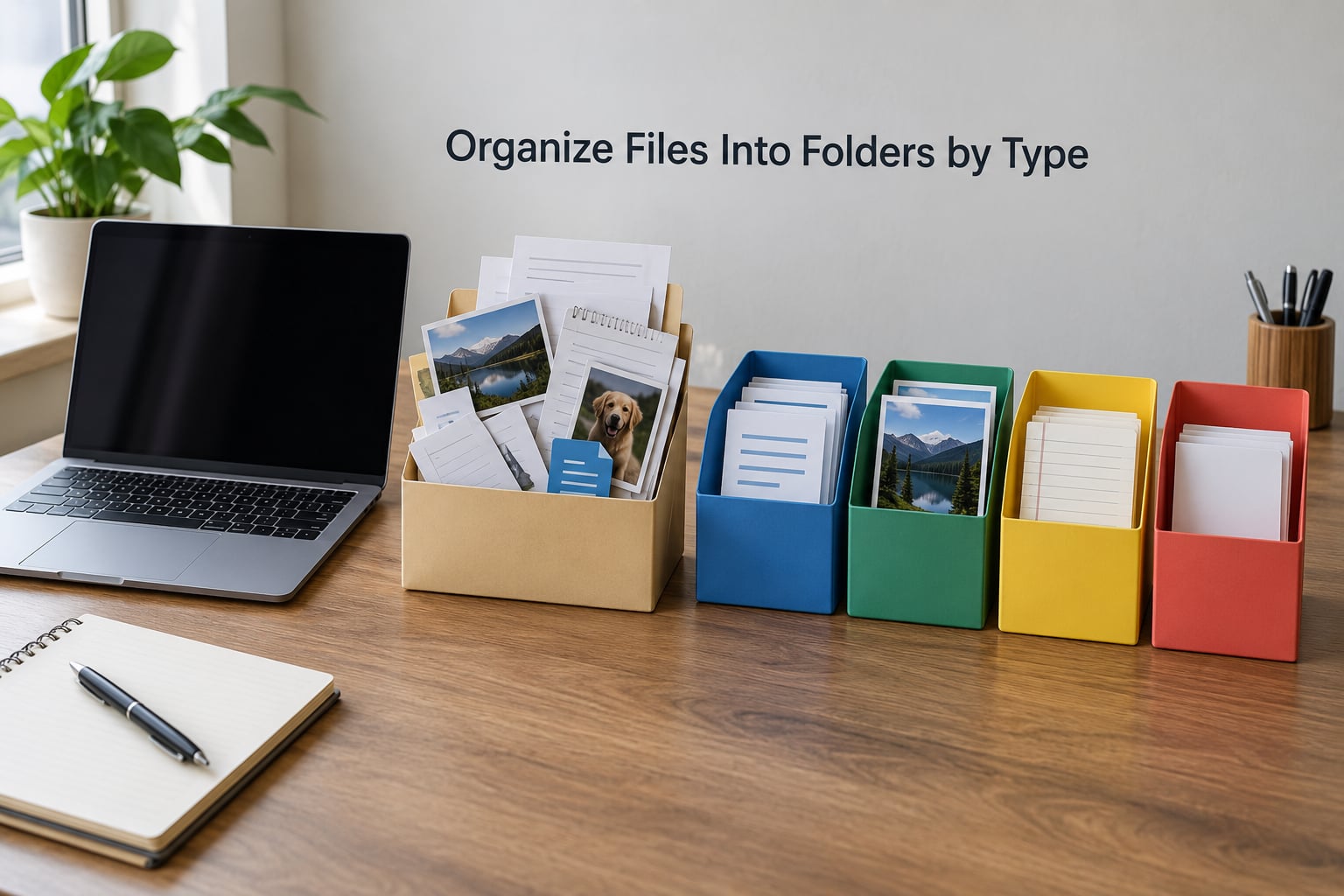
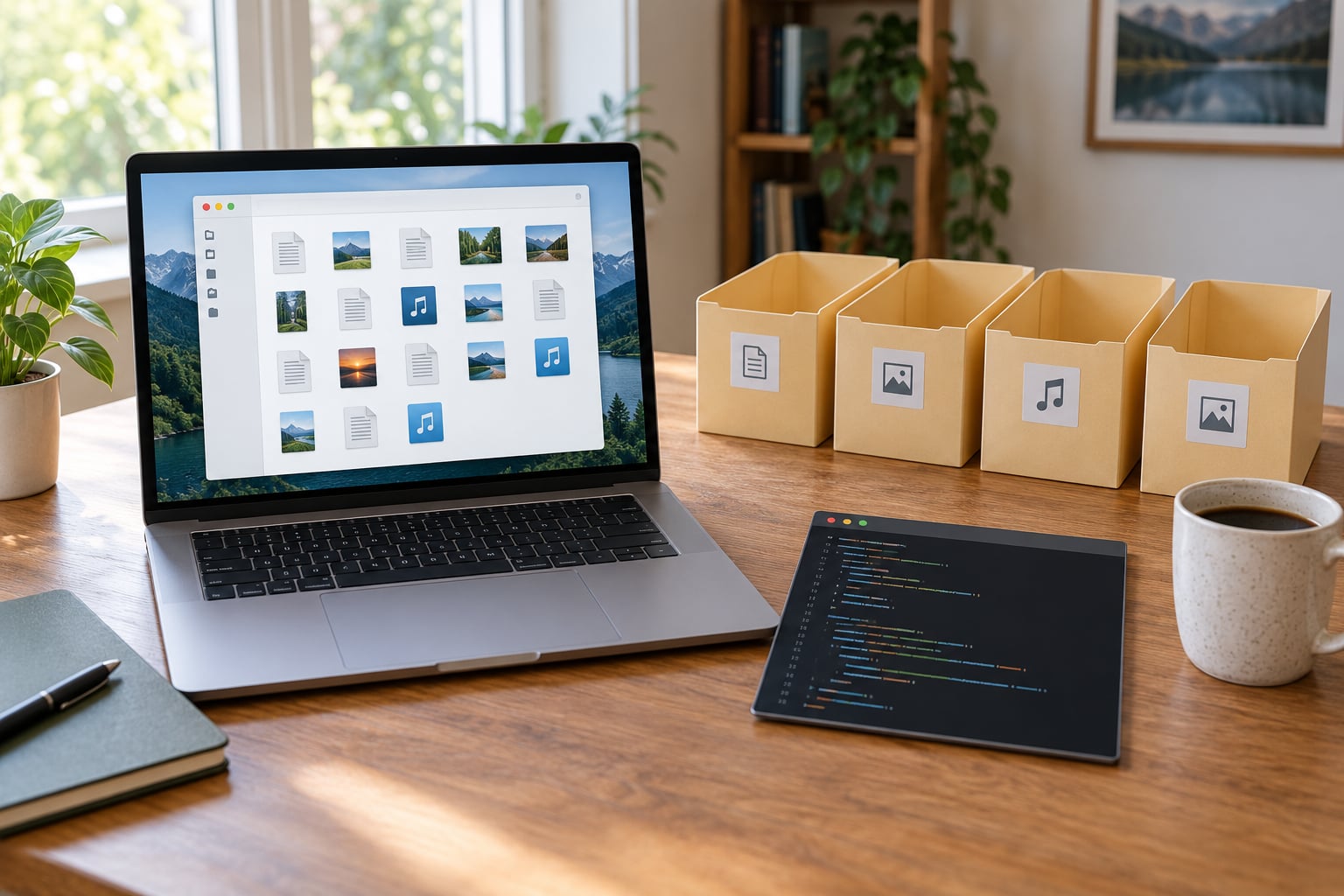
A file organizer is the best first automation project because the payoff is visible within a minute and the code stays under twenty lines. The script scans one designated folder, looks at each file extension, and moves documents, images, audio, and everything else into their own subfolders.
The standard library does it all. pathlib.Path.iterdir() gives you the entries, Path.suffix gives you the extension, and Path.mkdir(parents=True, exist_ok=True) makes the destination folder if it is missing. No installs required.
from pathlib import Path
import shutil

SOURCE = Path.home() / "Downloads" / "sandbox"
GROUPS = {".pdf": "documents", ".docx": "documents", ".jpg": "images",
          ".png": "images", ".mp3": "audio", ".mp4": "video"}

for item in SOURCE.iterdir():
    if not item.is_file():
        continue
    folder = GROUPS.get(item.suffix.lower(), "other")
    target = SOURCE / folder
    target.mkdir(exist_ok=True)
    shutil.move(str(item), str(target / item.name))
    print(f"{item.name} -> {folder}")
Two habits keep this safe. Print a plan and read it before you move anything, then add a DRY_RUN = True flag at the top that only prints. Beginners on r/learnpython and r/Python make the same point over and over: the version you run against a folder of junk files first is the version that never costs you anything later.
What breaks: files with no extension, and folders being dragged into the scan (the is_file() check handles the second). What you learn: paths, extensions, moving data, and the habit of previewing before destructive work.
2. Rename a Batch of Files Consistently
Bulk renaming is the same path-handling idea with a string-building step in front of it, and it is where most beginners accidentally destroy a folder. The safe version generates the new name, shows a before-and-after table, and refuses to overwrite anything that already exists.
Keep the extension with item.suffix, and build the new stem from an index plus the original stem, or from a pattern you pass in. The key is the collision check: if target.exists() is true, skip the file and report it instead of writing over it.
from pathlib import Path
from datetime import date

folder = Path.home() / "Pictures" / "sandbox"
stamp = date.today().strftime("%Y%m%d")

for i, item in enumerate(sorted(folder.glob("*.jpg")), start=1):
    new_name = f"photo_{stamp}_{i:03d}{item.suffix}"
    target = folder / new_name
    if target.exists():
        print(f"skip (exists): {new_name}")
        continue
    print(f"{item.name} -> {new_name}")   # uncomment item.rename(target) after review
Write the rename line back only after the printed list looks right. A mapping file is worth keeping even so: old_name,new_name in a CSV is your undo log, and it costs four lines. Beginners routinely say the mapping log is the difference between a five-minute fix and a lost afternoon.
What breaks: running the script twice and doubling the prefix, which the mapping log and a date stamp both prevent. What you learn: f-strings, sorting, and idempotent design, meaning the script is safe to run again.
3. Clean and Standardize a CSV Spreadsheet
Data cleaning is where Python automation stops being a party trick and starts being a job skill. The csv module handles messy real-world spreadsheets: trailing spaces from a bad export, mixed capitalization on category names, empty required fields, and stray blank lines.
Write the result to a new file. Never overwrite the source. The moment you start destroying the only copy of a spreadsheet, the project stops being a learning exercise.
import csv

with open("raw.csv", newline="", encoding="utf-8") as src:
    rows = list(csv.DictReader(src))

cleaned, problems = [], 0
for row in rows:
    name = (row.get("name") or "").strip()
    city = (row.get("city") or "").strip().title()
    if not name:
        problems += 1
        continue
    cleaned.append({"name": name, "city": city, "notes": (row.get("notes") or "").strip()})

with open("cleaned.csv", "w", newline="", encoding="utf-8") as out:
    writer = csv.DictWriter(out, fieldnames=["name", "city", "notes"])
    writer.writeheader()
    writer.writerows(cleaned)

print(f"kept {len(cleaned)} rows, dropped {problems}")
Notice encoding="utf-8" on both sides. It is the single most common beginner error in this area, and the symptom is a UnicodeDecodeError the moment a spreadsheet contains an accented name or an emoji.
What breaks: merged cells and multi-row headers, which no amount of string trimming will fix, so inspect the file first. What you learn: reading, transforming, and validating tabular data, which is the core loop of most data work.
4. Automate a Small Data Report
A report script turns the cleaned file from the previous project into something you actually read. It reads a local dataset, computes a few useful totals with the csv module, and saves a readable summary as text or Markdown.
Start with three questions: how many rows, what is the total of one numeric column, and which category appears most often. If you can answer those three, you can build any report later.
import csv
from collections import Counter

with open("cleaned.csv", newline="", encoding="utf-8") as f:
    rows = list(csv.DictReader(f))

by_city = Counter(r["city"] for r in rows)
total = len(rows)
top, count = by_city.most_common(1)[0]

lines = [
    f"# Daily summary ({total} rows)",
    f"- Top city: {top} ({count} rows)",
    f"- Distinct cities: {len(by_city)}",
]
with open("report.md", "w", encoding="utf-8") as out:
    out.write("n".join(lines))
print("n".join(lines))
Once this works, the natural next step is a charting library or pandas, but do not start there. The Counter version teaches you the shape of the problem, and swapping in pandas later is a ten-minute change once you know what the output should look like.
What breaks: numeric columns stored as text, so int() on an empty string throws. Guard the conversion and count the skips. What you learn: aggregation, and the habit of printing output so you can see it without opening a file.
5. Check a Web Page and Log Changes
Monitoring a page is the first project that touches the network, and the first one that teaches respect for other people’s servers. The goal is small: fetch one page politely, compare a limited part of it, and append a timestamped line when it changes.
Four things separate a working checker from a rude one. Set a timeout, send an honest user agent, wait between checks, and only compare the portion you care about, such as a version string or a heading. Politeness here is not optional, and sites publish robots.txt for exactly this reason.
import hashlib
from datetime import datetime
import requests

URL = "https://example.com/status"
UA = "MyStatusChecker/1.0 (personal, contact: [email protected])"

r = requests.get(URL, headers={"User-Agent": UA}, timeout=10)
r.raise_for_status()
digest = hashlib.sha256(r.text[:4000].encode()).hexdigest()[:12]

try:
    previous = open("last.txt").read().strip()
except FileNotFoundError:
    previous = ""

if digest != previous:
    with open("changes.log", "a", encoding="utf-8") as log:
        log.write(f"{datetime.now().isoformat()} changed: {digest}n")
open("last.txt", "w").write(digest)
Hashing the text is a shortcut that avoids a real diffing library. Once you want to see what changed rather than that something changed, store the previous text and compare line by line.
What breaks: the page changes layout and your hash flips every week, which is why you compare a slice rather than the whole body. Respect the site’s terms of service and rate limits, and if a site forbids automated access, do not automate it. What you learn: HTTP requests, timeouts, and diffing, which is the core of QA and monitoring work.
6. Fetch Public API Data on a Schedule
An API fetch is a checker with a purpose: instead of asking whether a page changed, you pull a documented public endpoint and save the result where you can use it. Weather data, a public holidays list, exchange rates from a free endpoint, or an open government dataset all work.
Read the JSON defensively. Status codes, keys that change shape, and rate limits are all normal, and a script that assumes a key exists will crash on a Tuesday for no visible reason.
import json
from datetime import date
from pathlib import Path
import requests

r = requests.get("https://example.com/api/data", timeout=15)
r.raise_for_status()
payload = r.json()

if "results" not in payload:
    raise SystemExit(f"unexpected shape: {sorted(payload)[:5]}")

out = Path("data") / f"{date.today().isoformat()}.json"
out.parent.mkdir(exist_ok=True)
out.write_text(json.dumps(payload, indent=2), encoding="utf-8")
print(f"saved {len(payload['results'])} records to {out}")
Saving per day means you build a history you can graph later, and it means a failed run never overwrites yesterday’s good data. That property, idempotent and append-only, is what separates a script from a demo.
For scheduling, use the operating system rather than a paid service. Project 6 is the one you hand off to cron on macOS and Linux or Task Scheduler on Windows, and the difference is a few lines of configuration. What you learn: JSON, HTTP status handling, and the idea of a data pipeline you can run daily.
7. Automate a Simple Email Report
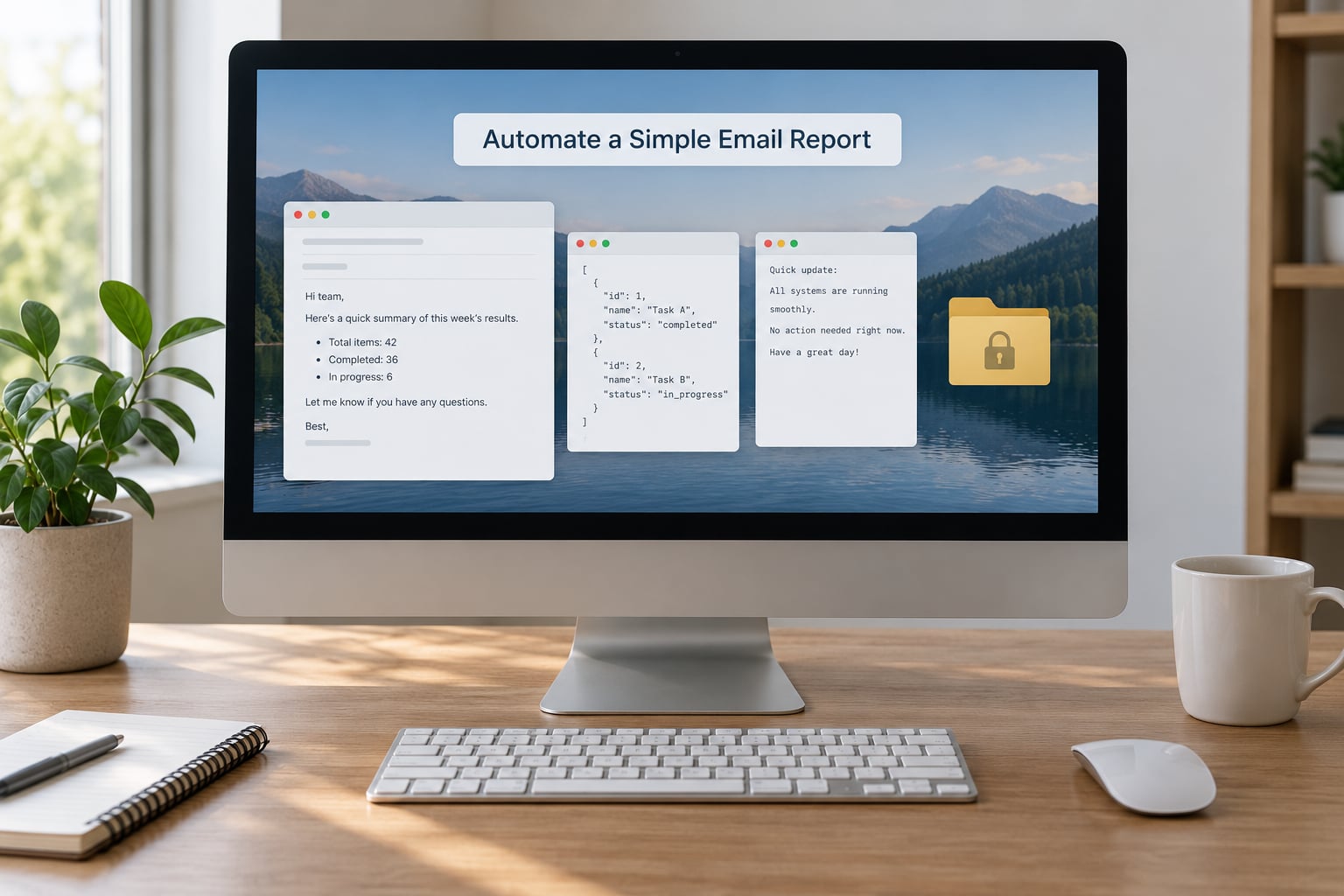
An email report is where automation becomes a habit: the report arrives whether or not you remember to generate it. The honest version generates a short plain-text message, attaches or inlines the data, and sends it through a provider’s supported API.
Where you run into friction is authentication, and it varies by provider. Some accept an app-specific password or token, some use OAuth, and some require a registered app. The rule is the same everywhere: the credential goes in an environment variable, never in the script, and never in a file you push to GitHub.
import os
import smtplib
from email.message import EmailMessage

msg = EmailMessage()
msg["Subject"] = "Daily report"
msg["From"] = os.environ["REPORT_FROM"]
msg["To"] = os.environ["REPORT_TO"]
msg.set_content("Your report is attached.")

password = os.environ["REPORT_TOKEN"]
with smtplib.SMTP("smtp.example.com", 587, timeout=20) as server:
    server.starttls()
    server.login(msg["From"], password)
    server.send_message(msg)
Keep the first version plain text. HTML email, inline images, and attachments each add a failure mode, and a report that arrives as readable text is more useful than a beautifully formatted one that silently fails. Add a try/except that prints the failure to a log file, because a scheduled script with no output is a script you will assume is working when it is not.
What breaks: provider rate limits and expired tokens, both of which show up as a single failure a week later. What you learn: secrets management, which is a genuine professional skill, and the habit of making failures visible.
8. Back Up Important Files and Verify Copies
A backup script is the project where verification matters more than the copy itself. A backup you never checked is a hope, not a backup. The useful version timestamps each run, preserves directory structure, compares the copy against the source, and keeps a fixed number of recent runs.
shutil.copy2 preserves metadata, and shutil.copytree handles a whole folder. Verification is a hashlib.sha256 digest of the source and the copy, compared before the run is called a success.
from datetime import datetime
from pathlib import Path
import hashlib
import shutil

src = Path.home() / "Documents" / "sandbox"
stamp = datetime.now().strftime("%Y%m%d_%H%M%S")
dest = Path.home() / "Backups" / f"docs_{stamp}"

def digest(path):
    h = hashlib.sha256()
    h.update(path.read_bytes())
    return h.hexdigest()

mismatches = []
for f in src.rglob("*"):
    if f.is_file():
        copy = dest / f.relative_to(src)
        copy.parent.mkdir(parents=True, exist_ok=True)
        shutil.copy2(f, copy)
        if digest(f) != digest(copy):
            mismatches.append(f.name)

print(f"copied to {dest}, mismatches: {mismatches or 'none'}")
Retention is the last piece: sort the backup folders by name, keep the newest three, delete the rest. Names sort chronologically because of the timestamp format, so this is a two-line addition rather than a real file-management problem.
What breaks: backing up a folder that contains a growing virtual environment, which is why the source above is a narrow folder and not your whole home directory. What you learn: checksums, retention policy, and why a silent failure is the dangerous kind.
9. Watch a Log File for Repeated Errors
Log watching is the most useful of these for anyone running systems, and the trick that makes it beginner-friendly is reading only what is new. Re-read the whole file every minute and you will re-count the same errors forever.
Track the last byte position with f.tell() before and after each read, and open the file in append mode each time so the script survives a log rotation. Then count repeated patterns with re and print a short alert when one crosses a threshold.
import re
from collections import Counter
from pathlib import Path

LOG = Path("app.log")
POS_FILE = Path("app.log.pos")
pattern = re.compile(r"(ERROR|WARN)s+(S+)")

pos = int(POS_FILE.read_text()) if POS_FILE.exists() else 0
new_lines = []
with LOG.open("r", encoding="utf-8", errors="replace") as f:
    f.seek(pos)
    new_lines = f.readlines()
    POS_FILE.write(str(f.tell()))

counts = Counter(m.group(0) for line in new_lines if (m := pattern.search(line)))
for message, hits in counts.most_common(3):
    if hits >= 2:
        print(f"repeated {hits}x: {message}")
Read only, never write to the source log. Modifying logs destroys evidence you may need, and rotation can make writing to one genuinely dangerous. If you want alerts delivered rather than printed, feed the summary into project 7.
What breaks: log rotation, where the file is replaced and your byte position points into nothing. Catch the resulting empty read and reset the position. What you learn: stateful scripts, regular expressions, and the fact that most real monitoring is incremental, not a full re-scan.
10. Build a Personal Command-Line Assistant
The last project combines everything: argument parsing, file checks, a command mapping, and confirmation prompts. It is a small tool you call from a terminal, and it is the kind of build that looks impressive in a portfolio because it is genuinely useful to you.
Keep the design boring. argparse gives you the subcommands for free, a dictionary maps a name to a function, and every destructive action asks for confirmation with input(). That last part is the whole safety model.
import argparse
from pathlib import Path

def count_files(folder):
    files = [p for p in Path(folder).rglob("*") if p.is_file()]
    print(f"{len(files)} files in {folder}")

def make_project(name):
    target = Path(name)
    if target.exists():
        print("exists already, stopping")
        return
    if input(f"create {target}/? [y/N] ").strip().lower() != "y":
        print("cancelled")
        return
    (target / "src").mkdir(parents=True)
    print(f"created {target}/")

COMMANDS = {"count": count_files, "new": make_project}

parser = argparse.ArgumentParser()
sub = parser.add_subparsers(dest="cmd", required=True)
p1 = sub.add_parser("count"); p1.add_argument("folder")
p2 = sub.add_parser("new"); p2.add_argument("name")

args = parser.parse_args()
COMMANDS[args.cmd](vars(args)[args.cmd])
Add each new command as a plain function, then register it in the mapping. That is the whole extension model, and it is the same shape real command-line tools use.
What breaks: forgetting that vars(args) keys come from the subparser argument names, so a mismatched name fails at runtime rather than at parse time. Print the dict once while developing. What you learn: program structure, input validation, and how a tool feels to the person using it.
Frequently Asked Questions
Which Python automation project should a complete beginner build first?
Build the file organizer in project 1. It takes under an hour, needs only the standard library, and shows results immediately, which matters when motivation is the real obstacle. You learn paths, extensions, moving files, and previewing before acting, and every skill carries straight into projects 2 and 8. Run it against a throwaway folder of copied files, never your only copy.
Do I need advanced Python skills before starting these projects?
No. If you understand variables, loops, functions, and how to open a file, you can build projects 1 through 4 today. The standard library covers most of them, and reading a short code sample you do not fully understand yet is normal at this stage. Projects 5 and 6 add HTTP and JSON, which is a weekend of learning, not a prerequisite you must clear first.
Which Python libraries are safe and useful for beginner automation?
Start with the standard library: pathlib, shutil, csv, hashlib, argparse, re, smtplib, and subprocess cover nine of these ten projects with zero installs. Add requests when you need a cleaner HTTP interface, and schedule or APScheduler only if a script must run while the computer is on. Install them in a virtual environment so one project’s dependencies never break another’s.
Can these Python projects run on Windows, macOS, and Linux?
Yes, all ten run on the three major operating systems because they rely on pathlib, shutil, and csv rather than shell commands. The differences appear at scheduling time: cron on macOS and Linux, Task Scheduler on Windows. Two other wrinkles are worth knowing: path separators behave differently, so build paths with pathlib instead of string concatenation, and line endings in text files vary by platform.
How do I run a Python automation script automatically every day?
Use the scheduler your operating system already has, rather than a paid service. On macOS and Linux, add a crontab entry with a full path to your interpreter and script, then redirect output to a log file so you can see failures. On Windows, create a task in Task Scheduler that runs your interpreter with the script path, and set it to run whether or not you are logged in. Test manually first, because a silent failure is worse than no schedule.
Where to Start
Start with the file organizer, in a folder of copies rather than originals. Finish it before you open project 2, even though it is tempting to jump straight to the one that looks most impressive.
After that, work down the list in order. The skills compound: paths lead to renaming, renaming leads to backups, cleaning leads to reporting, and reporting leads to email and scheduling. When you reach project 5, add error handling and a log file, because a script that runs unattended needs to tell you when it fails.
The habits that separate a beginner script from a real tool are unglamorous. Work on a copy, preview before you act, read the errors instead of skipping them, and keep secrets out of the source file. Add a test or two once a script has bitten you, and that project is done. Pick task number one this 2026: the only cost is an hour and a folder you were going to tidy anyway.