Port forwarding is a router setting that maps an external IP address and port on your router to an internal (private) IP address and port on your local network, so a device on the internet can reach a service running behind your router’s NAT firewall. Setting it up takes about fifteen minutes: reserve a static IP for the target device, add one rule in your router’s admin interface, open the host firewall, then test from outside your network.
The reason it feels complicated is that most guides skip the part where your router is not the only router in the path. I spent an evening on this years ago convinced my rule was broken, when the actual cause was the ISP modem sitting in front of my own router doing a second round of NAT.
Here is the whole process, router brand aside. The menu names change between manufacturers, but the fields you fill in do not.
Table of Contents
- What You Need
- Step-by-Step Setup
- Step 1: Identify the Service and Port
- Step 2: Reserve or Find the Device’s Local IP Address
- Step 3: Add the Router Port-Forwarding Rule
- Step 4: Check Local Firewall Rules
- Step 5: Test the Forward From the Internet
- Step 6: Secure and Maintain the Forward
- Common Mistakes
- Frequently Asked Questions
- Is port forwarding safe for my home network?
- How does a dynamic public IP affect a forwarding rule?
- Why does the port work inside my Wi-Fi but not from outside?
- Can my ISP block port forwarding or put me behind CGNAT?
- Do I need to forward a port for SSH or for a game server?
- Conclusion
What You Need
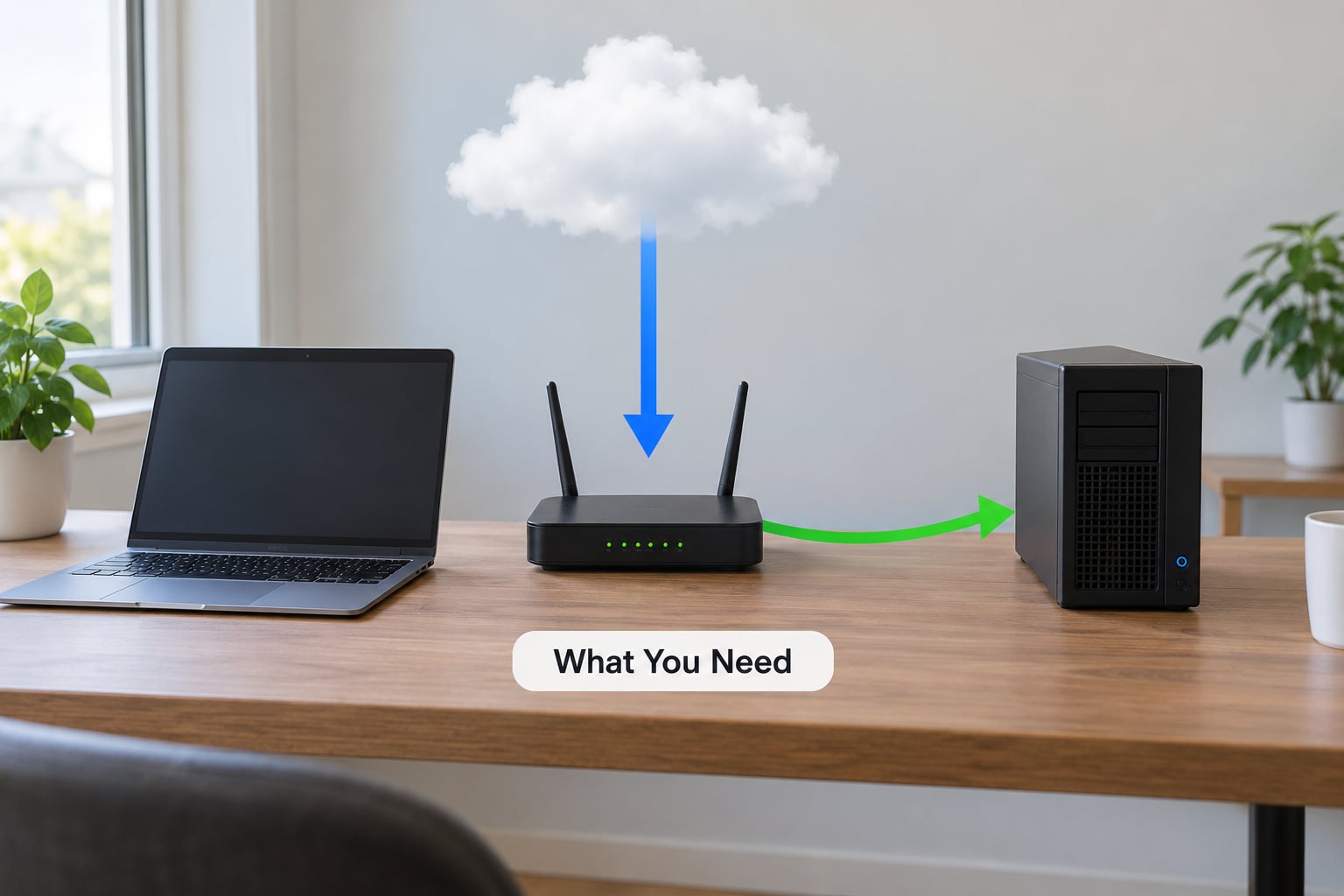
Six things, and most of them you already have sitting in front of you.
- Access to your router’s admin page — usually an address like 192.168.1.1 or 192.168.0.1 in a browser, with the admin credentials printed on the router or set by whoever installed it.
- The target device’s local IP address — the machine running the service you want to expose.
- The port number the service actually listens on, plus whether it uses TCP or UDP.
- A DHCP reservation, so that local IP stops moving around.
- Your public IP address, or a dynamic DNS hostname if you plan to keep the service running for a while.
- A way to test from outside — a phone on mobile data is the easiest option.
Finding the router’s IP address takes about thirty seconds. On Windows, open a command prompt and run ipconfig /all; the default gateway line is your router. On macOS, run netstat -rn | grep default in Terminal. On Linux, ip route prints a line beginning with default via, and that address after via is the gateway.
The target device’s address comes from the same output. On Windows look for IPv4 Address, on macOS and Linux look for an inet line on your wired or wireless interface. Write it down, because you will type it into the router twice.
One more thing worth having before you start: your public IP. Read it off your router’s status page under WAN IP, then compare it with what an external IP lookup service reports. If the two differ, your router sits behind another layer of NAT and no rule you create will work until that is sorted out. More on that later.
Step-by-Step Setup
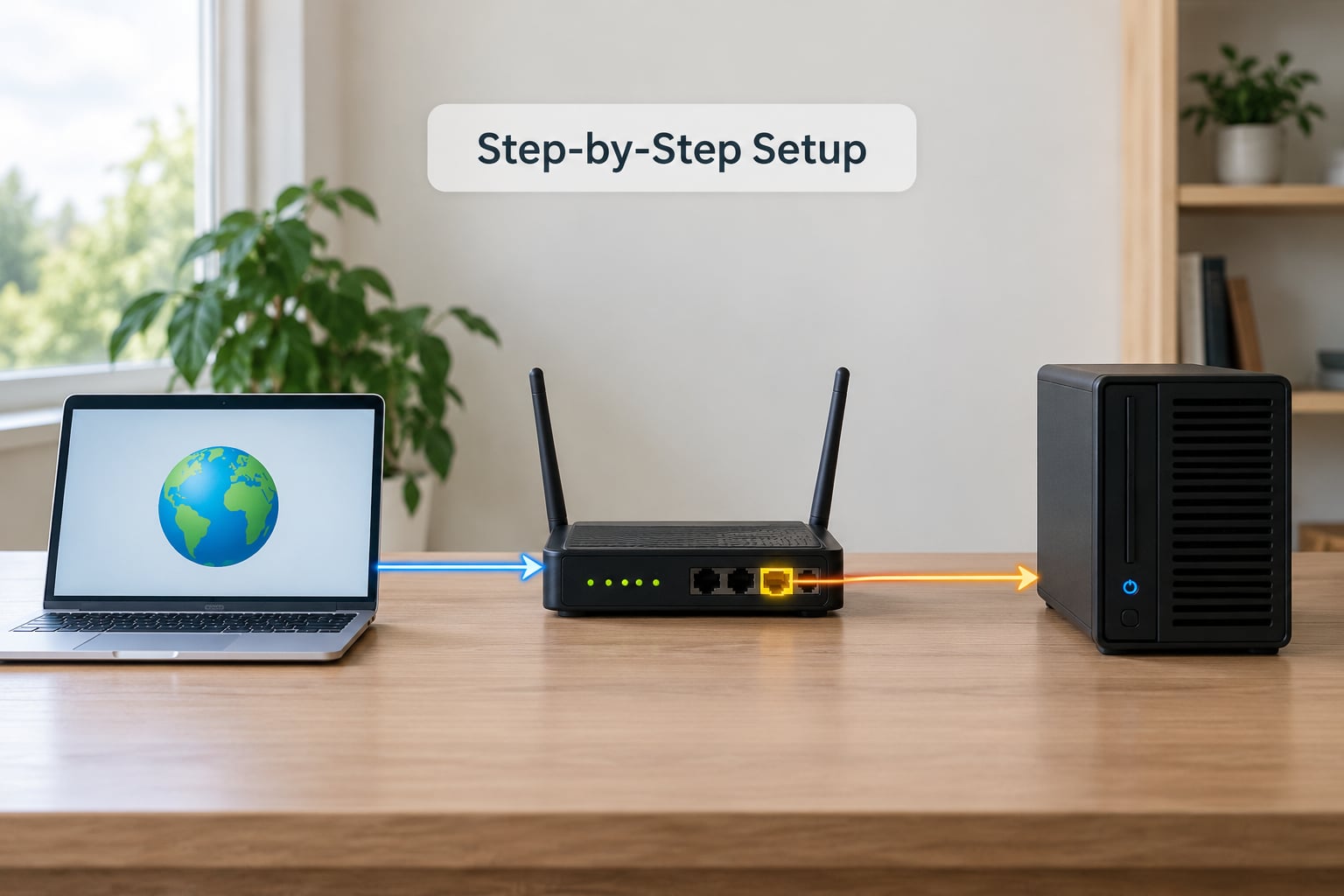
Six steps, in this order. Each one is quick, and each one has a clear sign it worked.
Step 1: Identify the Service and Port
Find out what your service listens on before you touch the router. The application’s documentation or its settings screen usually names the port; if it does not, check the listening sockets on the host itself.
- Linux:
ss -tulnporss -lntup - macOS and Linux:
lsof -i -P -n | grep LISTEN - Windows:
netstat -ano | findstr LISTENING
Match the port number in that output to your service. SSH listens on TCP 22 by default, a web server on TCP 80 or 443, a Minecraft Java server on TCP 25565, Plex on TCP 32400, and Windows remote desktop on TCP 3389.
| Service | Typical port | Protocol |
|---|---|---|
| SSH | 22 | TCP |
| HTTP / HTTPS | 80 / 443 | TCP |
| Remote desktop (RDP) | 3389 | TCP |
| Plex media server | 32400 | TCP |
| Minecraft Java | 25565 | TCP (UDP for some servers) |
| OpenVPN | 1194 | UDP |
Games usually need both protocols. Minecraft wants TCP 25565, and some titles also open UDP on the same port for voice chat and server discovery. If a game’s documentation lists two entries, forward both rather than guessing.
Step 2: Reserve or Find the Device’s Local IP Address
A DHCP-assigned address changes when the lease expires or the device reconnects, and a forwarding rule pointing at the old address silently stops working. Reserve the address so the router always hands that device the same one.
Most routers do this under a DHCP server or LAN settings page, often labelled “Address Reservation”, “Static Lease” or “DHCP Binding”. Add an entry for the device’s MAC address and bind it to the IP you found in the previous section. Renew the lease on the device afterwards, or power cycle it, so it picks up the reserved address.
Step 3: Add the Router Port-Forwarding Rule
Open the router’s admin page in a browser and find the forwarding screen. Netgear calls it Port Forwarding / Add Custom Service, TP-Link calls it Virtual Server, ASUS calls it Port Forwarding or Virtual Server, and Synology puts it under Network Center. Some routers bury it under NAT, Gaming or Application Forwarding instead. The fields are the same regardless of the label.
| Field | What to enter | Example |
|---|---|---|
| Service or description name | Anything you will recognise later | Minecraft server |
| Protocol | TCP, UDP or both | TCP |
| External / WAN port | The port opened on your public IP | 25565 |
| Internal / LAN IP | The reserved device address | 192.168.1.50 |
| Internal port | The port the service listens on | 25565 |
The external and internal ports do not have to match. Forwarding public port 9000 to internal port 8080 works fine, and it is the clean way around ports your ISP blocks. Start and end port fields usually need the same number on both sides, or an end value greater than the start value, depending on the firmware.
Save or apply the rule. Most routers take effect immediately with no reboot, which answers the common question about restarting afterward: you do not need to.
Step 4: Check Local Firewall Rules
A correct router rule still fails if the host drops the packet. This is the layer most guides forget.
On Windows, open Windows Defender Firewall with Advanced Security, choose Inbound Rules, then New Rule, then Port, and select TCP with the specific local port. Set the profile to apply to Private networks, not Public, unless you know the network is trusted.
On Linux with ufw, allow the port explicitly:
sudo ufw allow 25565/tcp
On macOS, the Application Firewall lives under System Settings, Network, Firewall, and its Options tab is where you allow incoming connections for a specific application. Keep the per-application rule rather than allowing everything.
Confirm the service is listening locally before you go further. On the host, open http://localhost:PORT in a browser, or run ss -tulnp and look for the port in the LISTEN state. A rule can be perfect and still point at a process that is not running.
Step 5: Test the Forward From the Internet
Test from outside your own network. This matters more than any other step, because testing from inside your Wi-Fi on your public IP is a false negative that sends people down the wrong path for hours.
Turn off Wi-Fi on a phone and use mobile data, or ask a machine on another network to try it. Then check the result in this order:
- Confirm the service answers locally on port 80 or whatever port it uses.
- Compare your router’s WAN IP with an external IP lookup. Different values mean double NAT.
- Run a port checker from that external device against your public IP and the external port.
- If the port is open but the service still refuses connections, the service itself is rejecting you, not the network.
An open port only means something is listening and the path is clear. It does not mean the service is configured to accept your particular client.
Step 6: Secure and Maintain the Forward
Delete any rule you are no longer using. Forwarded ports outlive the reason they were created, and stale rules are how services nobody remembers get found by scanners.
Keep the service itself patched and authenticated. An SSH port forwarded to a machine with password login enabled gets hammered by automated attempts, so switch to key-based authentication before you open port 22. Where you can, restrict the source: some routers accept a source IP or country filter on a rule, and a fixed source address makes that practical.
If your public IP changes, the rule still exists but now points at an address you no longer own. That is where dynamic DNS helps: point a hostname at your public IP and let it follow the changes. Most routers support a DDNS client natively, and several NAS platforms do too. If the hostname stops resolving, re-check that your provider still accepts updates for that record.
Common Mistakes
These account for nearly every broken forward I have seen, and most of them take under two minutes to rule out.
Forwarding to the wrong local IP. Usually because the device got a new DHCP address after the rule was created. Check the current address against the one in the rule.
Testing from inside your own LAN. Your router usually will not hairpin a request from LAN to its own public IP, so a local test fails even when everything is correct. Use mobile data.
Confusing TCP with UDP. A UDP rule does nothing for a TCP connection and the reverse holds. When in doubt, set the protocol to TCP/UDP for the same port number.
Double NAT. If your ISP supplied a modem-router that is still routing, your own router sits behind a second NAT. Either put the modem into bridge mode so it hands the public IP straight to your router, or forward the same port on the modem to your router’s WAN address. Bridge mode is the cleaner option.
Carrier-grade NAT. With CGNAT, your ISP shares one public address across many customers and your router’s WAN IP looks like a private range starting with 10, 172.16 or 192.168. No inbound rule can ever work. An external IP check that shows a different address than your router’s WAN IP confirms it, and the fix is asking the ISP for a public address, which sometimes costs a fee.
Nothing is listening. The rule is correct, the firewall is open, and the port still scans as closed, because the process is stopped or bound to 127.0.0.1 only. Check with ss -tulnp and look for 0.0.0.0:PORT rather than 127.0.0.1:PORT.
UPnP overwrote or collided with your rule. If the same port was opened automatically by a device, delete the UPnP mapping or disable UPnP on the router, then re-apply the manual rule.
Forwarding a service with no authentication. A management interface exposed to the internet without login, MFA or a VPN in front of it is the genuinely risky case. Put it behind a VPN or tunnel where you can.
A useful diagnostic shortcut: set the DMZ host to the target device temporarily. If the service becomes reachable through the DMZ, the problem is your rule. If it does not, the problem is upstream, which usually means double NAT or CGNAT. Remember to unset the DMZ afterwards.
Frequently Asked Questions
Is port forwarding safe for my home network?
It is safe when each rule exposes one authenticated, patched service that you still use, and risky when it exposes an admin panel or a service with no login. The rule itself does not hand over your network; it opens a single path to one device. Keep the device updated, use key-based SSH or multi-factor login, delete unused rules, and put a VPN or tunnel in front of management interfaces. A stale rule you forgot about is the common real risk.
How does a dynamic public IP affect a forwarding rule?
The rule stays in the router, but it points at whatever public address you had when you created it. If that address changes, traffic to the old one goes nowhere and the service looks offline. Most ISPs reassign addresses within days or on reconnect. A dynamic DNS hostname that tracks your public address solves this cleanly, and most routers and NAS platforms have a DDNS client built in. Restarting the router also often changes the address.
Why does the port work inside my Wi-Fi but not from outside?
Most routers do not route a request from a LAN device out to their own public IP and back in. That is called hairpin NAT, and many consumer routers simply do not support it, so a local test on your public address fails while the forward is working perfectly. Always test from a genuinely external network, such as a phone on mobile data, before changing any settings. Local testing also cannot reach a service behind double NAT or CGNAT.
Can my ISP block port forwarding or put me behind CGNAT?
Yes, both happen. Carrier-grade NAT shares one public address across many customers, which makes inbound connections impossible no matter how the router is configured. You can detect it by comparing your router’s WAN IP with an external IP lookup; different values, or a WAN address in a private range, mean CGNAT. ISPs also block certain ports at the network level, port 25 being the common example. A public address on request is the usual fix.
Do I need to forward a port for SSH or for a game server?
For SSH, only if you want to reach the machine from outside your network, since a VPN tunnel or an SSH tunnel usually does the job with nothing exposed. For a game server, yes, because other players need to open a connection to your machine. Forward the ports the game’s documentation lists, usually TCP and often UDP on the same number, then check whether your console still reports a strict NAT type. A single forwarded port per service is all most setups need.
Conclusion
Start with the port: confirm what the service listens on, reserve that device’s local IP so the rule keeps pointing at the right machine, and create the smallest rule that opens the path. Test from mobile data rather than your own Wi-Fi, because a local test tells you nothing useful. Once it works, check what is exposed and remove any rule you no longer need.