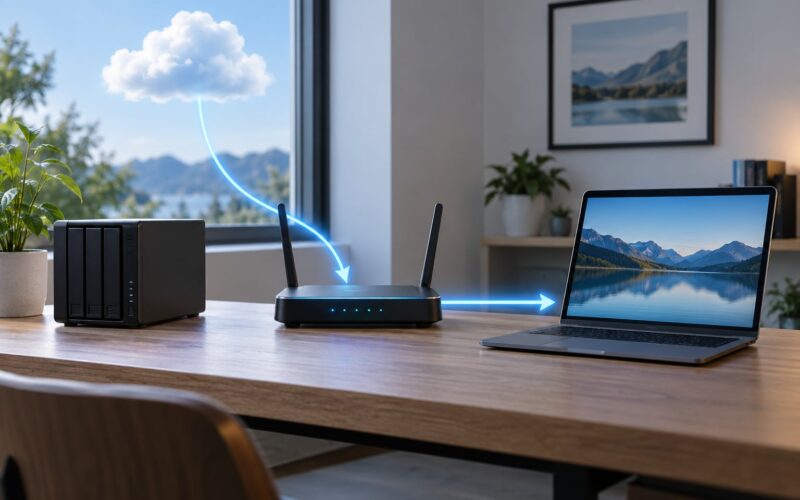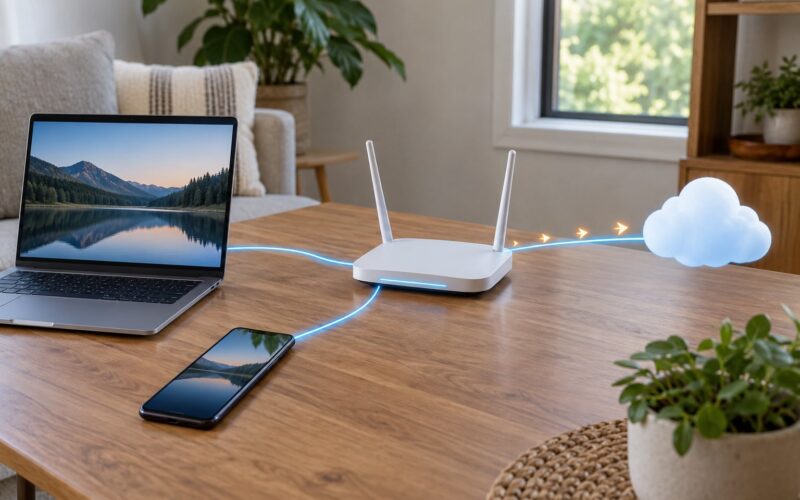
DHCP explained for beginners comes down to one sentence: a DHCP server automatically hands your device an IP address, a subnet mask, a default gateway and a DNS server when the device joins a network. You never type those values in, and that is the whole trick.
It sounds too easy to be real, so this guide walks through what actually happens between plugging a laptop into a router and seeing a working connection, then covers leases, static addresses and the handful of problems that stop it all.
Table of Contents
- How DHCP Gives Devices an IP Address
- What Happens When a Device Joins the Network
- The DHCP Four-Step Handshake
- Discover: the client asks
- Offer: the server proposes
- Request: the client commits
- Acknowledgement: the server confirms
- DHCP Addresses, Subnets and Default Gateways
- What Is a DHCP Lease?
- DHCP for Beginners: Static Addresses vs. DHCP
- How DHCP Works on a Home Wi-Fi Router
- Common DHCP Problems and Quick Fixes
- The device shows 169.254.x.x
- Windows says no DHCP server found
- Two servers, conflicting addresses
- The pool is exhausted
- Addresses work but names do not
- A static address keeps reverting to DHCP
- How to Check Your DHCP Settings
- Frequently Asked Questions
- What does the 80/20 rule mean in DHCP?
- Can two DHCP servers be on one network?
- Should my Wi-Fi use DHCP or static addresses?
- How would you explain DHCP in an interview?
- Why is my device showing a 169.254.x.x address?
- Can DHCP assign a public IP address?
- Start With the Router’s DHCP Settings
How DHCP Gives Devices an IP Address
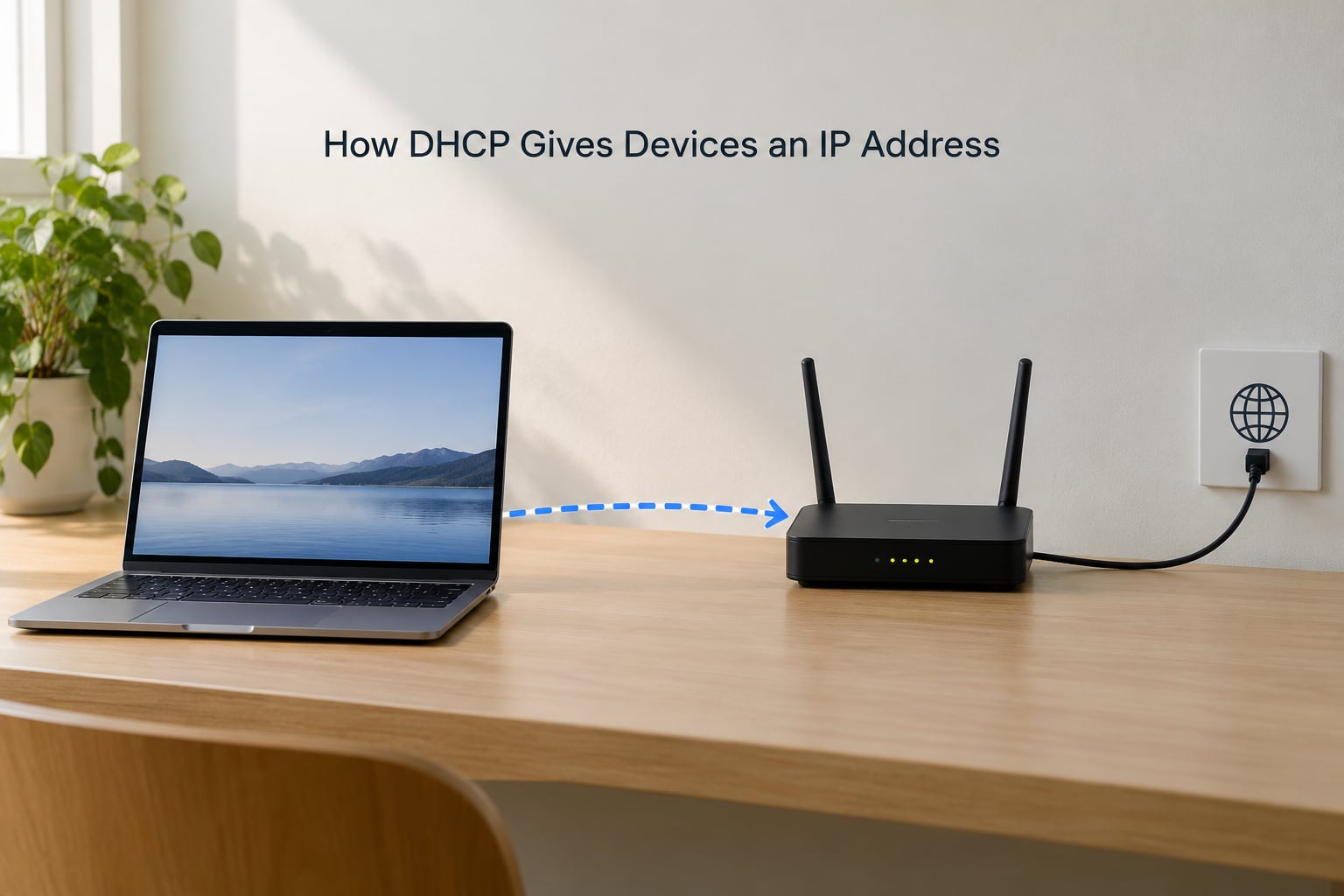
DHCP stands for Dynamic Host Configuration Protocol. It is a client-server protocol: your laptop, phone or printer is the client, and a machine holding a pool of addresses — usually your router — is the server.
The idea is that an address is a scarce, shared resource. A house has a limited number of street numbers, so you do not hand out a permanent number to a guest who might stay a week. DHCP does exactly that with IP addresses, which is why the word dynamic is in the name.
Your router usually wears three hats at once: it routes traffic, it translates private addresses to public ones (NAT), and it runs the DHCP server. DNS is a separate job on the same box — it turns names like example.com into addresses — and beginners regularly mix those two up, then spend an evening blaming the wrong one.
What Happens When a Device Joins the Network
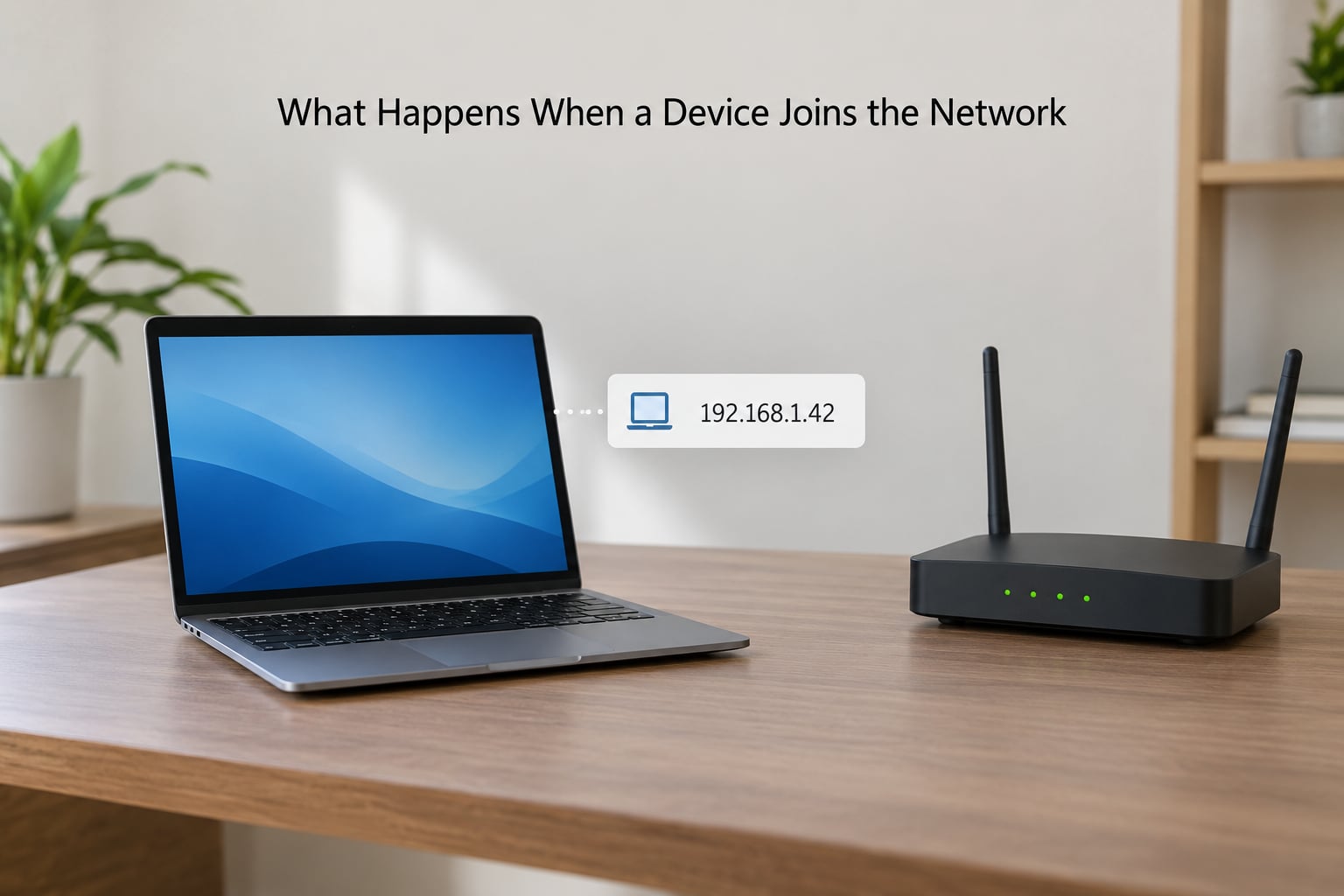
Say you open a laptop and join a Wi-Fi network called HomeNet. The laptop has no address yet, and without one it cannot talk to anything, not even the router that would give it one. The protocol handles this with a small trick: the client is allowed to shout before it knows where anyone is.
Here is the short version, and the rest of this article unpacks it.
- The laptop broadcasts a DHCPDISCOVER message to every device on the local network.
- The router replies with a DHCPOFFER containing an address it is willing to lend out, such as 192.168.1.42.
- The laptop broadcasts a DHCPREQUEST naming the address it wants, so every other server knows the offer was declined.
- The router sends a DHCPACK confirming 192.168.1.42, along with the mask, gateway, DNS and lease time.
Your laptop now has a working configuration in about a second. Nothing was typed, and no one at the router had to know your laptop existed in advance.
The DHCP Four-Step Handshake
That four-message exchange is called DORA, short for Discover, Offer, Request, Acknowledgement. It is the part of DHCP that shows up in interview questions and CCNA exams, so it is worth knowing what each message carries.
Discover: the client asks
The client sends DHCPDISCOVER from source address 0.0.0.0, meaning “I have no address yet,” to destination 255.255.255.255, the limited broadcast address. UDP port 68 goes out, and the payload carries the client’s MAC address so a server can tell who is asking. On a home network the router sees this broadcast and hands it to its DHCP service.
Offer: the server proposes
Every server listening on UDP port 67 can answer. A server takes an address from its scope — the pool it manages — and returns DHCPOFFER with that address marked as requested and a proposed lease time. The offer may arrive unicast straight back to the client, which by now has a link-layer identity to receive it.
Request: the client commits
The client sends DHCPREQUEST. In most cases it is broadcast rather than unicast, and the reason is practical: every other server that made an offer needs to hear that its offer lost, so it can return that address to its pool. The requested address goes out in the broadcast so all servers see it.
Acknowledgement: the server confirms
The winning server replies with DHCPACK, which is the point where the lease actually exists. The packet carries the address, subnet mask, default gateway, DNS servers and lease duration as numbered options. A server that has already reallocated the address instead sends DHCPNAK, telling the client to start the whole exchange again.
DHCP Addresses, Subnets and Default Gateways
An IP address on its own is close to useless. DHCP delivers a small bundle of settings, and each option number in the packet has a defined meaning.
| Option | Setting | Plain meaning | Example |
|---|---|---|---|
| 1 | Subnet mask | Which addresses count as local | 255.255.255.0 |
| 3 | Default gateway | Where traffic for other networks goes | 192.168.1.1 |
| 6 | DNS servers | Who translates names to addresses | 192.168.1.1, 1.1.1.1 |
| 15 | Domain name | The network name to append to short names | home |
| 51 | Lease time | How long the address is borrowed, in seconds | 86400 |
| 53 | Message type | Which DORA message this is | 1 = Discover |
| 54 | Server identifier | Which server the client is talking to | 192.168.1.1 |
Put those together and the lease your laptop received looks like this:
- IP address: 192.168.1.42
- Subnet mask: 255.255.255.0
- Default gateway: 192.168.1.1
- DNS servers: 192.168.1.1 and 1.1.1.1
- Lease time: 86400 seconds, or 24 hours
The subnet mask is what tells your laptop that 192.168.1.55 is a device on the same wire and can be reached directly, while anything else must go to the gateway. Getting the mask wrong is why a machine can see half the network and nothing beyond it.
What Is a DHCP Lease?
A lease is a time-limited loan. The client keeps the address only until the lease ends, then asks to keep it. Servers hand out leases rather than permanent assignments because addresses get returned when devices disappear, which is what stops a small pool from running dry after a few phone reconnects.
Renewal is scheduled at fixed points. At T1, which is 50 percent through the lease, the client contacts the server directly and asks to extend. If that fails, at T2 — 87.5 percent through — it tries again, this time broadcast so any server can answer. If nothing responds before the lease expires, the client drops the address and returns to Discover.
This is where the 80/20 rule people mention in DHCP study guides comes from. At roughly 80 percent of the lease, many clients switch their renewal messages from unicast to broadcast, so a new server that has taken over can still respond even though the client still points at the old one. It is client behavior, not a rule written into the server.
This explains something that confuses people: rebooting does not reliably give you a different address, and unplugging for ten minutes does not either. Both usually renew the same lease. If you genuinely want a new one, you have to wait for the lease to lapse or ask the server to remove the assignment.
DHCP for Beginners: Static Addresses vs. DHCP
DHCP is the right default for almost everything. Static addresses earn their keep on a much smaller list: servers, network printers, routers and anything you forward ports to.
| Criterion | DHCP | DHCP reservation | Static address |
|---|---|---|---|
| How the address is set | Assigned automatically by a server | Assigned automatically, pinned to one MAC address | Typed into the device by hand |
| Address stability | Can change at renewal | Always the same while the reservation exists | Always the same |
| Setup effort | None | A few minutes in the router interface | Manual on both ends |
| Works if the device moves | Yes | No, the reservation follows the MAC | No |
| Scales to hundreds of devices | Yes | Yes, but more records to manage | No |
| Breaks if the pool is exhausted | Yes | Still no, reservations sit outside the pool | No |
| Good for | Laptops, phones, guests, IoT | Printers, consoles, smart-home hubs | Servers, routers, infrastructure |
| Maintenance load | Almost none | Low | High |
A reservation is the middle path most home labs end up preferring. You manage it in one place, the router, so the address is predictable without hardcoding anything on the device itself. The one failure mode to remember: the reservation is tied to a MAC address, so a device that swaps network cards becomes a stranger again.
How DHCP Works on a Home Wi-Fi Router
Almost every consumer router is a combined box. It holds the wireless radio, the routing and NAT functions, and a DHCP server that leases addresses from a pool you can usually see and edit in the admin interface.
A default pool on a modern router is usually something like 192.168.1.100 to 192.168.1.249. The addresses below .100 are often reserved for the router itself and for anything you have pinned with a reservation, which is a sensible default that many people never think about.
There is one configuration mistake that causes more home networking grief than anything else: two DHCP servers on the same network. If your ISP-supplied modem also runs DHCP and you add your own router, both answer Discover messages and devices can end up with conflicting addresses. The fix is always the same — turn DHCP off on the modem, and let your own router be the only server on that side of the connection.
Two things are worth separating here. If you just want a device to keep the same address, use a reservation. If you want DHCP to reach devices on another subnet, that is a relay agent, which forwards DHCP requests to a server elsewhere so one server can serve a whole campus without broadcasting across routers.
Common DHCP Problems and Quick Fixes
Work down this list in order. It is ordered by how often each one turns out to be the actual cause, not by how interesting it sounds.
The device shows 169.254.x.x
That range, 169.254.0.0/16, is what a device assigns to itself when DHCP fails, sometimes called APIPA. It means the device reached no server but still wanted to be on the network. Check the physical link first: cable seated, Wi-Fi password correct, correct network selected. Then confirm DHCP is enabled on the router.
Windows says no DHCP server found
This is usually a server-side problem, not a Windows one. If you are on a network you do not control, nothing to fix locally. If it is your own network, look for a second DHCP server, a client that has manually set a static address conflicting with the pool, or a relay that is not configured.
Two servers, conflicting addresses
Symptoms are intermittent: a device works, then stops, or a printer is only reachable some days. Disable DHCP on the modem or the older router and keep exactly one server per broadcast domain. This has been the single most repeated problem in home networking communities for years.
The pool is exhausted
With a small scope and many devices — containers and virtual machines are the usual culprits — there are simply not enough addresses. Widen the range in the router interface. If the pool looks plenty big and devices still fail at the same moment, DHCP is often wrongly blamed: interface shutdown on a quiet link and a stopped DHCP client service produce identical symptoms.
Addresses work but names do not
If you can reach an address typed directly but not a website name, DHCP worked and DNS did not. Check which servers arrived in option 6. A common cause is a device handing out itself as DNS when its own upstream resolver is not actually working.
A static address keeps reverting to DHCP
Usually the device was set back to automatic somewhere — an operating system update, a reset, or a different network profile. On a phone this is often a per-network setting that reverts when the network is forgotten and rejoined.
How to Check Your DHCP Settings
Every operating system already shows you the lease you were handed. The command names differ, the fields do not.
On Windows 10 and 11, open a command prompt and run ipconfig /all. Look for the adapter you care about: the IPv4 address, the subnet mask, the default gateway, the DHCP server address and the lease obtained and lease expires times. ipconfig /release drops the current lease and ipconfig /renew requests a new one, which is the quickest way to see whether the exchange still completes.
On macOS, ipconfig getpacket en0 prints the raw DHCP response for that interface, which is the closest thing to looking inside the ACK packet. Network settings on the Wi-Fi menu show the current address and router as well. On Linux with NetworkManager, nmcli dev show includes an IP4.DHCP option with the same details.
Phones show the same values in Wi-Fi network details on both iOS and Android, usually under a gateway or router entry. Press and hold the network name, open the details, and you will find the address, router and DNS without leaving the screen.
One distinction to keep straight: what these screens show is the current lease, not the lease settings. The lease duration itself lives on the router or server, and you read it there.
Frequently Asked Questions
What does the 80/20 rule mean in DHCP?
It is a client-side behavior, not a server rule. Once roughly 80 percent of the lease time has passed, many DHCP clients start broadcasting their renewal requests instead of sending them directly to the server that originally leased the address. That way, if a different server has taken over, it can still answer and hand back a valid address. Renewal normally starts earlier, at T1, which is 50 percent of the lease, and T2 at 87.5 percent is the last retry before the address is dropped.
Can two DHCP servers be on one network?
Technically yes, and it is the most common home networking mistake there is. Usually an ISP-supplied modem runs DHCP and the user’s own router runs a second one. Both answer Discover broadcasts, leases overlap, and devices end up with conflicting addresses, which shows up as intermittent connectivity. Turn DHCP off on the modem so exactly one server runs on that broadcast domain. Larger networks can run two safely, but only with failover configured between them.
Should my Wi-Fi use DHCP or static addresses?
Use DHCP for laptops, phones, guest devices and anything that moves between networks. Use a DHCP reservation when you want a predictable address for a printer, console or smart-home hub, since you manage the address in one place in the router instead of on the device. A true static address is only worth the maintenance for servers, routers and other infrastructure that must hold the same address permanently. The comparison table above covers the trade-offs in full.
How would you explain DHCP in an interview?
Try this in about thirty seconds: DHCP automates network configuration so devices do not need manual settings. The client broadcasts DHCPDISCOVER, each server replies with a DHCPOFFER containing an available address, the client broadcasts a DHCPREQUEST accepting one offer so the losing servers can release theirs, and the winning server confirms with a DHCPACK over UDP ports 67 and 68. That assignment is held for a lease period and renewed before it expires. Mentioning the 50 percent renewal point usually earns a follow-up question.
Why is my device showing a 169.254.x.x address?
That range is 169.254.0.0/16, the link-local block a device assigns to itself when no DHCP server answers, often called APIPA. Your device is telling you it never got a lease. Start with the physical layer: is the cable seated, is the Wi-Fi password correct, did you pick the right network. Then check that DHCP is actually enabled on the router and that no second server or manual static address is interfering. If the address disappears after renewing, the fix worked.
Can DHCP assign a public IP address?
It can, but almost never does in practice. DHCP has no idea whether an address is private or public; it only leases what is in its scope. Your router leases addresses from a private range such as 192.168.0.0/16 or 10.0.0.0/8, then translates them to a public address using NAT when traffic leaves. Some ISPs do hand out public addresses over DHCP, which is why port forwarding and inbound services behave differently on those connections.
Start With the Router’s DHCP Settings
When something goes wrong, go to the router admin interface first. Confirm DHCP is enabled, look at the address pool and see whether any address is reserved, then reconnect the device and watch what it gets.
That single check rules out most beginner problems, including the ones that look like DHCP but are not. If the device gets a valid address and still cannot reach anything, the address is fine and you should look at DNS, the gateway or a filter instead. And if you only remember one thing from all of this, remember DORA.