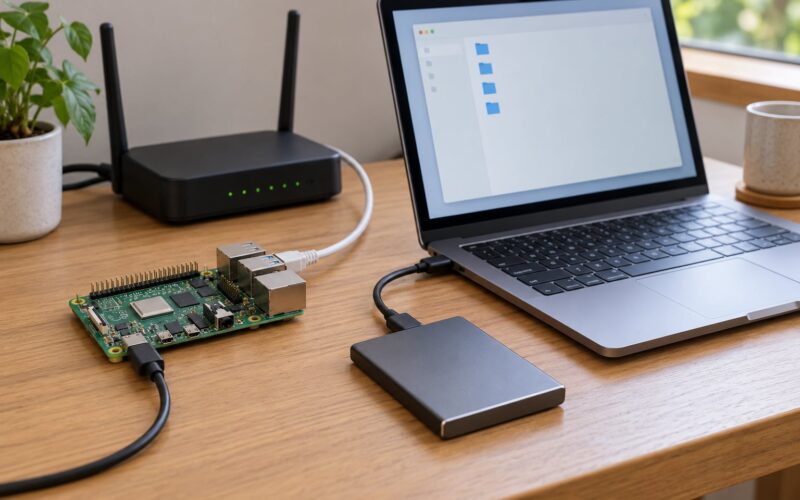
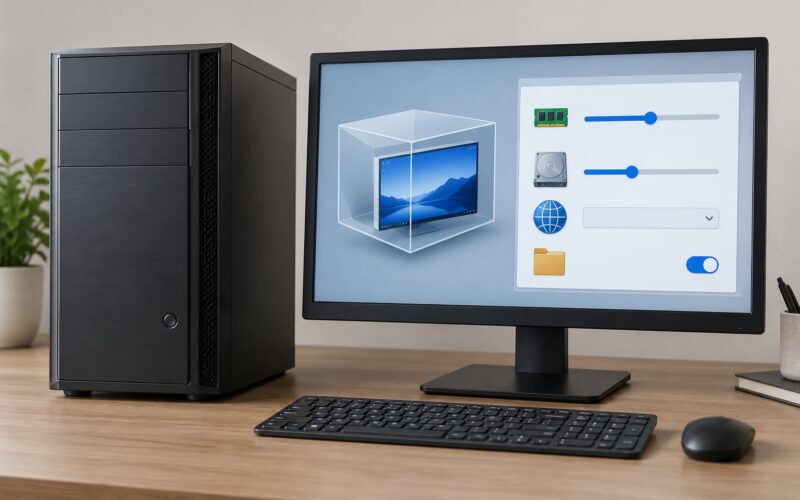
If you need to reach a machine that is not in front of you, three protocols cover almost everything: SSH for a terminal, RDP for a full Windows desktop, and VNC for a lighter graphical session on any platform. Below is remote desktop vs VNC vs SSH compared across bandwidth, security, setup and hosting platform, so you can pick the one that fits the job instead of guessing.
The short version: SSH runs almost every server admin task and costs nothing in bandwidth. RDP gives the best native experience on a Windows workstation because it re-renders only what changes. VNC is the most portable graphical option and the easiest to reach from a Chromebook or a Mac.
One more thing shapes the whole choice. SSH is the only one of the three that works as a carrier for the other two, so plenty of people end up running VNC or RDP through an SSH tunnel and getting the security of port 22 for both.
Table of Contents
- Remote Desktop vs VNC vs SSH at a Glance
- Remote Desktop: Full Desktop Control
- Clipboard, files and printers
- VNC: Lightweight Graphical Access
- Why VNC breaks on modern Linux desktops
- SSH: Command-Line Administration
- Tunnelling and forwarding
- Security and Encryption Compared
- Performance, Control, and Ease of Use
- Which Should You Choose?
- Frequently Asked Questions
- Can I run VNC over an SSH tunnel?
- Is SSH better than VNC?
- Can Windows Home host an RDP server?
- Why does VNC show a black screen on a modern Linux desktop?
- Which remote protocol is the most secure?
- Do I need a GUI to administer a server?
- Conclusion
Remote Desktop vs VNC vs SSH at a Glance

| Feature | SSH | Remote Desktop (RDP) | VNC |
|---|---|---|---|
| Default port | 22 | 3389 | 5900 |
| What it sends | Keystrokes and terminal text | Rendered UI objects and input events | Framebuffer rectangles and input events |
| Interface | Command line only | Full graphical desktop | Full graphical desktop |
| Encryption | Always on, mandatory | Negotiated TLS, NLA pre-auth | Optional, off by default in many builds |
| Typical bandwidth | Kilobytes, even on a busy session | Low to moderate, scales with what changes | Moderate to heavy on full-screen changes |
| Best on a weak link | Always | Good | Workable, slower as the framebuffer updates |
| Host platform | Linux, macOS, Windows, routers, switches | Windows Pro and Enterprise natively, xrdp on Linux | Linux, macOS, Windows, Raspberry Pi |
| Licensing | Free and open source | Needs a Pro or Enterprise host license | Free clients, commercial or open server options |
| Typical session | Text session per user | Separate virtual session per user | Shares or mirrors the console session |
| Strongest use case | Server administration, scripting, tunnelling | Windows desktop and app work | Cross-platform graphical access, Raspberry Pi, homelab |
That table is the whole comparison in one view. Read down the “What it sends” row and the rest follows: text beats graphics on bandwidth, and a protocol that redraws only the changed region beats one that ships whole framebuffer patches.
Remote Desktop: Full Desktop Control
RDP is Microsoft’s Remote Desktop Protocol, and it ships inside Windows Pro and Enterprise. You get the actual desktop of the remote machine, with your own account, your own wallpaper and your own windows, not a shared view of whatever is logged in at the console.
Its performance advantage comes from how it draws. Instead of streaming a compressed picture of the screen, RDP sends changes as objects: which menu opened, which line of text changed, which button turned grey. Typing in a terminal window over RDP on a bad connection stays usable, because a keystroke costs a few bytes rather than a screen-sized block.
Clipboard, files and printers
RDP redirects clipboard content and can map local drives and printers into the remote session. That drag-and-drop file transfer is the feature VNC users most often miss. It also records sessions for audit work if you turn session logging on in group policy.
The catch is licensing. Windows Home cannot act as an RDP host at all, which surprises people who assume every Windows box works the same. You need Pro, Enterprise, or Education on the machine you want to control. On Linux, xrdp gives you an RDP-protocol server so the familiar Windows client works against a Linux desktop.
VNC: Lightweight Graphical Access
VNC stands for Virtual Network Computing and it is built on an open specification called RFB, the Remote Framebuffer protocol. The server grabs the framebuffer and sends you the rectangles that changed since the last update. There is no rendering logic in the protocol itself, which is why VNC runs on almost anything with a display.
Setup is two halves: a server on the machine you want to reach, and a viewer on the machine you are sitting at. On a Raspberry Pi that is often one apt command. RealVNC, TigerVNC and TightVNC all ship free viewers for macOS, Windows and Linux, which is the practical reason VNC keeps winning in cross-platform situations.
Why VNC breaks on modern Linux desktops
The classic failure is a black or grey screen on a current Linux desktop. It is not a network problem. x11vnc reads the X11 framebuffer, and Wayland replaced X11 as the default display server on recent distributions, so there is no framebuffer for it to read. WayVNC and GNOME’s own remote desktop backend handle Wayland properly, and running an X11 session or switching your session type fixes the older tools.
Bandwidth is the other tradeoff. A full-screen video or a fast-scrolling page means large framebuffer patches, and users on slow links describe VNC-over-SSH as sluggish. That is mostly TCP-over-TCP: an SSH tunnel wraps an already-framed TCP stream in another one, and retransmissions in the inner stream stall the outer one too.
SSH: Command-Line Administration
SSH is Secure Shell, and it replaced Telnet because Telnet sent your password across the network in clear text. SSH encrypts everything on TCP port 22 and is present on Linux, macOS, Windows 10 and later, plus most network appliances. Sysadmins in the homelab communities reach for it first, mostly because they simply prefer a terminal to a GUI.
For a headless server, no desktop installed, SSH is not just the best option, it is often the only one. You manage services with systemctl, read logs with journalctl, edit configuration with a text editor over the connection, and the whole session costs a few kilobytes even when you tail a busy log file.
Tunnelling and forwarding
This is where SSH beats the other two at their own game. Local port forwarding opens a channel through the SSH connection, so the RDP or VNC service only needs to listen on localhost and only port 22 faces the network:
ssh -L 5901:localhost:5900 user@server
Then your VNC viewer connects to port 5901 on your own machine and the traffic rides the encrypted channel to the server. Swap 5900 for 3389 and you get the same trick for RDP. A remote forwarding (ssh -R) goes the other way, useful when you want to expose a local port to a server you are already connected to.
SSH also handles key-based authentication, agent forwarding, and multiplexing with ControlMaster, which lets one TCP connection carry several sessions instead of re-authenticating for every tab.
Security and Encryption Compared

| Security factor | SSH | RDP | VNC |
|---|---|---|---|
| Encryption out of the box | Mandatory, on every connection | TLS negotiated, normally with NLA | Varies by server; some builds start in clear text |
| Pre-session authentication | Key or password, before the shell opens | Network Level Authentication (NLA) | Password after the session starts |
| Best hardening | Keys only, disable password auth, restrict by source IP | VPN or jump host, MFA, rate limiting | SSH tunnel, VNC encryption, private network only |
| Internet exposure risk | Low, and heavily monitored by scanners | High, one of the most brute-forced ports online | High, often with weak or no authentication |
That third row matters more than the first. SSH is scanned constantly, but a key-only configuration means automated password guessing has nothing to attack. Ports 3389 and 5900 open to the internet are a different story: they receive automated login attempts around the clock, and a VNC server with a four-character password is a genuinely bad afternoon.
The fix the homelab crowd lands on is to stop exposing them. Layer a mesh VPN such as WireGuard or Tailscale in front, or tunnel through SSH, or hop through a jump host, and keep the graphical port on a private network where only you can reach it.
Performance, Control, and Ease of Use
Bandwidth is where the three separate cleanly. An SSH session is measured in kilobytes and behaves the same on a phone hotspot as on wired Ethernet. RDP sends only what changed, so an idle desktop costs almost nothing and a terminal window stays snappy. VNC sends framebuffer patches, so a static screen is cheap but a busy one is not.
Control is the second axis. SSH gives you individual processes and nothing else. RDP and VNC give you a screen, which means a desktop has to be running, licensed, and consuming memory on the remote end. On a small machine like a Pi with no desktop image installed, that is the entire argument for SSH.
Ease of use is where opinions split hardest. Windows administrators find RDP instantly familiar since the client is already on their machine. VNC feels fiddly at first because the server and the viewer are separate pieces of software, and Raspberry Pi users tend to argue about xrdp versus VNC on client familiarity rather than speed. Neither argument is wrong, it just reflects which machine you started on.
Which Should You Choose?
Map the scenario to the protocol and the decision takes about five seconds:
- Headless Linux server or VPS: SSH. There is no desktop to stream, and every service, log and config file is reachable from the terminal.
- Windows workstation or Pro desktop you need to drive: RDP. The client ships with Windows, rendering is efficient, and file redirection makes moving work across the connection painless.
- Raspberry Pi or homelab box with a desktop: VNC or xrdp. VNC is the easier setup and the more portable client support; xrdp lets you use the RDP client you already know.
- Remote technical support where someone else needs to watch: VNC, or an unattended tool such as RustDesk. Both let a second person see the same screen without fighting over the session.
- Weak or high-latency link: SSH by a wide margin, RDP second, VNC last.
- Anything reachable from the public internet: whatever you pick, wrap it in an SSH tunnel, a mesh VPN, or a jump host.
And if you want one front end for all three, Apache Guacamole gives you a browser-based gateway that speaks RDP, VNC and SSH from the same login page. That solves the “which tool do I open” problem that trips up most small teams.
Frequently Asked Questions
Can I run VNC over an SSH tunnel?
Yes, and it is the standard way to run VNC safely. Log in with ssh -L 5901:localhost:5900 user@server, leave the VNC server bound to localhost, then point your viewer at port 5901 on your own machine. The traffic is encrypted inside the SSH session, so you only expose port 22. Expect slightly more latency than a direct connection because of the extra TCP layer.
Is SSH better than VNC?
For server work, yes. SSH uses very little bandwidth, needs no desktop installed on the far end, and gives you full scripting and automation. VNC wins when you genuinely need a screen, such as installing a GUI app, adjusting a desktop setting or letting someone watch. If the machine has no desktop at all, SSH is not merely better, it is usually the only option available.
Can Windows Home host an RDP server?
No. The built-in remote desktop host role requires Windows Pro, Enterprise or Education. Windows Home has no RDP host component, which is why people assume something is broken when the option is greyed out. Options are upgrading the edition, or using a third-party host such as RustDesk or Chrome Remote Desktop, or reaching the machine over SSH or VNC instead.
Why does VNC show a black screen on a modern Linux desktop?
It is almost always the display server. x11vnc captures the X11 framebuffer, and Wayland replaced X11 as the default on current Linux distributions, leaving that tool with nothing to read. Use WayVNC or the desktop’s built-in remote access backend, or switch your session to X11 for the older tools. A wrong password or a display bound to a different screen looks similar but produces a different error.
Which remote protocol is the most secure?
SSH with key-based authentication and password login disabled. Encryption is mandatory there, and an attacker with only port 22 open has no password to guess. RDP has strong built-in TLS and Network Level Authentication but is the most heavily brute-forced port on the internet. VNC is the weakest by default because encryption and strong authentication depend on the build. Keep all three off the public internet where you can.
Do I need a GUI to administer a server?
No. Almost every server task is command-line work: starting services, reading logs, editing configuration, applying updates, and scripting all of it through SSH. A desktop adds memory cost and an extra attack surface for no benefit. Reach for a graphical protocol only when a specific tool is installer-only, or when another person needs to watch what you are doing.
Conclusion
Pick by what you need on the far end. A terminal means SSH. A Windows desktop means RDP. A desktop on anything else, especially a Pi or a homelab box, means VNC. Whatever you land on, keep the graphical port behind a tunnel or a mesh VPN rather than the open internet.
Start with SSH on anything headless, since it is already there, always encrypted, and the cheapest option in bandwidth. Add RDP or VNC only where a screen genuinely earns its keep. In 2026, these three still cover nearly every remote access job you will run into.