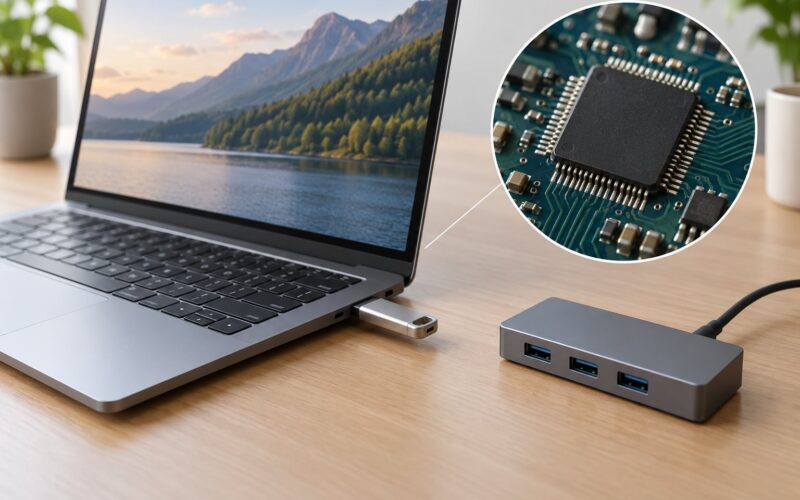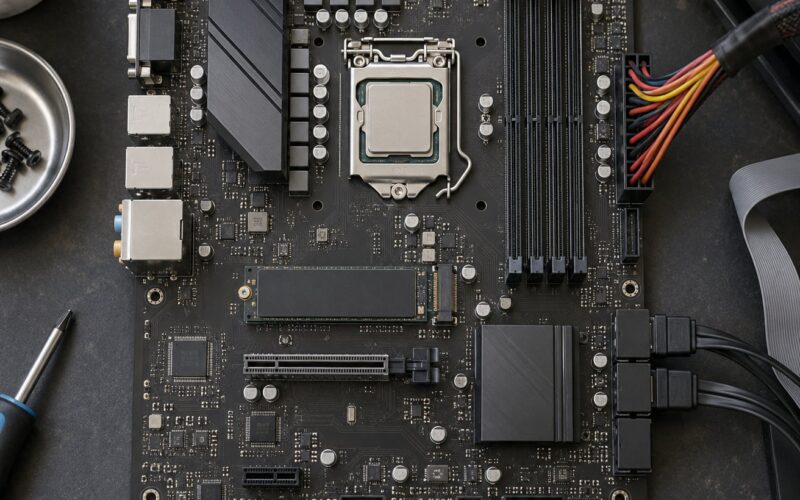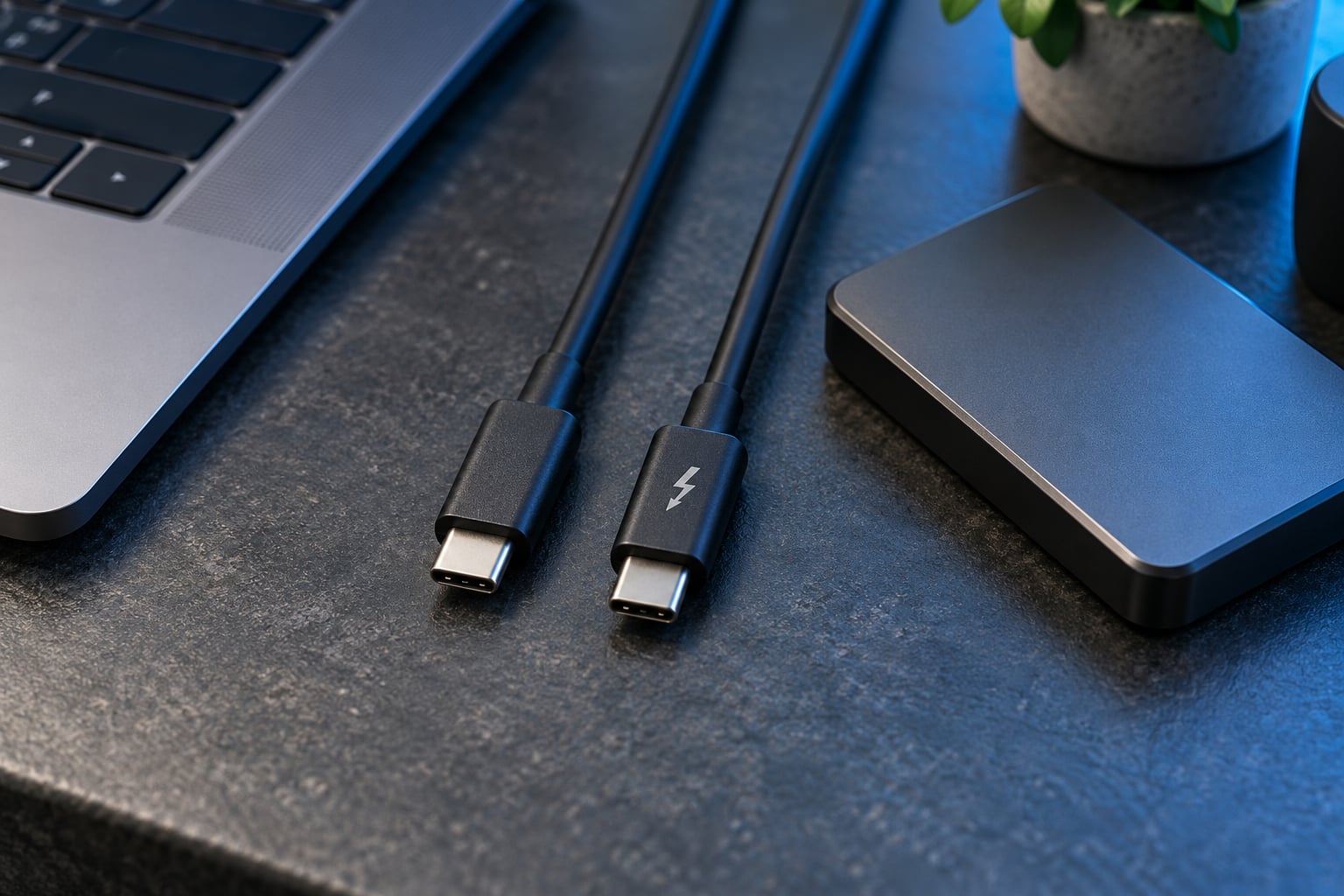
Thunderbolt and USB are not two competing connectors. USB-C is the physical plug shape, built so almost any device fits almost any port, while Thunderbolt is a faster protocol that carries PCI Express and DisplayPort traffic over that exact same plug. So the honest answer to what is Thunderbolt and how is it different from USB comes down to one line: the connector can be identical, the protocol underneath is not.
In practice the difference only shows up in a handful of jobs. A keyboard, a mouse, a printer or a phone does not care whether the port is Thunderbolt, because both run the same USB protocols underneath. A multi-bay storage array, two high-resolution monitors or an external GPU care a great deal, and that is where Thunderbolt pulls ahead.
I have watched people buy a Thunderbolt dock and then run a transfer at USB speeds for months without noticing, because the cable in the drawer was a plain USB-C cable. Nothing errors. Nothing warns you. The link simply negotiates as fast as the slowest piece allows, and the slowest piece is almost always the cable or the enclosure, not the port.
What follows covers the interface definitions, the bandwidth numbers and where they come from, the compatibility rules that catch people out, and how to check what your own machine actually has. Updated for 2026, including Thunderbolt 5 and USB4 2.0.
Table of Contents
- USB-C and Thunderbolt at a Glance
- What Is Thunderbolt?
- Thunderbolt generations at a glance
- What Is USB?
- USB versions and what each one tops out at
- USB-C and Thunderbolt: the headline comparison table
- How Do Speed and Bandwidth Differ?
- Thunderbolt vs USB: Power, Displays, and Expansion
- Thunderbolt and USB Compatibility: Why the Connector Can Mislead You
- How to check whether your port is Thunderbolt
- Why a plain USB-C cable quietly caps everything
- What is Thunderbolt and how is it different from USB on a MacBook?
- Which Should You Choose?
- Frequently Asked Questions
- Can I plug USB into Thunderbolt?
- What happens if you plug a USB-C cable into a Thunderbolt port?
- How do I tell if my USB-C port is Thunderbolt?
- Can any USB-C cable be used for Thunderbolt?
- Why is Thunderbolt better than USB?
- Is Thunderbolt the same as USB4?
- Conclusion
USB-C and Thunderbolt at a Glance
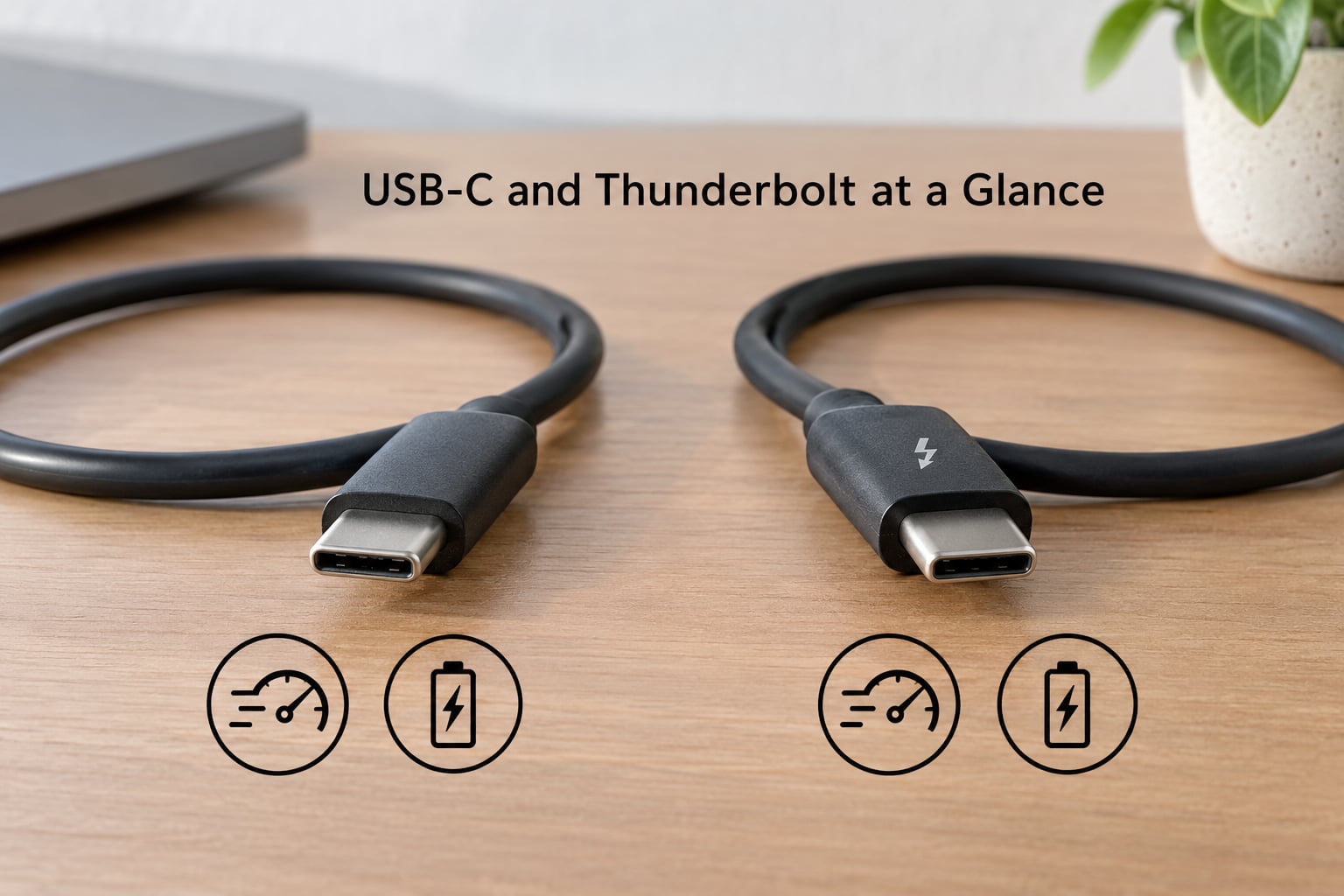
Short version: USB-C is a connector, Thunderbolt is a protocol, and one of them is much faster than the other.
- Speed: ordinary USB tops out at 20 Gbps with USB 3.2 Gen 2×2. Thunderbolt 4 does 40 Gbps, Thunderbolt 5 does 80 Gbps symmetric.
- Under the hood: USB moves USB traffic. Thunderbolt tunnels PCI Express and DisplayPort.
- Video: USB-C carries video only when it supports DisplayPort Alt Mode. Thunderbolt guarantees display bandwidth as part of the spec.
- Power: both reach 100W with USB Power Delivery. Thunderbolt 5 allows up to 240W downstream.
- Expansion: Thunderbolt exposes real PCIe slots, so external GPUs, NVMe arrays and audio interfaces are native. USB cannot.
- Compatibility: USB devices work in Thunderbolt ports. Thunderbolt devices usually do nothing in a plain USB-C port.
What Is Thunderbolt?
Thunderbolt is a high-speed serial interface developed by Intel with Apple, first shipped in 2011, that tunnels PCI Express and DisplayPort over a single cable. Since Thunderbolt 3 it uses the standard USB-C connector, which is the source of almost all the confusion.
Intel and Apple co-developed the interface, and Apple shipped the first Thunderbolt port on the 2011 MacBook Pro. The original working name was Light Peak, originally pitched as an optical cable concept before it landed as a copper design.
Underneath, a Thunderbolt controller takes PCI Express lanes and DisplayPort lanes, multiplexes them onto a small number of high-speed serial lanes, and splits them back out at the far end. That is why a Thunderbolt port can accept an external graphics card, a multi-bay NVMe enclosure or a PCIe audio interface without any special host-side driver shenanigans. It is a PCIe tunnel, not a networking protocol pretending to be storage.
Thunderbolt 1 and 2 used the Mini DisplayPort connector and moved 10 and 20 Gbps over two lanes. Thunderbolt 3 in 2015 was the pivot point: it moved to USB-C, raised the ceiling to 40 Gbps, and made the port backward compatible with ordinary USB devices. Thunderbolt 4 kept 40 Gbps but mandated daisy-chaining, added the multi-port accessory architecture and required host charging on at least one port.
Thunderbolt 5 arrived in 2024 hardware, moving to PAM-3 encoding for 80 Gbps bidirectional and 120 Gbps toward a display. That is the current top of the range.
Thunderbolt generations at a glance
| Generation | Year | Connector | Max bandwidth | Notes |
|---|---|---|---|---|
| Thunderbolt 1 | 2011 | Mini DisplayPort | 10 Gbps | Two PCIe 2.0 lanes |
| Thunderbolt 2 | 2013 | Mini DisplayPort | 20 Gbps | Four lanes, still limited to 20 Gbps aggregate |
| Thunderbolt 3 | 2015 | USB-C | 40 Gbps | PCIe tunneling, the USB-C switch |
| Thunderbolt 4 | 2020 | USB-C | 40 Gbps | Mandatory daisy-chain and long active cables |
| Thunderbolt 5 | 2024 | USB-C | 80 Gbps, 120 Gbps to display | PAM-3 encoding, up to 240W downstream |
What Is USB?
USB is the universal peripheral and power standard, maintained by the USB Implementers Forum, and it has been the default way to attach everything from keyboards to external drives since 1996. USB 1.1 and 2.0 used rectangular Type-A and squarish Type-B plugs. USB-C replaced both with one reversible oval connector that carries data and power in either orientation.
Here is the part that trips people up. USB-C describes the plug, not the standard running through it. That port on your laptop could be carrying USB 2.0 at 480 Mbps, USB 3.2 Gen 1 at 10 Gbps, USB 3.2 Gen 2×2 at 20 Gbps, or USB4 at 40 Gbps or more. The shape looks identical in every case.
The port icons were supposed to solve this and mostly did not survive contact with modern hardware. The plain trident means USB 2.0. The SS trident means 5 Gbps, SS with a plus means 10 Gbps, and a battery-style icon means the port supports Power Delivery. Plenty of current laptops print no icon at all.
USB versions and what each one tops out at
| Version | Max bandwidth | Where you meet it |
|---|---|---|
| USB 2.0 | 480 Mbps | Legacy ports, many accessories, charging-only cables |
| USB 3.2 Gen 1 | 10 Gbps | The common USB 3.0 and 3.1 Gen 1 speed |
| USB 3.2 Gen 2×2 | 20 Gbps | Highest ordinary USB speed, needs a Gen 2×2 host |
| USB4 | 20 or 40 Gbps | Based on the Thunderbolt 3 protocol, royalty-free |
| USB4 2.0 | 80 Gbps | Matches Thunderbolt 5 link speed |
USB-C and Thunderbolt: the headline comparison table
| Criterion | USB-C and USB | Thunderbolt |
|---|---|---|
| What it is | A connector shape plus a family of USB standards | A high-bandwidth protocol that also uses the USB-C connector |
| Max bandwidth | 20 Gbps (USB 3.2 Gen 2×2); 80 Gbps on USB4 2.0 | 40 Gbps on TB3 and TB4, 80 Gbps on TB5 |
| What the lanes carry | USB traffic only | PCI Express and DisplayPort, plus USB |
| PCIe expansion | Not available | Native, up to four lanes of PCIe |
| Video output | Only with DisplayPort Alt Mode, resolution varies by host | Guaranteed: dual 4K60 or one 8K60 on TB4, dual 8K60 on TB5 |
| Charging | Up to 100W with Power Delivery | Up to 100W with Power Delivery, 240W downstream on TB5 |
| Daisy-chaining | Not supported | Up to six devices on TB1 and TB2, hub architecture from TB4 |
| Cable | Any certified USB-C cable | Thunderbolt-certified cable; active cables needed past about 1m |
| Host requirement | Any USB port | A Thunderbolt controller in the host, plus a certified cable |
| Certification | USB-IF compliance | Mandatory Intel certification, with the tradeoffs that implies |
One note straight after the table, because it comes up constantly: yes, you can plug a USB-C device into a Thunderbolt port and it will work every time. The reverse usually does nothing at all.
How Do Speed and Bandwidth Differ?
The headline numbers come from completely different plumbing. Thunderbolt 3 and 4 budget four lanes of PCIe 3.0, which is 32 Gbit/s of usable data traffic under a 40 Gbit/s link ceiling, with DisplayPort riding alongside on the same controller. Thunderbolt 5 doubles that to 80 Gbit/s both ways and reserves 120 Gbit/s for display using PAM-3 encoding, where three bits are encoded into every two symbols.
USB 3.2 Gen 2×2 reaches 20 Gbps by putting two Gen 2 lanes side by side in one connector, and older 128b/130b line encoding means some of that raw link rate is spent on overhead. USB4 changed that by adopting Thunderbolt 3’s tunnelling approach, which is why USB4 hosts and Thunderbolt hosts can look and behave alike.
Two caveats keep people from overspending. First, encoding and protocol overhead mean you never see the full number in practice. Second, and more important, a single NVMe drive saturates well below 40 Gbps, so a Thunderbolt 4 port will not make a single laptop SSD twice as fast.
Where the extra bandwidth actually pays is storage arrays with several drives, multi-bay RAID enclosures, video ingest, external GPUs, and display bandwidth. One forum consensus worth repeating: if your enclosure is limited by SATA drives or RAID write penalties, doubling the interface speed changes nothing. The drive is the bottleneck, not the port.
Encoding matters as well. NRZ, the older scheme, uses one bit per symbol. PAM-3 fits three bits into two symbols, which is how Thunderbolt 5 reaches its higher rate without tripling the wire speed. PAM-3 also demands new active cables, which is why an older Thunderbolt 3 cable will not negotiate an 80 Gbps link no matter what you plug it into.
Thunderbolt vs USB: Power, Displays, and Expansion
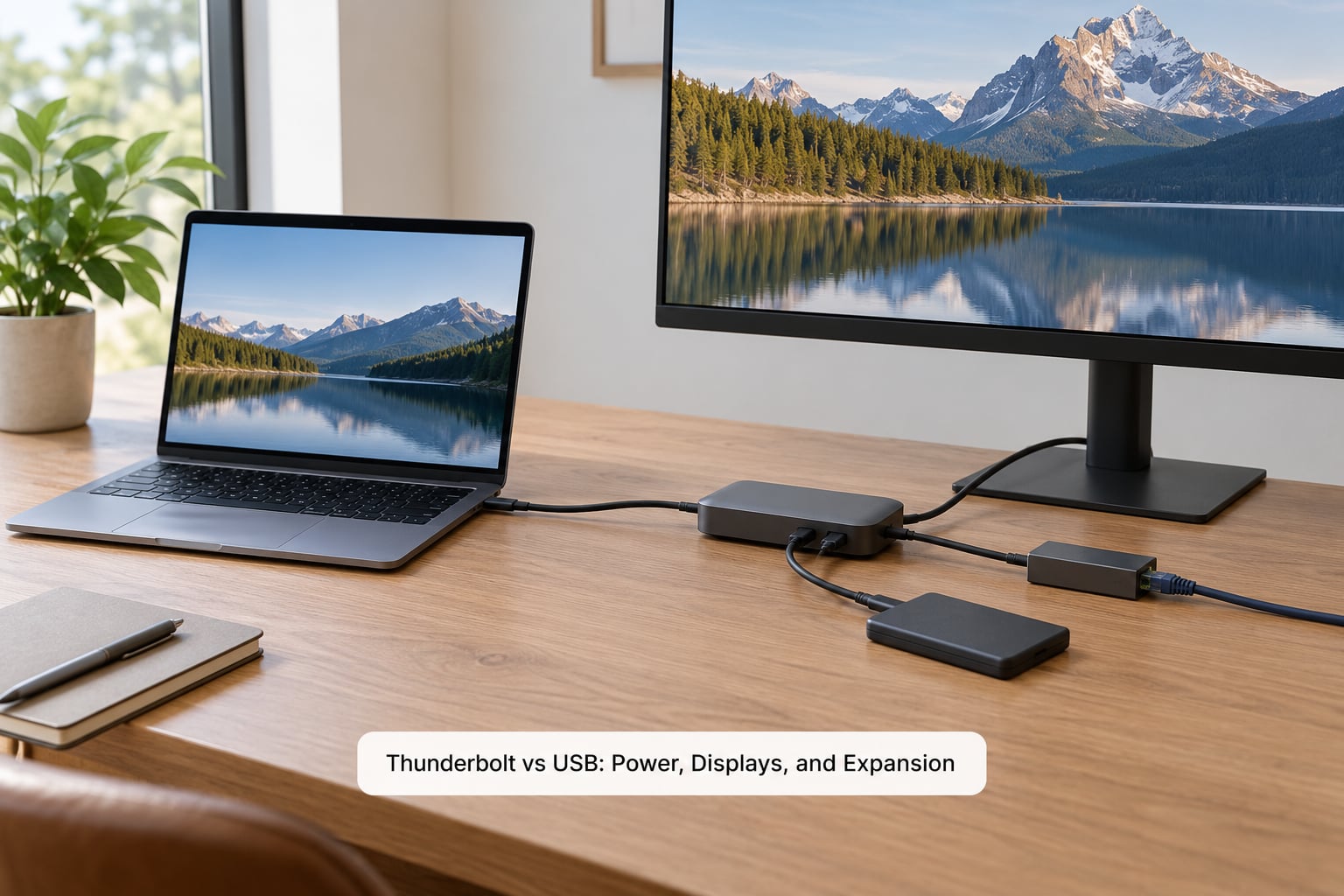
Power is the biggest myth here. Thunderbolt 3 supplies a default of 15W of bus power and USB-C defaults to about 2.5W, but both negotiate up to 100W through the same USB Power Delivery protocol. So for charging a laptop, Thunderbolt is not better than USB-C. Thunderbolt 5 allows up to 240W downstream, which matters for a demanding workstation rather than a phone.
Displays are where the difference is real. A Thunderbolt port guarantees bandwidth for two 4K60 displays or one 8K60 display on TB4, and dual 8K60 on TB5. A USB-C port carries video only if it supports DisplayPort Alt Mode, and the resolution you actually get depends on which DP revision and USB version the host negotiated. Some USB-C ports drive two monitors, some drive one, and some drive none at all.
Expansion is the clearest split. Thunderbolt exposes real PCI Express slots, so an external GPU, an NVMe storage enclosure, a high-end audio interface or a capture card behaves like internal hardware. USB has no general-purpose PCIe tunnelling, so none of that is possible over an ordinary USB-C link.
Daisy-chaining works differently too. Thunderbolt lets you connect a display, then hang storage off the back of the display, then hang more devices off that, limited by how much bandwidth each device takes. USB requires a hub, which costs money and desk space.
Thunderbolt and USB Compatibility: Why the Connector Can Mislead You
Compatibility is asymmetric, and that asymmetry is the single most useful thing to know. A USB-C device in a Thunderbolt port works and runs at whatever the USB link supports. A Thunderbolt device in a plain USB-C port frequently does nothing useful, because there is no Thunderbolt controller to negotiate with.
The lightning-bolt symbol used to be a decent hint. It is not reliable now. Plenty of current laptops and docks print nothing at all, and some ports carry an icon that describes the USB speed rather than the Thunderbolt support. Check the specification, not the silkscreen.
How to check whether your port is Thunderbolt
On Windows 11, open Device Manager, expand the System tree and look for a Thunderbolt Controller entry. In Settings, go to System, then About, and read the Thunderbolt line in the system summary. If both are absent, the port is likely plain USB-C or USB4.
On macOS, hold Option while clicking the Apple menu and choose System Information. Look under the USB section: Thunderbolt 3 and 4 ports appear as Thunderbolt Bus entries, while USB4 hardware can also show as USB4 or a Thunderbolt 4 controller depending on the generation.
On Linux, install the thunderbolt-tools package and run boltctl list. It prints every connected Thunderbolt device with its vendor, device id, generation, status and whether security is enabled. boltctl status gives the full detail for a single device. On Thunderbolt 4 and 5 hosts you may also see entries in /sys/bus/thunderbolt/devices.
Note that macOS hides Thunderbolt ports that are only used for display output on some desktops, so an absent entry is not proof. The device spec sheet remains the final word.
Why a plain USB-C cable quietly caps everything
A USB-C cable and a Thunderbolt cable look nearly identical from the outside. A basic USB-C cable carries the USB protocols only, so plugged into a Thunderbolt port it works and then caps the whole link at USB speeds. Nothing errors. Your transfer just takes roughly twice as long as the drive promised.
Longer Thunderbolt 3 and 4 cables are active, with a chip inside that regenerates the signal, which is what makes 2m and 3m runs possible. Passive Thunderbolt cables top out around 0.5m to 0.8m for full 40 Gbps. Thunderbolt 5 at 80 Gbps requires active cables throughout, so a Thunderbolt 3 cable will not negotiate PAM-3 at all.
What is Thunderbolt and how is it different from USB on a MacBook?
On a MacBook, Thunderbolt 3 and 4 ports are physically identical to the USB-C charging ports, and Apple has labelled some of them with the lightning bolt and left others unmarked. Apple ships Thunderbolt, not plain USB, on those ports. Check System Information rather than guessing from the label.
Which Should You Choose?
Choose Thunderbolt when the bandwidth changes what you can do. That means external NVMe or multi-bay RAID storage moving large files, multi-monitor setups needing guaranteed dual-4K or 8K output, external GPUs for rendering or machine learning work, high-end audio or capture interfaces, and docks that need to hang several high-speed devices off one port.
Stay with plain USB-C for keyboards, mice, webcams, printers, phones, ordinary external SSDs, single 4K monitors and everyday charging. The Thunderbolt premium buys you nothing on those, and cheaper docks and cables will do the job.
USB4 versus Thunderbolt is the comparison people get wrong. USB4 launched in 2019 on the Thunderbolt 3 protocol and is royalty-free, and USB4 2.0 matches Thunderbolt 5 at 80 Gbps. A USB4 host without Thunderbolt certification still gets the bandwidth, but not the mandatory Thunderbolt certification, the specific dock behaviours, or the VT-d DMA isolation guarantees that come with a certified Thunderbolt controller.
For developers, the practical case is a dock plus external storage that behaves like internal hardware. For sysadmins, the practical case is predictable provisioning, since Thunderbolt peripherals enumerate consistently once the controller and cable are right. Neither group needs Thunderbolt for a keyboard.
One more thing for a security-minded reader. Thunderbolt tunnels direct memory access, which lets a connected device read and write system memory more or less directly. That is what enables the external GPU and the fast NVMe enclosure, and it is also the mechanism behind Thunderspy-style attacks and evil-maid scenarios. Kernel DMA Protection, IOMMU and VT-d are there to constrain it, so keep them enabled and treat unknown docks as hostile.
Frequently Asked Questions
Can I plug USB into Thunderbolt?
Yes. A Thunderbolt port accepts ordinary USB-C devices, including keyboards, mice, hard drives and phones, and they run at their normal USB speed. The reverse is not true: a Thunderbolt device plugged into a plain USB-C port often will not work, because there is no Thunderbolt controller on the other end to negotiate with.
What happens if you plug a USB-C cable into a Thunderbolt port?
It works, and this is where people get caught. The link falls back to the best speed both ends support, so a plain USB-C cable in a Thunderbolt port quietly runs at USB speeds. There is no warning message and no error, so a 40 Gbps transfer can end up taking twice as long as the drive advertises.
How do I tell if my USB-C port is Thunderbolt?
Check the system, not the label. On Windows, open Device Manager and look for a Thunderbolt Controller entry, or check Settings, System, About. On macOS, hold Option, click the Apple menu and open System Information, then read the USB tree. On Linux, run boltctl list after installing thunderbolt-tools.
Can any USB-C cable be used for Thunderbolt?
It will physically fit and USB devices will work, but you will not get Thunderbolt bandwidth unless the cable is Thunderbolt-certified. Passive Thunderbolt cables are limited to a fraction of a metre for full 40 Gbps, Thunderbolt 4 uses active cables past that, and Thunderbolt 5 at 80 Gbps needs PAM-3 capable active cables throughout.
Why is Thunderbolt better than USB?
Thunderbolt wins on bandwidth for real workloads: it tunnels PCI Express and DisplayPort, so external GPUs, NVMe storage arrays, audio interfaces and multi-monitor setups work natively. It also guarantees display bandwidth and supports daisy-chaining. For charging alone it is no better, since both reach 100W through USB Power Delivery.
Is Thunderbolt the same as USB4?
They are closely related but not identical. USB4 was built on the Thunderbolt 3 protocol and is royalty-free, and USB4 2.0 matches Thunderbolt 5 at 80 Gbps. Thunderbolt adds mandatory certification and features tied to it, including VT-d DMA isolation and defined multi-port accessory and daisy-chain behaviour.
Conclusion
USB is the broad general-purpose standard for peripherals and power. Thunderbolt is a high-performance interface built around PCI Express and DisplayPort, and since version 3 it happens to use the same USB-C plug. The rule of thumb to remember: the connector is the same, the protocol underneath is not.
Before you buy a cable or a dock, check the protocol and version rather than the shape. Confirm your port in Device Manager, System Information or boltctl, buy a Thunderbolt-certified cable, and reach for Thunderbolt only when PCIe expansion, guaranteed multi-monitor bandwidth or a storage array is part of the job. For everything else, USB-C already does the job for less.