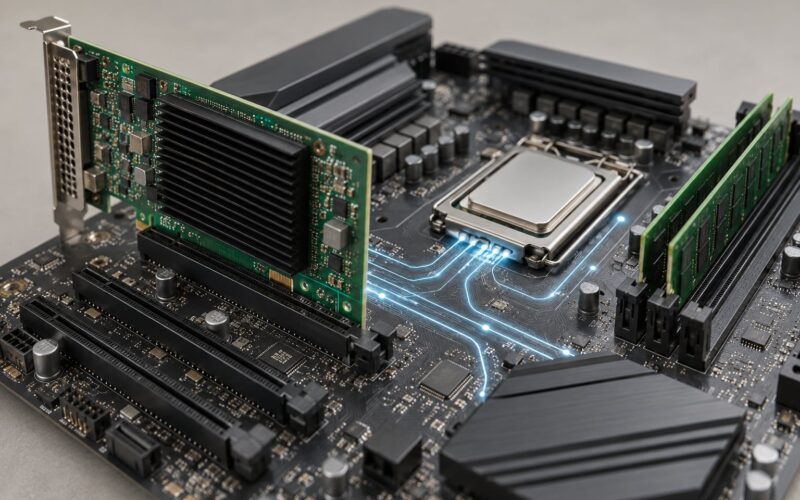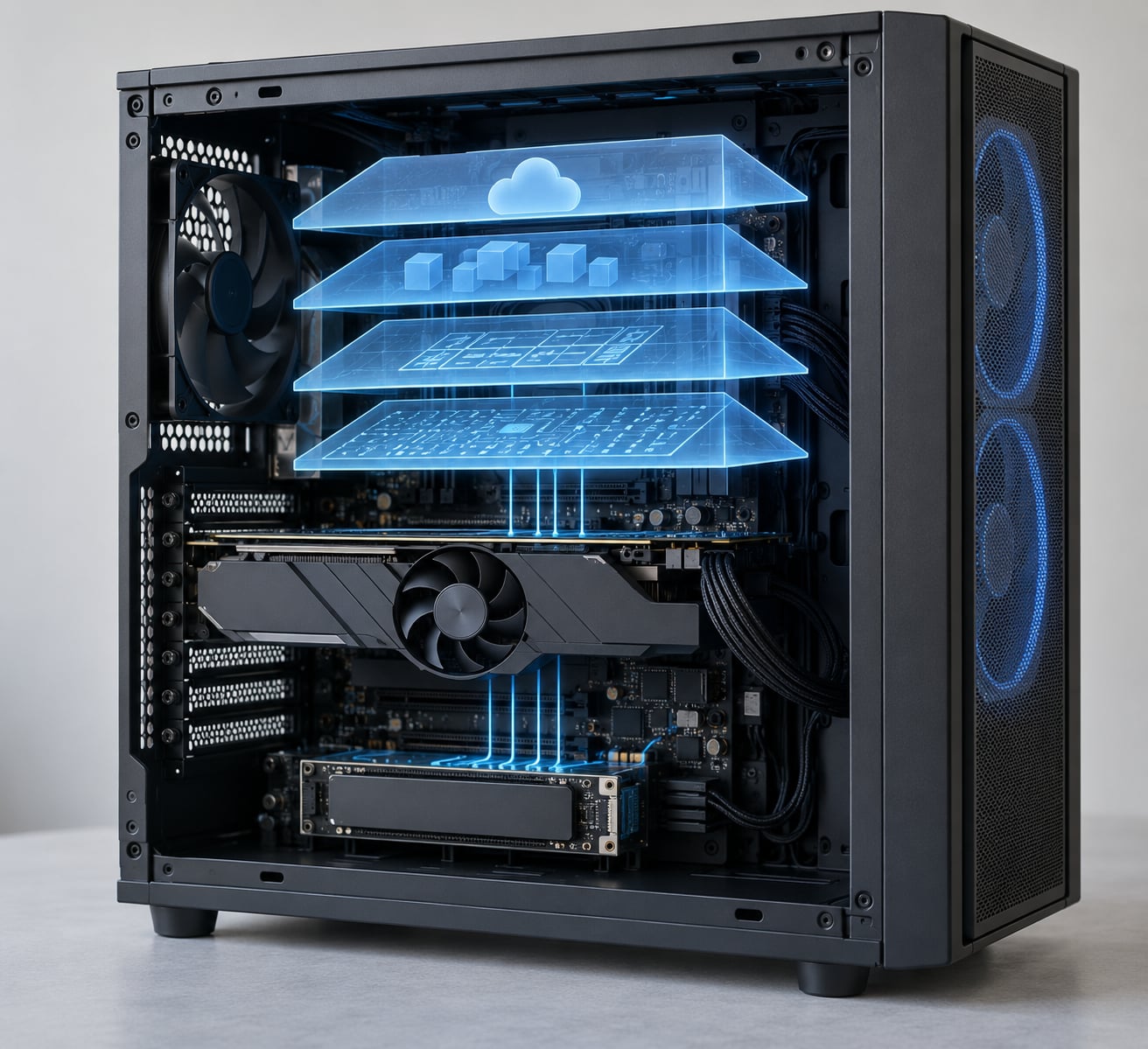
A device driver is software that lets an operating system communicate with and control one specific piece of hardware. It translates generic commands like “write these bytes to disk” into the low-level instructions that one particular controller understands, then converts the hardware’s replies back into standard results. Application, operating system, driver, hardware — and the answer comes back along the same road.
In plain words, a driver is the translator between two worlds that share no common language. The operating system knows how to schedule work and protect files; the hardware knows how to move electrons and toggle pins. Something has to sit in the middle and speak both, and that something is the driver.
This guide walks through where drivers sit, how one is installed, what happens when software asks hardware to do work, and how to check a driver when something misbehaves. Menu paths and command names differ between Windows versions and Linux distributions, so read the platform notes as you go.
Table of Contents
- Where a Device Driver Fits in a Computer
- What Is a Device Driver and How Does It Work?
- Why drivers exist: hardware abstraction
- What Happens When the Operating System Finds New Hardware?
- How a Device Driver Handles an I/O Request
- Why a driver is rarely a single file
- What Types of Device Drivers Are There?
- How Do Device Drivers Interact with Applications and the OS?
- How Windows, macOS and Linux differ
- Why Do Device Drivers Fail?
- How to Check and Troubleshoot a Device Driver Safely
- Frequently Asked Questions
- Does every computer device need a device driver?
- Is a device driver the same as firmware?
- Can a device driver contain malware?
- How do I find the correct driver version for my device?
- Can a missing device driver stop hardware from working?
- What to Remember About Device Drivers
Where a Device Driver Fits in a Computer
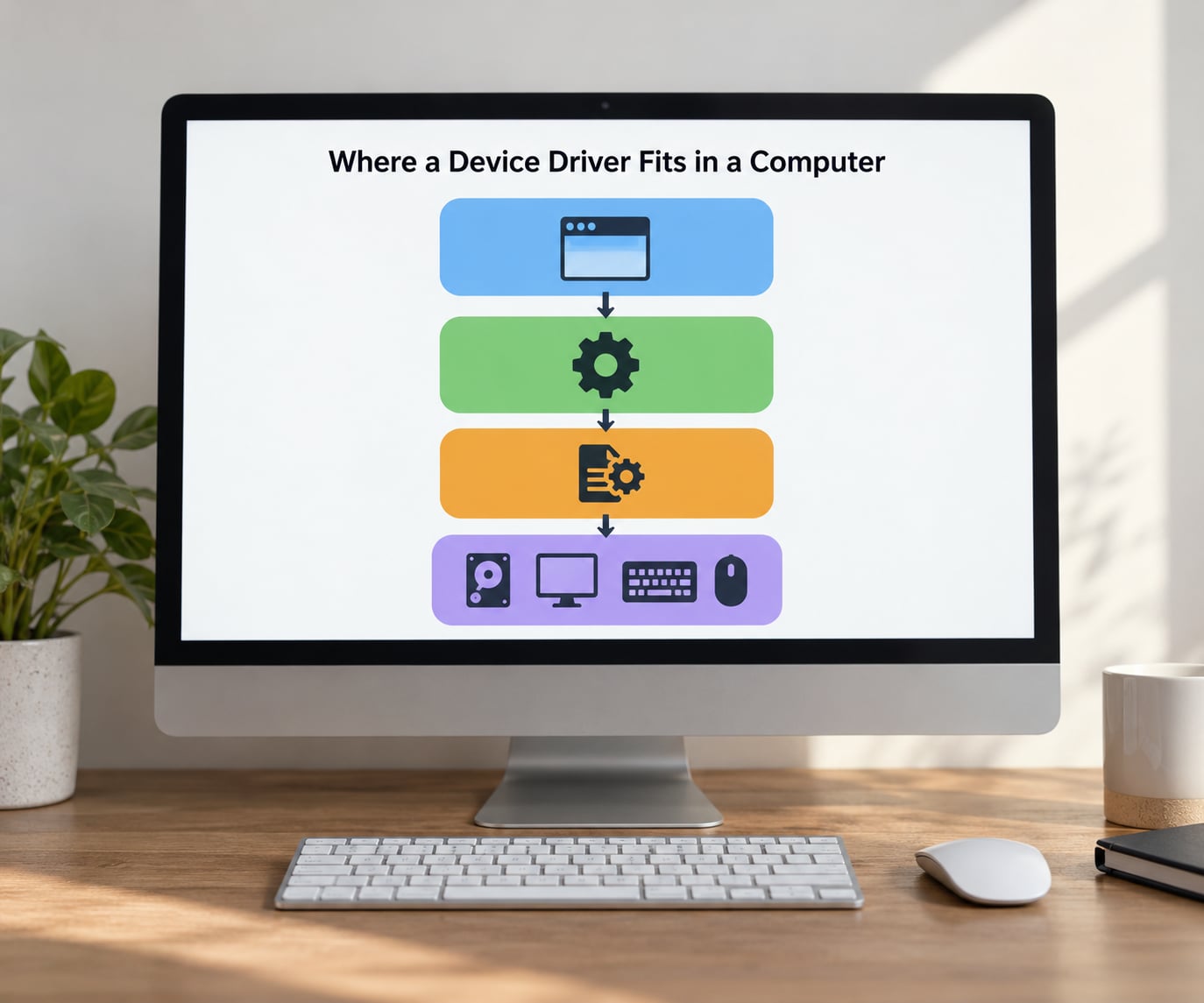
A driver occupies one specific layer in the stack between your code and a physical chip. Each layer hands a cleaner job down to the one below it, so no layer has to understand the details of every other one.
| Layer | What it is responsible for |
|---|---|
| Application | Asks for an outcome in its own terms: save this file, print this page, draw this window. It has no idea which controller does the work. |
| Operating system | Defines the standard interface, schedules access, enforces permissions, and routes each request to the correct driver. |
| Device driver | Knows one device or one family of devices: its command set, its timing, its error codes, and its register layout. |
| Hardware | Performs the physical action and reports back, usually by raising an interrupt when it has something to say. |
Firmware sits alongside drivers rather than above them. Firmware is code stored in a chip’s own flash memory that runs on that chip, handling low-level control of its own internals. A driver is software loaded by the operating system onto the general-purpose machine. Modern devices usually contain both, which is exactly where most of the confusion starts.
| Thing | Where it lives | Who loads it | Example |
|---|---|---|---|
| Device driver | Files on storage, loaded into memory | The operating system, at boot or when the device appears | A graphics driver, a Wi-Fi driver |
| Firmware | Flash memory on the device itself | The device, during its own power-up | Wi-Fi radio firmware, SSD controller firmware |
| BIOS or UEFI | A board firmware chip | The motherboard, before any operating system exists | The POST screen and boot device list |
| Application software | Files on storage | You, or a package manager | A browser, a game |
There is a practical reason this split matters. If firmware is wrong, no driver on the machine can rescue the device. If a driver is wrong, the hardware itself is usually still fine, which is why driver problems are often cheaper to fix than firmware problems.
What Is a Device Driver and How Does It Work?
Functionally, a device driver converts operating-system calls into hardware-specific commands and converts hardware responses back into standard data and status results. It runs inside a trusted part of the operating system, registers itself so the OS can find it, and exposes the device through a standard interface that applications can open like a file.
Take a mechanical keyboard as the concrete case. When you press a key, the keyboard controller scans the matrix, notices that one switch closed, and stores a scan code. It also asserts an interrupt line to the host. Something has to know which interrupt that was, read the scan code from the right register, translate it to a character, and hand it to the process waiting on a keyboard handle.
That “something” is the keyboard driver. It is the piece that knows this controller uses interrupt 9, that the data register lives at a particular I/O port, that a leading byte of zero means it is an extended key, and that a release event should be reported separately from a press. Windows HID, the Linux evdev subsystem, and macOS IOHIDManager are different implementations of the same job.
Why drivers exist: hardware abstraction
Two printers can do exactly the same thing and share not one command byte. A laser printer from one vendor and an inkjet from another have different page description languages, different status registers, different ways to report a paper jam. If the operating system had to know all of that, every new model would be an operating-system update.
Hardware abstraction is the arrangement that avoids this. The operating system promises “send me these bytes” and stays stable. The driver absorbs the model-specific part. When the abstraction is done well, swapping a graphics card changes nothing above the driver line, and the operating system does not ship an update.
Drivers also cut the other direction. Without them, every application that touches hardware would carry its own copy of device-control code, and each copy would diverge. On Linux, one driver can be shared by every program that opens the device node.
What Happens When the Operating System Finds New Hardware?
Between plugging in a device and using it, the operating system runs a discovery and match sequence. Names for the steps differ between platforms — Windows calls it Plug and Play, Linux leans on udev and the driver model — but the shape is the same everywhere.
- Detection. The hardware announces itself. On USB the host controller sees a connect event on a port; on PCI a bus enumeration walk finds a device and reads its configuration space; on Thunderbolt or PCIe the same idea appears with a different transport.
- Identification. The bus reports identifiers: a PCI vendor ID and device ID, a USB vendor ID and product ID, a class code, a revision, and often a serial number. Together these form the hardware ID the OS matches against.
- Matching. The operating system looks for a driver whose metadata claims that hardware ID. An exact vendor driver wins over a generic class driver, which wins over nothing.
- Reading the driver metadata. On Windows the matching file is an INF, a plain-text description listing supported hardware IDs, the files to install, and any registry or service configuration. The INF is not the driver; it is the recipe for installing the driver.
- Staging. The package is placed in the driver store, the system’s library of driver packages, before anything is switched over. Staging first means a failed installation does not leave a half-configured device behind.
- Verification. The operating system checks the digital signature on the package. On modern Windows, unsigned or improperly signed drivers are refused by default on 64-bit systems. Linux distributions sign modules through their own keyring.
- Installation and registration. The driver binary is loaded and registers itself with the OS: creating a device object, publishing a name applications can open, and attaching handler routines for interrupts and I/O requests.
- Configuration. Resources are assigned. On PCI this is usually automatic; on older systems, interrupt lines, I/O ranges and DMA channels sometimes need manual help. The device then appears as usable.
Step seven is where the “unknown device” icon comes from. A device gets an icon in Device Manager as soon as it is present, even with no working driver. Seeing the name there means enumeration succeeded, not that the device functions. Detected is not the same as working, and support people lean on that distinction constantly.
How a Device Driver Handles an I/O Request
Here is the round trip for a single operation, using a read of a block from an SSD as the example. Nothing here is exotic; it is the same shape for a keypress, a network packet, and a frame drawn to the screen.
- The application asks. Code calls a standard read operation on a file handle. On Linux that is
read()on a device node such as/dev/sda; on Windows it isReadFileon a handle opened withCreateFile. - The operating system validates. Permissions, handle validity, buffer size and alignment are checked before anything reaches hardware. Rejected requests fail here with an error, never near the device.
- The request is packaged. The OS builds an I/O request packet describing the operation, the buffer, and a completion routine, then dispatches it down the driver stack for that device class.
- The driver stack cooperates. Filter drivers above the device may observe, transform or reorder the request — antivirus scanners hook the storage stack this way. The function driver at the bottom finally owns the hardware conversation.
- Buffers are prepared. The driver maps or pins the user buffer so the hardware can reach it, often using direct memory access. Pinned memory cannot be swapped out, so buffers are held only as long as the transfer needs them.
- Registers are written. The driver writes a command into a control register, then a descriptor pointing at the buffer into data registers. Two mechanisms exist for this: port I/O, where each read or write targets a numbered port on the CPU, and memory-mapped registers, where device registers appear at addresses in a normal address space. Modern PCIe devices use the memory-mapped form almost exclusively.
- The transaction runs. The driver rings a doorbell register and the controller begins work on its own. Nothing is blocking a CPU thread while a disk seeks or a network card waits for a wire.
- The interrupt arrives. When the device finishes, it asserts an interrupt line. The CPU records the event and enters kernel mode to run the driver’s interrupt handler, which reads a status register, clears the interrupt source, and learns whether the operation succeeded.
- Completion and return. The handler schedules the completion routine, the buffer is copied or mapped back, and a numeric status is set — bytes transferred, or an error code. The calling application wakes and reads that status.
Why a driver is rarely a single file
The one-driver-one-device model is a teaching simplification. In practice a driver stack is layered, and each layer has a defined job. A bus driver knows how to talk to a transport such as PCI or USB, including how to enumerate what is attached and how to perform a transaction on it. A filter driver sits somewhere in the chain above or below and passes requests through while watching or changing them. A function driver, sometimes called a class or port driver depending on the device family, implements the actual device function. Miniclass and miniport drivers split the work again on high-performance paths, with the miniport handling the hardware and the miniclass handling OS formatting.
Layering exists so features can be added without touching the hardware-specific code. Storage, network, printing and human-interface devices each have framework models in Windows that impose this shape, and each layer has its own file, own entry points and own signing.
Virtual drivers use exactly the same shape while pretending to be hardware. A VPN client registers a virtual network adapter so the operating system treats a tunnel as a physical NIC. Virtual disks, virtual machines and some backup products do the same for storage. If a home lab has a device that appears in Device Manager with no physical counterpart, a virtual driver is the usual explanation.
Two mechanisms shape this flow. Asynchronous I/O means the request returns before the hardware finishes, with completion delivered later through an interrupt or event, which is why one thread can manage thousands of outstanding transfers. Buffering means data passes through an intermediate kernel or driver buffer on the way in and out, absorbing mismatched sizes between the application and the device.
Errors propagate upward the same way they came down. A controller reports a failure code in a status register, the driver converts it to an OS-level status value, and the application sees a failed read rather than silent garbage.
This is where the privilege question bites. A driver running in kernel mode can touch any memory in the machine, and a bad pointer or an out-of-bounds write takes the whole system down instantly. That is why beginner questions on programming forums keep circling the same worry: writing drivers means writing part of the kernel, where an ordinary crash is a full system halt.
What Types of Device Drivers Are There?
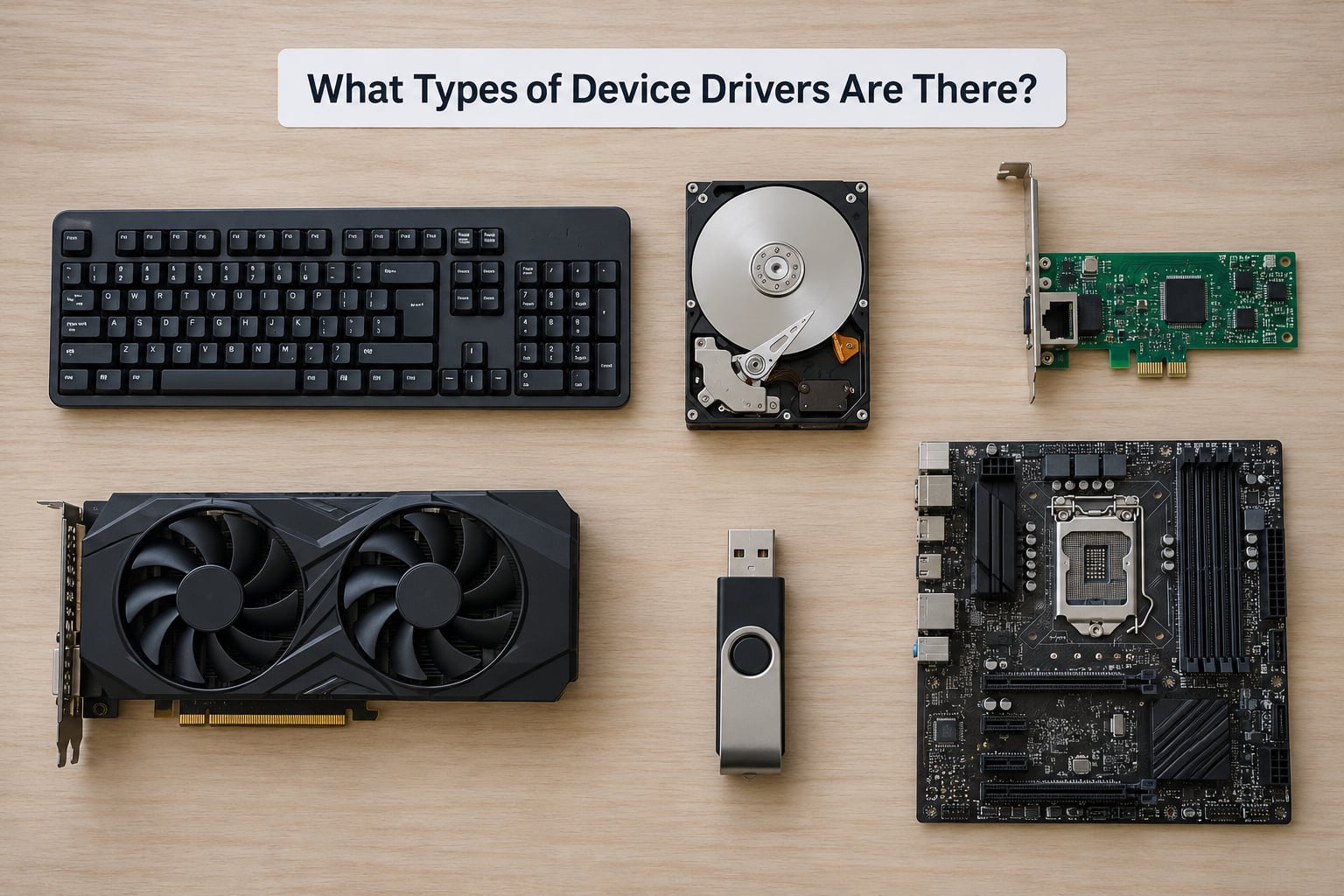
Drivers fall into families based on how they move data. A real driver often wears more than one hat, since a storage controller touches bus registers, interrupt handling and power management at once, but the families below are how documentation and kernel APIs are organised.
| Driver family | Unit of transfer | Typical hardware | Representative OS interface |
|---|---|---|---|
| Character device | A stream of bytes | Keyboards, serial ports, terminals, sensors | Unix character device nodes, Win32 character devices |
| Block device | Fixed-size blocks | SSDs, hard drives, NVMe namespaces, iSCSI targets | Linux block layer, Windows storage stack |
| Network | Packets | Ethernet controllers, Wi-Fi adapters, VPN virtual adapters | NDIS, Linux netdev and socket layer |
| Graphics | Commands and surface memory | Discrete and integrated GPUs, capture devices | WDDM, DRM/KMS, Metal and DirectX support layers |
| Bus | Configuration and transactions | PCI, USB, Thunderbolt, SATA and NVMe controllers | WDM bus drivers, Linux host controller interfaces |
| Human interface | Input and output reports | Keyboards, mice, touchpads, touchscreens, game controllers | HID stack, Linux input subsystem, IOHIDFamily |
| Virtual | Whatever the emulated device reports | VPN adapters, virtual disks, VM guest integration | Same stacks as physical hardware, backed by software |
Five examples, since examples land better than taxonomy. A graphics driver turns API draw calls into GPU command buffers and manages display output. A storage driver translates read and write requests into NVMe or SATA commands. A network driver moves frames between the network stack and a NIC’s ring buffers. A chipset driver configures low-level controller features after a clean install. A virtual driver lets software pretend to be hardware, which is what makes VPN clients and virtual machines work.
How Do Device Drivers Interact with Applications and the OS?
The interface a driver presents upward is deliberately boring, and that is the point. Applications use the same calls whether they are talking to a USB disk from 2015 or a new NVMe SSD, because the driver normalises the differences underneath.
- File handles and device nodes. Most drivers expose the device as something openable. On Unix-like systems that is a file in
/devwith a major and minor number pairing; the virtual filesystem routes an open on that pair to the registered driver. Windows uses CreateFile and a device namespace. - Standard I/O calls. Read, write, seek and close map onto the driver’s handler routine. Using them instead of device-specific calls is what makes the abstraction real.
- Control requests. Operations that do not fit the read/write shape travel as I/O control calls:
ioctlon Unix-like systems,DeviceIoControlon Windows. A request to change scan rate, read a sensor register or query capabilities goes this way. - Shared libraries and user-mode helpers. Applications often load a vendor library that talks to the driver over the control interface, giving them structured access without hand-rolling request codes.
- Kernel services. Kernel-mode drivers call into the OS for memory management, interrupts, timers, power management and I/O scheduling. Using these services instead of rolling your own is what makes a driver portable across hardware revisions.
Where a driver runs changes the risk profile completely.
| Placement | What it can do | What happens when it crashes | Typical use |
|---|---|---|---|
| Kernel mode | Direct hardware access, unrestricted memory access | The whole system can halt or reboot | Storage, network, graphics, any device needing raw bus access |
| User mode | Restricted to its own process memory | That process dies; the system stays up | Printers, sensors, webcams, anything where a hard crash is unacceptable |
Microsoft’s KMDF and UMDF frameworks exist to codify that split, and Linux offers user-mode driver approaches for the same reason. A driver author choosing kernel mode is choosing throughput and control in exchange for accepting that a single memory bug stops the machine.
How Windows, macOS and Linux differ
The split between kernel and user mode is common to all three, but how drivers ship and load is not.
| Platform | Driver form | How it loads | Notes |
|---|---|---|---|
| Windows | .sys binaries plus an .inf recipe and a .cat catalog | Loaded by the I/O manager on demand or at boot | Digitally signed; the driver store keeps a copy of every package for rollback |
| Linux | Loadable kernel modules, .ko files | Insmod, modprobe, or auto-loaded by udev on a hardware match | Signed keys managed by the distribution; in-tree drivers ship with the kernel source |
| macOS | Kernel extensions and user-space system extensions | Loaded by the kernel or by the system on demand | Apple Silicon requires a reduced set of legacy components, which shifted more work into system extensions |
On Linux, when a device appears, udev reads its hardware identifiers and matches module aliases such as alias=pci:v00008086d00009A49sv*. Match, load, done. That is why a Linux machine often gains working hardware support without anyone downloading anything, and why a module missing for a new device shows up plainly in dmesg as an unknown device.
Why Do Device Drivers Fail?
Almost every driver problem falls into a handful of categories, and each one leaves a different fingerprint.
- No driver at all. The device is present but nothing matches its hardware ID, or the install never finished. Symptom: an unknown device or a blank entry in Device Manager, and hardware that does nothing.
- Mismatched driver. The driver is for the wrong revision, the wrong bus type, or a different architecture than the OS. Symptom: Code 28, which names the missing drivers directly, or Code 31, which means the driver failed to load at all.
- Version conflict. Two packages claim the same device, usually after a Windows Update or a manual install. Symptom: intermittent failures, or a device that breaks again after a restart.
- Failed or partial installation. The package copied files but never completed configuration, often because it was interrupted or security software blocked the driver files. Symptom: the device appears with a warning triangle.
- Resource conflicts. Two devices were handed the same interrupt line, I/O range or memory region. Less common on modern plug-and-play systems, still a real cause on older hardware.
- Corrupted driver store. Package files damaged by a bad update, an abrupt shutdown or malware cleanup. Symptom: errors on load, files missing, devices that vanish after reboot.
- Hardware faults. A failing disk, dying controller or loose connector produces symptoms that look exactly like a driver problem. This one misleads people for hours.
- Driver bugs. A race condition or out-of-bounds access in a kernel-mode driver. Symptom: random restarts or a blue screen that names a .sys file.
Device Manager surfaces most of this as a numbered code on the device, which you read by right-clicking the entry, opening Properties, and looking on the General tab. These are the four you will meet most often.
| Code | Meaning | Usual next step |
|---|---|---|
| Code 10 | The device cannot start, often a configuration or resource problem | Roll back the driver, then reinstall from the manufacturer |
| Code 28 | No drivers are installed for this device | Install from the manufacturer or Windows Update |
| Code 31 | The driver failed to load properly | Check for an older working version and roll back |
| Code 43 | The driver reported that the device has stopped working | Power cycle, check hardware, reinstall the driver |
One caution that separates careful diagnosis from guesswork: a crash screen naming a driver file is evidence, not a verdict. The named driver is often the largest code in memory at the time, and the real fault may be faulty memory or a corrupted file it happened to be reading. Verify before you reinstall an operating system over a week.
How to Check and Troubleshoot a Device Driver Safely
Start with checks that change nothing. Menu labels below follow Windows 10 and Windows 11 in Device Manager; other versions are close but worth confirming against your own system.
- Look at the device. Press Win+X and choose Device Manager, then expand the category holding your device. A warning triangle means the OS detected it and something is off. Right-click it, open Properties, and read the Device status line for the code.
- Read the hardware ID. On the Properties window, open the Details tab, choose Hardware Ids in the list, and note the entry. PCI devices show
PCIVEN_andDEV_; USB devices showUSBVID_andPID_. That string is what driver-matching uses. - Check the signature. Open the driver file’s Properties, Digital Signatures tab, and confirm a valid signature from a known publisher. An absent or untrusted signer is a stop sign.
- Look at what Windows offers. Select the device and choose Update driver in the toolbar. Search for drivers online lets Windows check Windows Update and the manufacturer catalog. A matching version there is a low-risk option.
- Roll back if a recent change broke it. The Properties window has a Roll Back Driver button when an older version is available. This is the fastest safe fix after a bad update, and it restores a known state.
- Check the whole package list. In an elevated Command Prompt or Terminal,
driverquery /vprints loaded drivers with their paths and dates, andpnputil /enum-driverslists third-party driver packages in the store. On PowerShell,Get-CimInstance Win32_PnPSignedDrivergives a table of devices with driver version, date, manufacturer and signer.
On Linux, the equivalent reads are similarly non-destructive. lspci -nn lists PCI devices with numeric vendor and device IDs, lsusb lists USB devices with the same identifiers, lshw gives a broader hardware inventory, dmesg | grep -i <device> shows kernel messages including driver probe results, and modinfo <module> shows a module’s metadata and dependencies. Check the exact syntax against your distribution, since options differ between releases.
Then the safety rules. Get drivers from the operating system, the device manufacturer, or the system vendor. Skip third-party updater utilities, which have bundled drivers with known vulnerabilities and prompted warnings from Microsoft and others. Never install a package from a search-result link you did not verify. Make a restore point first, because a rollback option is worth more than an hour of recovery.
Frequently Asked Questions
Does every computer device need a device driver?
Every device needs something to talk to it, but that something is not always a separate driver file. Standard hardware such as keyboards, mice, disk controllers and USB ports usually works with drivers built into the operating system. Exotic devices, recent graphics cards, printers and network hardware usually need a vendor-specific driver. That is why a new PC boots and works before you install anything: the built-in drivers covered it.
Is a device driver the same as firmware?
No, and the difference matters when something fails. Firmware is code stored in flash memory on the device itself, running on the chip to control its own internals. A driver is software installed on the general-purpose machine and loaded by the operating system. Firmware is written by the hardware maker and updated rarely; drivers are updated often. Wrong firmware usually needs the vendor, wrong drivers you can fix yourself.
Can a device driver contain malware?
Yes, which is why driver signing exists. Because drivers run with the highest privileges in the system, malicious code in one can read anything and hide from ordinary antivirus tools. Modern Windows refuses unsigned drivers by default on 64-bit systems, and vendors must sign with keys whose certificates Microsoft trusts. Attackers also abuse legitimately signed but vulnerable drivers, so keeping the driver set updated matters as much as checking the signature.
How do I find the correct driver version for my device?
Read the hardware ID first. In Device Manager, open the device Properties, go to the Details tab, select Hardware Ids, and copy the ID line, which looks like PCIu005cVEN_8086 and DEV_9A49 or USBu005cVID_046D and PID_C52B. Search that exact string on the device manufacturer support page or the Windows Update catalog. Match both the model and your Windows edition and architecture, since drivers differ between 32-bit and 64-bit systems.
Can a missing device driver stop hardware from working?
Yes. Without a working driver, the operating system has no way to reach the device, so it may never appear in Device Manager at all or may appear with a warning triangle and Code 28. Some hardware still works anyway, because a built-in generic driver covers the common cases, like a USB keyboard on a USB port. Devices needing specific protocols or timing usually stay dead until their driver is installed.
What to Remember About Device Drivers
A device driver is the translation and control layer between an operating system and one particular device: commands go down, data and status come back up. Everything else in this guide is detail hanging off that one idea — discovery, matching, the driver store, interrupts, kernel mode, signing.
When something misbehaves, start by identifying the hardware and the exact driver version it needs, then read what the system already says. Check Device Manager for a code, read the hardware ID, look at the driver date and signer, and try a rollback before you reinstall anything. That sequence takes a few minutes and answers most driver problems before they cost an evening.
Update a driver when you have a reason: new hardware, a broken feature, a security notice, or a known fix for your Windows build. Not because a newer number exists somewhere online.