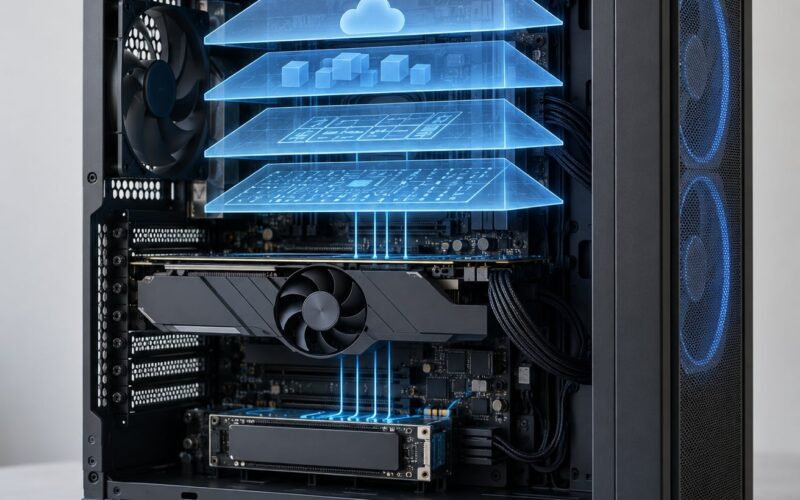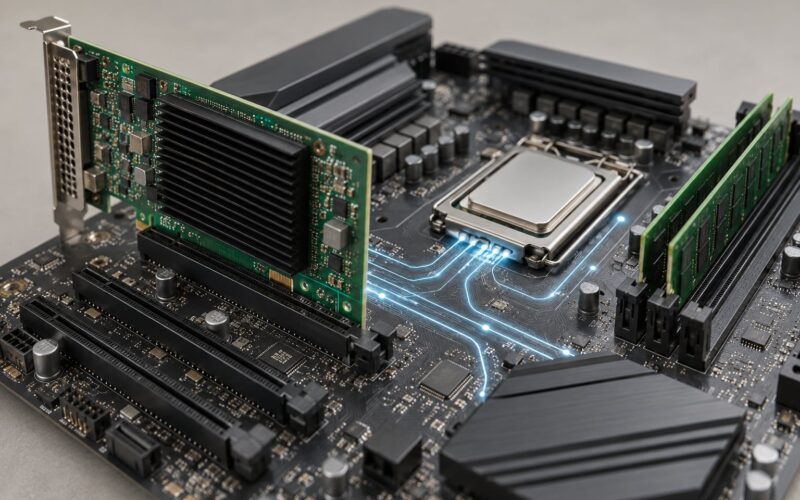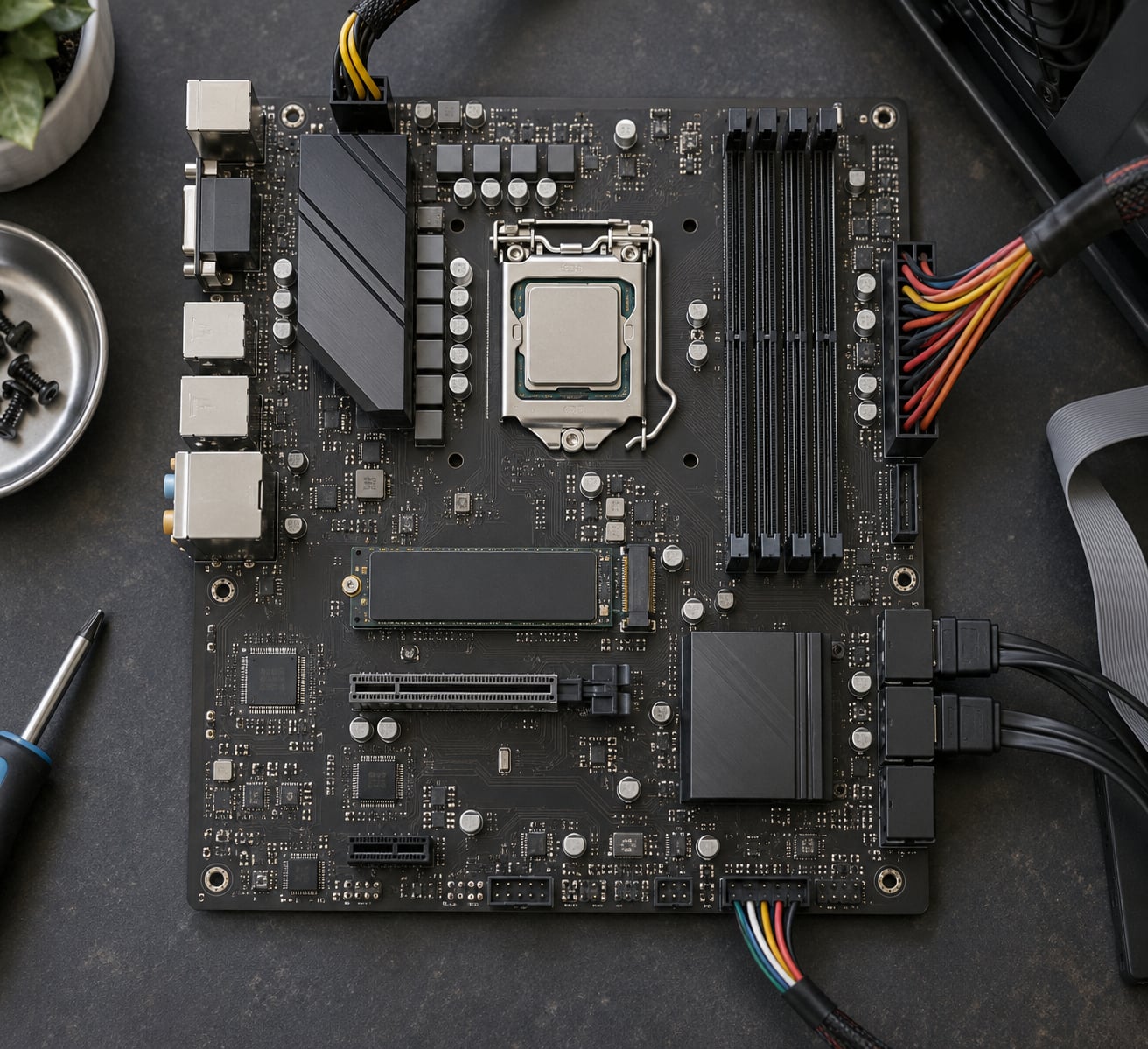
A chipset on a motherboard is a small group of integrated circuits that manages data flow between the processor, memory, storage and peripherals. It also decides which processors the board accepts and how many USB, storage and expansion connections you get.
It is a small part with an outsized say in what a build can become. The board, the processor and the chipset are a platform: pick two of them and the third is chosen for you.
Below is what the chipset actually does, where it sits, how the old northbridge and southbridge split became a single controller hub, and how to check the chipset on a machine you already own.
Table of Contents
- What Is a Chipset on a Motherboard?
- What Does a Motherboard Chipset Do?
- Northbridge and Southbridge: What Are They?
- How Does a Chipset Connect the CPU, RAM, and Storage?
- What Is the Difference Between a Chipset and a CPU?
- How Do I Know Which Chipset My Motherboard Has?
- What Should I Look for When Choosing a Motherboard Chipset?
- Frequently Asked Questions
- Is every motherboard equipped with a chipset?
- Can a motherboard chipset be replaced?
- Does the chipset determine a computer’s performance?
- What is the difference between chipset, northbridge, and southbridge?
- How can I find the chipset model on my motherboard?
- Can I use a faster CPU with the same chipset?
- Conclusion: Start With the Motherboard and CPU
What Is a Chipset on a Motherboard?
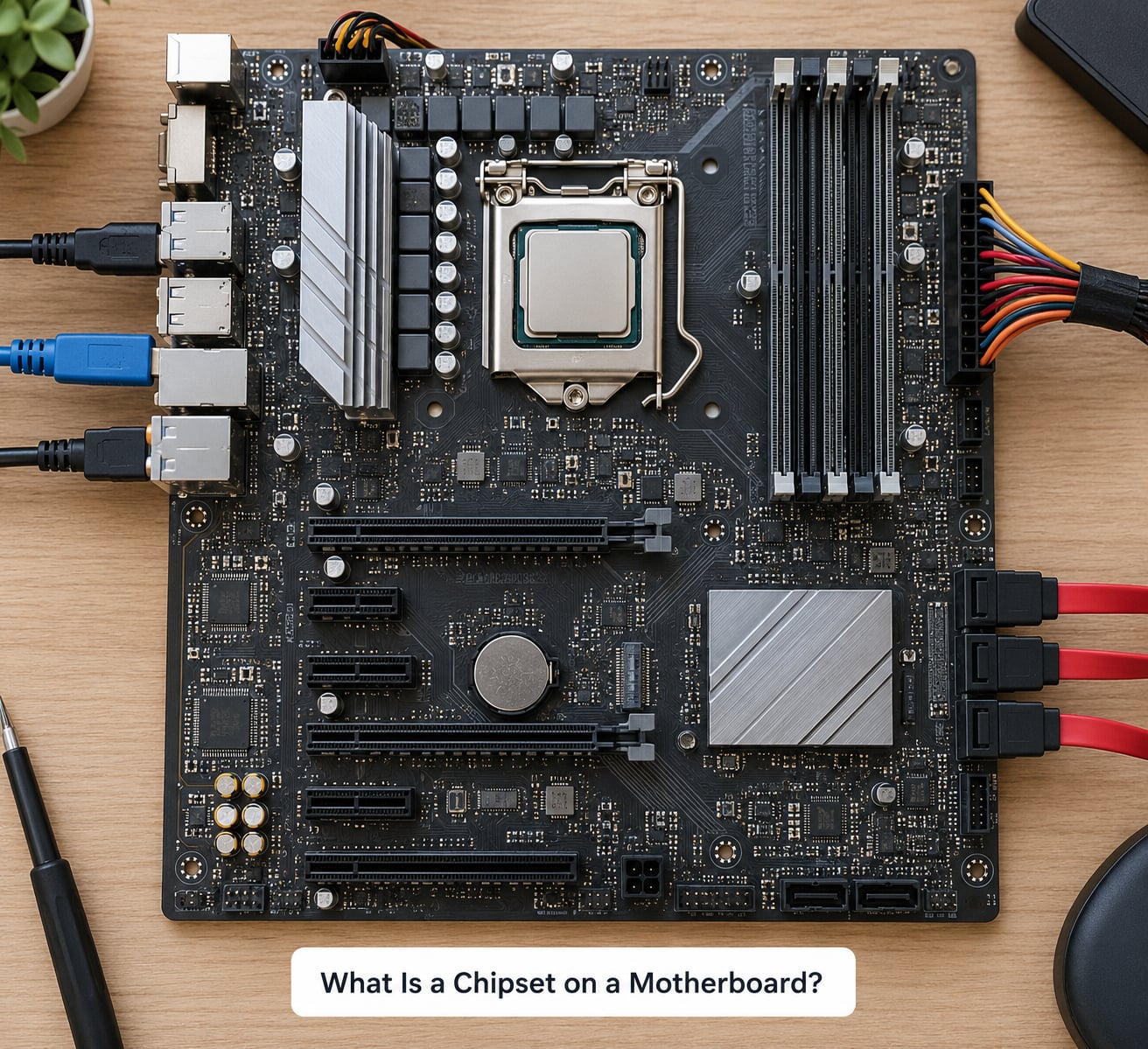
A chipset is one or more chips on the board that sit between the processor and everything else. It routes traffic, translates between incompatible interfaces, and holds the logic that decides how the machine behaves at the hardware level.
It is worth separating three things people often blur together. The motherboard is the printed circuit board itself, with its sockets, slots and connectors. The CPU is the processor, the part that actually computes. The chipset is the supporting silicon that makes those two useful to the rest of the system.
On a modern desktop board you will usually see one large chip near the CPU socket, sometimes with a small heatsink on it. That is the platform controller hub, the surviving half of the old chipset. On some platforms a second, smaller controller sits away from the CPU, handling specific ports.
Because the chipset is soldered to the motherboard, it is not a part you buy on its own. You get it as part of the board you chose, and you inherit its limits.
What Does a Motherboard Chipset Do?
In plain terms, it is the traffic officer for the parts that are not the CPU. Its main jobs are these.
- Processor support. It carries the power delivery and signalling for the CPU socket, and it determines which processor generations the board accepts.
- Memory coordination. It works with the memory controller and the DIMM slots, controlling how memory is addressed and at what speeds the board is allowed to run.
- Storage connections. It provides the SATA ports and supplies the PCIe lanes that M.2 NVMe drives plug into.
- Expansion and graphics. It handles the remaining PCIe slots, the onboard audio codec, the network interface controller, and USB ports of every generation the board exposes.
- Power management and firmware. It manages power states, wake-on-LAN, and the low-level services the BIOS or UEFI firmware talks to before an operating system loads.
One caveat that catches people: a chipset can support a feature the board never implements. Plenty of boards skip a fourth M.2 slot, drop the older USB headers, or ship without Wi-Fi even though the chipset allows it. Always read the board’s manual, not just the chipset name.
Northbridge and Southbridge: What Are They?
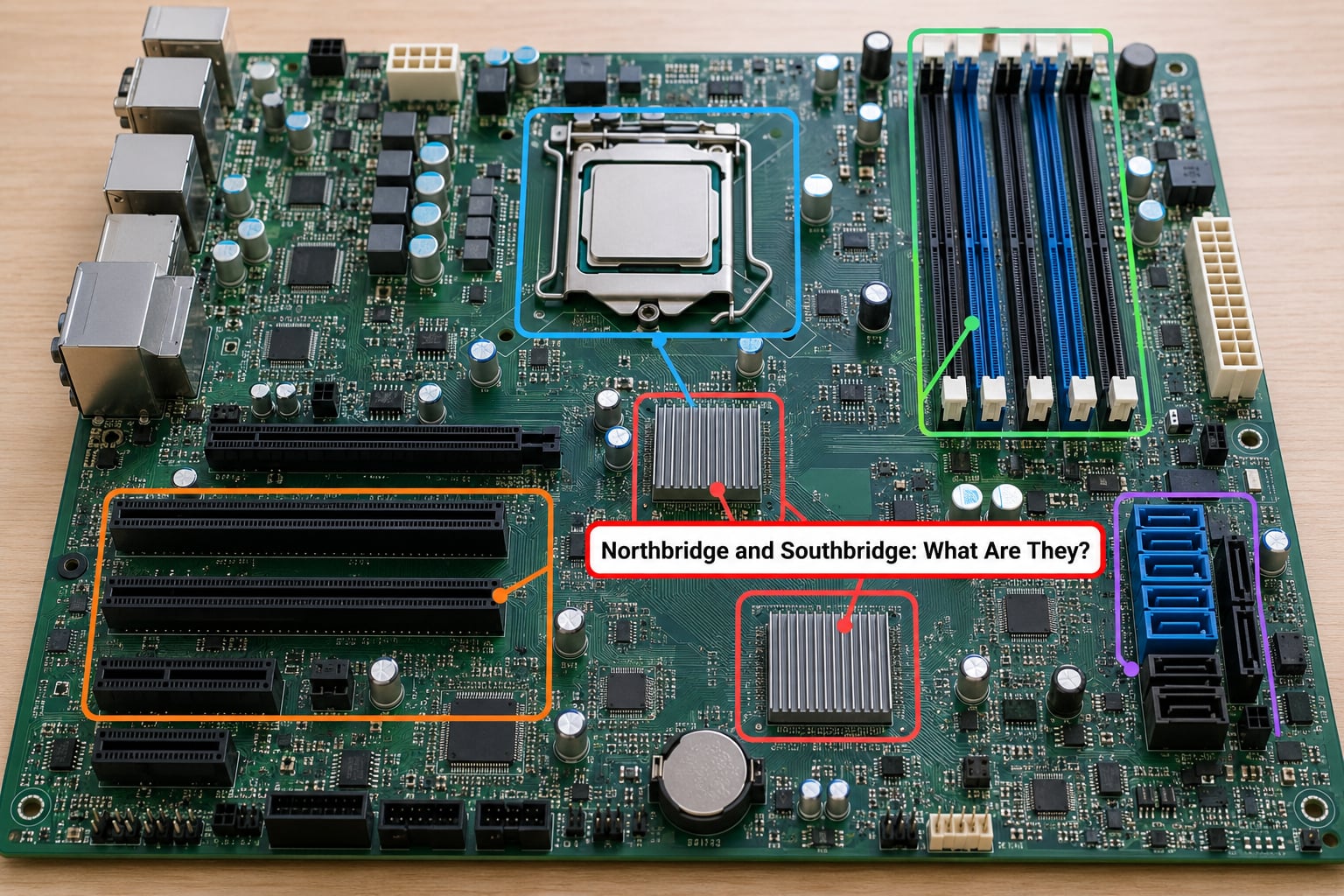
Historically a chipset was two chips. The northbridge sat near the CPU and handled the fast stuff, and the southbridge handled slower I/O. That split existed because the processor itself was relatively simple, so someone else had to do the coordinating.
Two things broke that arrangement. First, memory controllers moved into the processor package, so the northbridge’s main reason for existing disappeared. Second, high-speed I/O such as certain PCIe and USB connections moved closer to the CPU as well.
What remains today is called the platform controller hub, or PCH on Intel platforms. It is the descendant of the southbridge, and it handles storage, USB, networking, audio and the rest. Modern AMD platforms do the same work with differently named chips, and the term chipset is still what the documentation uses.
So if you read a current board described as having a single chipset, that is a consolidated design, not a missing component.
How Does a Chipset Connect the CPU, RAM, and Storage?
Here is a concrete path, following what happens when you press the power button on a fresh build.
First, the power supply energises the board. The chipset’s firmware controller, together with the processor, initialises the memory. Without working RAM training, the machine cannot go further, which is why a bad memory kit often produces a system that never posts.
Next, the CPU runs the UEFI firmware out of a chip on the board. The firmware initialises the storage controller, so the chipset’s SATA and NVMe links come alive, and it reads the boot drive.
Then the operating system loads. From that point the CPU talks to memory directly, and traffic to your SSD, keyboard, network adapter and USB devices goes out through the chipset. When you copy a file to an external drive, that data runs from RAM to the chipset’s USB or storage controller and out to the device. The CPU never touches the port itself.
The practical takeaway: the chipset is on the path for anything that is not core compute. It rarely limits speed on a modern system, but it does set ceilings on how many devices you can attach and which standards are available.
What Is the Difference Between a Chipset and a CPU?
The CPU does the work; the chipset manages the connections. Think of a small factory floor. The CPU is the machine operator producing goods. The chipset is the logistics team that schedules which supplier comes to which dock, moves goods between stations, and keeps the paperwork in order.
Here is the part that trips people up: on current platforms, some of the chipset’s old job is now inside the processor. Memory control and some fast I/O live in the CPU package. What is left for the chipset is the slower I/O and platform management.
| Part | What it is | Job | Upgradable? |
|---|---|---|---|
| CPU | Processor on a socket | Computes instructions | Yes, if the socket matches |
| Chipset | One or more chips on the board | Manages data flow, ports and power states | No, soldered to the board |
| Motherboard | The board | Carries the socket, slots and connectors | Replace the whole board |
| Socket | Mechanical and electrical interface | Defines which CPUs fit | Fixed to the board |
Same story for the socket. People often ask what the difference is between a chipset and a socket, and the short answer is that the socket is a shape and the chipset is a set of functions. The socket name (LGA, AM5 and so on) tells you the mechanical and electrical interface; the chipset tells you what the platform can do once the processor is seated.
How Do I Know Which Chipset My Motherboard Has?
Start with the board model, because that is the only method that always works. There are four practical routes.
- Read the model number. It is printed on the board itself, usually between the DIMM slots or along the edge, and on the box or the back of the retail unit. Search the exact model with the brand name and the chipset is usually listed in the first results.
- Use Windows system information. Press Windows key + R, type
msinfo32, and press Enter. The System Information window shows the baseboard manufacturer, product and version. That identifies the board, which identifies the chipset. - Look in Device Manager. Open Device Manager, expand System devices, and read the entries for the controller hub. On Intel machines you will see an Intel chipset or dynamic platform and thermal framework controller entry. You can also reach the same screen through Settings, System, About, then System information.
- On Linux, use the command line.
sudo dmidecode -t baseboardgives the board manufacturer and product.lspci -nnlists the PCI devices, including the host bridge, SATA controller and Ethernet controller, which usually name the platform.sudo lshw -shortworks too on Debian-family systems.
On some current platforms the chipset name is only indirect, because a board can pair different controller chips with the same marketing name. If you need certainty, the board model plus the manufacturer specification page is the authoritative answer.
What Should I Look for When Choosing a Motherboard Chipset?
Work through this list in order, and the chipset name ends up being a formality rather than a decision.
- Processor socket and generation. Decide the processor first. The socket and the chipset follow from it, not the other way round.
- Memory type and speed. DDR4 and DDR5 are not interchangeable. Check the generation, the maximum supported speed, and how many DIMM slots the board has.
- Storage interfaces. Count the M.2 slots and SATA ports you actually need. Most builders need one NVMe drive; a home lab or a drive-heavy machine needs more.
- Usable PCIe lanes. The chipset advertises a total, but the processor takes some first, and the board may route fewer lanes than the number suggests. Read the manual’s lane-sharing table.
- USB and networking. Count the ports you have and the internal headers you need, and check whether the network controller is the one you want.
- Firmware and vendor support. UEFI with a recent BIOS, and a manufacturer that still publishes BIOS updates, saves a lot of pain later.
What the chipset does not need to influence your choice is raw speed. A mid-range part in a current family handles almost every build. The differences between tiers are usually features, lane counts and ports rather than performance, so a mainstream chipset is enough for nearly everything, including gaming.
Should you install chipset drivers at all? Most current systems boot and run fine on what Windows Update provides, and a large number of builders skip the chipset package entirely. Enthusiasts still install the CPU vendor’s chipset package first and the board vendor’s LAN, audio and Wi-Fi drivers second, mainly because older platforms such as B350 and B450 boards showed real stability and power-management gains from it.
Whichever source you use, install the chipset package before the graphics driver. That ordering avoids the USB and storage controller confusion that shows up when a system reboots into a strange device state mid-install.
Frequently Asked Questions
Is every motherboard equipped with a chipset?
Every motherboard has chipset silicon of some kind, because something has to coordinate the processor, memory and ports. The difference is naming and layout. Older boards split it into a northbridge and southbridge. Current desktop boards use a single platform controller hub, or an equivalent controller on AMD platforms. Laptop motherboards and many tablets solder or integrate this silicon directly, so you may never see it as a separate part.
Can a motherboard chipset be replaced?
No. The chipset is soldered to the motherboard, so it cannot be swapped the way a memory module or a graphics card can. If it fails, the board is normally finished, and in practice a failed chipset is rare enough that buying a new board usually costs less than the diagnosis. To change what the chipset offers, replace the motherboard, which means matching the processor socket and memory generation too.
Does the chipset determine a computer’s performance?
Rarely, on a current platform. Since the memory controller moved into the processor, everyday work and gaming performance depend mostly on the CPU, the graphics card, memory speed and storage. What the chipset still limits is connection count and standards: how many PCIe lanes and M.2 slots you have, which USB generations appear, and how many displays or fast devices can be attached at once. Frame rates are not what a chipset upgrade would fix.
What is the difference between chipset, northbridge, and southbridge?
A chipset is the general term for the coordinating chips on a motherboard. Northbridge and southbridge are the old two-part version of it: the northbridge handled the high-speed link to the processor and memory, the southbridge handled storage, USB, audio and networking. When memory control moved into the CPU, the northbridge disappeared as a separate chip and the southbridge role was renamed the platform controller hub.
How can I find the chipset model on my motherboard?
On Windows, run msinfo32 and read the baseboard manufacturer and product, then search that model. Or open Device Manager, expand System devices and look for the controller hub entry. On Linux, run sudo dmidecode -t baseboard for the board, and lspci -nn to list the host bridge and storage and network controllers. The board model printed on the PCB works on any operating system, with no software at all.
Can I use a faster CPU with the same chipset?
Sometimes, yes, within limits. A chipset supports a defined range of processor generations, and a later step in the same family is normally fine if the board’s BIOS supports it. A new generation on the same socket may work with a BIOS update, or may not be supported at all. CPU support is set by both the chipset and the board vendor’s firmware, so check the board’s supported processor list before buying.
Conclusion: Start With the Motherboard and CPU
The chipset is the traffic manager on your motherboard, and it is fixed to the board you buy. Because the memory controller now lives in the processor, it is no longer the bottleneck most buyers fear, so choose the processor and memory first, then pick a board that physically implements the storage, ports and expansion slots you need. The chipset name follows from that decision rather than driving it.
Updated for October 2026.