If you only have time for one terminal multiplexer, learn tmux first and keep GNU Screen as a fallback for older servers. tmux is the tool that shows up in new tutorials, in editor configs and in the workflows of most people writing code today, while GNU Screen earns its keep mainly on machines you do not control.
Both tools solve the same problem: an SSH disconnect should not kill your work. They differ far less than most comparisons claim, and the honest wrinkle is that once you know one, learning the other takes about ten minutes. The real question is not which one is more capable, it is which one will still be around, and installed, on the box you are sitting in front of.
Here is the short version. tmux for anything you build, script or configure. GNU Screen for serial consoles, embedded gear and legacy hosts where tmux is not installed. Either one for a quick persistent SSH session, and for that you do not need to think about it at all.
Table of Contents
- tmux vs screen at a Glance
- Which Terminal Multiplexer Has the Easier Learning Curve?
- Learning tmux vs screen as a Beginner
- How Do the Interfaces and Daily Workflows Differ?
- Which One Is Better for Remote Work and SSH?
- How Do Configuration and Extensibility Compare?
- Which Has the Better Ecosystem and Long-Term Support?
- Does One Run Faster or Use Fewer Resources?
- Which Should You Choose?
- Frequently Asked Questions
- Is tmux better than GNU Screen?
- Can I use tmux and GNU Screen on the same Linux server?
- Which terminal multiplexer is easiest for beginners?
- Can I use tmux or GNU Screen over SSH?
- Should I learn tmux if GNU Screen is already installed?
- Conclusion: Start with tmux for Most Developers
tmux vs screen at a Glance
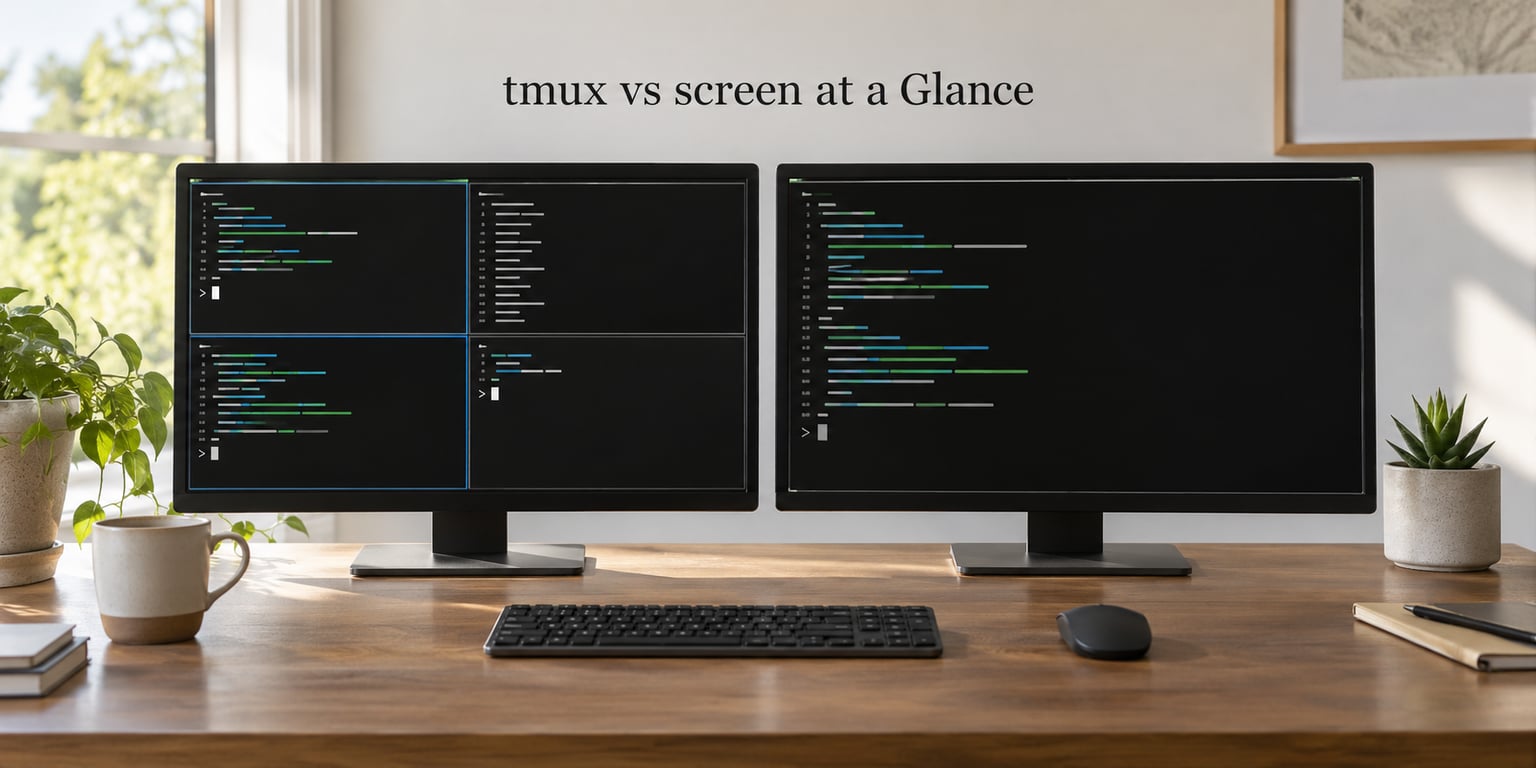
The table below covers what actually changes your day. Where a row is a tie, it is a tie, and pretending otherwise is how most tmux vs screen arguments get long.
| Criterion | GNU Screen | tmux | Who wins |
|---|---|---|---|
| Architecture | One process per session | Client and server, sessions live on a server process | tmux |
| Default prefix key | Ctrl-a | Ctrl-b | Screen muscle memory, otherwise tmux |
| Split panes | Yes, called regions, basic | Yes, resizable, rearrangeable, saveable layouts | tmux |
| Status line | Hardstatus, cryptic format strings | Status bar, highly customisable, optional | tmux |
| Scrollback and copy mode | Copy mode, functional, dated | Copy mode with vi or emacs keys, pipe to clipboard | tmux |
| Mouse support | Available with a setting | One line, works well out of the box | tmux |
| Truecolor | Works, can be fiddly over SSH | Consistent, with a simple option | tmux |
| Scripting | Command mode, limited | Command mode plus real shell scripting against a socket | tmux |
| Plugins and themes | None worth mentioning | TPM, tmux-resurrect, tmux-continuum, fzf integration | tmux |
| Shared multi-user sessions | Built in, with access control | Built in, with simpler control | Screen |
| Serial console access | Excellent, designed for it | Works, not its home ground | Screen |
| Package availability | Everywhere, including ancient systems | Everywhere modern | Screen on legacy, otherwise a tie |
| Status in 2026 | Maintained, low activity | Actively developed, frequent releases | tmux |
Read the middle column as history and the third column as where things went. Several rows are not close.
Which Terminal Multiplexer Has the Easier Learning Curve?
tmux is slightly harder to learn for the first hour and far easier to learn for the first year. Screen is instantly usable with no configuration, and then it slowly asks for more work that you may never need.
On a modern Linux box or a Mac with Homebrew, both install in one command.
# tmux
sudo apt install tmux        # Debian, Ubuntu
sudo dnf install tmux        # Fedora, RHEL, Rocky

# GNU Screen
sudo apt install screen
sudo dnf install screen

# macOS
brew install tmux
brew install screen
For tmux, three commands get you a working setup.
tmux new -s build          # start a named session
# inside tmux: press Ctrl-b then % for a left-right split
# inside tmux: press Ctrl-b then " for a top-bottom split
tmux ls                    # list sessions from anywhere
tmux attach -t build       # come back to it
For Screen, the equivalent set is almost the same shape.
screen -S build          # start a named session
# inside screen: press Ctrl-a then c for a new window
# inside screen: press Ctrl-a then S for a split
screen -ls                # list sessions
screen -r build           # come back to it
Note how similar that looks. Sessions, naming, detaching and reattaching all carry over from one tool to the other almost word for word. That is the single most useful thing to know before you pick one, because the scary part of the choice is smaller than it sounds.
Learning tmux vs screen as a Beginner
Start tmux if your day involves a text editor, a language server, a log tail and a test run at the same time. tmux’s split panes and its scriptable session model are built for exactly that, and the plugin ecosystem means most of the polish arrives as a config file rather than as effort from you.
Start with GNU Screen if the machine is not yours, if you work over a serial console on embedded hardware, or if you already have fifteen years of Ctrl-a in your fingers and no reason to change. Reinforcing a habit you already have is a perfectly good learning strategy.
For your first practical tmux session, do this rather than reading a cheat sheet. Start tmux, split into two panes, run your editor in one and a test watcher in the other, then detach with Ctrl-b d, reattach by name, and see everything still there. That single loop teaches creation, splitting, detaching and reattaching, which is 90 percent of daily use. You can pick up the rest as you hit it.
What holds tmux back for absolute beginners is the prefix key. Pressing Ctrl-b does nothing visible, so newcomers assume the program is broken. Tell yourself once that the prefix is a mode switch and it stops being a problem. It is muscle memory, not difficulty.
How Do the Interfaces and Daily Workflows Differ?
Screen gives you a full-screen program with windows stacked behind each other. tmux gives you a workspace of windows, each holding a grid of panes, with a status line telling you where you are. Standing in front of both, the difference is obvious in about two seconds.
tmux adds the spatial layer. You can split a pane, resize it, swap it with another, break a pane out into its own window and put it back. Layouts can be saved by name and reapplied, so a monitoring setup with an editor, a tail and a REPL comes back exactly as you left it. Screen splits into regions, and while that works, resizing and rearranging them is fiddly enough that most people just live with the default two-pane split.
Copy mode is the other daily difference. Both tools give you a scrollback buffer you search with the keyboard rather than the mouse wheel, and both need a small extra keystroke to enter and leave. tmux lets you choose vi or emacs keys inside that mode, pipe a selection straight to your clipboard helper, and use named paste buffers. Screen’s copy mode does the job with fewer options and more of a shrug.
Here is the translation table I wish someone had handed me on day one. If your fingers already know Ctrl-a, this gets you productive in tmux in about five minutes.
| Task | GNU Screen | tmux |
|---|---|---|
| Prefix | Ctrl-a | Ctrl-b |
| New window | Ctrl-a c | Ctrl-b c |
| Next or previous window | Ctrl-a n and Ctrl-a p | Ctrl-b n and Ctrl-b p |
| Choose window by number | Ctrl-a then a number | Ctrl-b then a number |
| Split vertically | Ctrl-a S | Ctrl-b % |
| Split horizontally | Ctrl-a then | | Ctrl-b “ |
| Close a window or pane | Ctrl-a x | Ctrl-b x then y |
| Detach | Ctrl-a d | Ctrl-b d |
| Enter copy mode | Ctrl-a then [ | Ctrl-b then [ |
| Scroll up in copy mode | Ctrl-a then [ then the Up arrow | Ctrl-b then [ then Up arrow or Page Up |
| Reload config | Ctrl-a : then source ~/.screenrc | Ctrl-b : then source-file ~/.tmux.conf |
The one place the mapping breaks down is the mode prompt. Screen shows a small reminder of what follows the prefix in the status area. tmux does not, so if you get lost inside tmux, hitting the prefix on its own and waiting is a perfectly normal debugging move. It prints the list for you.
Which One Is Better for Remote Work and SSH?
For SSH work, tmux is the better answer, and the reason is technical rather than aesthetic. tmux runs as a server process with clients that attach to it, so a session you started once keeps existing whether or not anyone is looking at it. When your laptop sleeps or the network drops, the process is still there waiting.
Screen also survives a disconnect, so the honest statement is that both do the job. The difference shows up once you have more than one terminal: a tmux session can be attached from a second client at the same time, which turns a session into something you can hand to a colleague or watch alongside your own terminal. Screen supports multi-user sessions too, with access control lists, but through a more dated interface.
Recovering your work after a disconnect takes one command in either tool.
tmux ls && tmux attach -t build      # find sessions, attach to one
screen -ls && screen -r build        # the Screen equivalent
There is one mistake I see constantly, including from people who have used these tools for years. The multiplexer has to be installed on the remote server, not on your laptop. Installing tmux locally does nothing at all for a session on a machine you reach over SSH, because the panes and the session live on the far end. If you can log in and run tmux new -s test without an error, you are in the right place.
Nested sessions cause the other recurring headache. Start tmux locally, SSH into a host that already has a tmux session running, and now one keystroke arrives twice. The escape hatch is simple: press the prefix twice in a row, and tmux sends a single one through to the layer below. Nothing else is required, and knowing this one trick saves a lot of confusion.
A note on prefixes that seem to do nothing. If a custom prefix such as Ctrl-Space never registers, the terminal emulator is swallowing the key before tmux sees it. That is an emulator configuration problem, not a tmux problem, and it is one of the most common reasons people conclude a multiplexer is broken.
How Do Configuration and Extensibility Compare?
Screen’s configuration lives in ~/.screenrc and is read at startup. It is plain and easy, and it does just about everything most people need. tmux reads ~/.tmux.conf, and everything you change can also be applied to a running server, which means you can fix a broken keybinding without killing the session you are in the middle of.
Here is a minimal tmux config. It also does the thing that silences the most common complaint from Screen users, which is that the prefix key is wrong.
# ~/.tmux.conf
unbind C-b
set -g prefix C-a
bind C-a send-prefix

set -g mouse on
set -g history-limit 50000
set -g default-terminal "tmux-256color"
set -ga terminal-overrides ",xterm-256color:Tc"

# split panes and keep the status bar out of the way
bind | split-window -h
bind - split-window -v
bind h select-layout even-horizontal
bind v select-layout even-vertical

# reload without restarting
bind r source-file ~/.tmux.conf ; display "config reloaded"
And the Screen equivalent, for the same goal.
# ~/.screenrc
startup_message off
hardstatus alwayslastline
defscrollback 5000
altscreen on
mousemouse on
Where the two separate sharply is scripting. tmux exposes a command interface that other programs can talk to, so you can create a session, send keys to a window, capture pane output into a file and read a value back out, all from a shell script. That is how automated test harnesses, CI helpers and session-restore tools are built. Screen has a command mode, but it is not a comparable scripting surface.
Portability is close enough to call a tie for most people. Both config files are plain text, both travel well in a dotfiles repository, and neither needs a framework unless you want one.
Which Has the Better Ecosystem and Long-Term Support?
tmux, clearly. This is the part of the comparison that matters most for a decision about what to learn, because a tool that stops moving eventually stops being a good thing to invest in.
tmux releases regularly and adds features that show up in day-to-day work, from popup windows and improved mouse handling to sixel image passthrough for terminal-native graphics. Around it sits a plugin manager, session save and restore tooling, and tight integration with fuzzy finders, so jumping into a search across files, processes and git branches stays inside the keyboard. Modern editor tooling, shell prompts and status line configurations all ship tmux-aware defaults, which is why the word appears in so many dotfiles repositories you will read this year.
GNU Screen is maintained and it works. It is simply not where new work goes. Documentation is older, plugin culture barely exists, and interface work has slowed. The forum consensus on choosing between the two, in threads that ran forty comments without agreeing on much, is close to what the table above says: the two are far more alike than the internet implies, and the deciding factor is not features.
That leaves one real Screen advantage, and it is a good one. Multi-user sessions with access control lists, and serial console access to devices like /dev/ttyUSB0, are things Screen does well and people working on embedded hardware and shared servers rely on. If that describes your work, the ecosystem argument stops mattering.
Does One Run Faster or Use Fewer Resources?
Both are light. On any machine running a compiler, a container runtime and an editor, neither multiplexer is what you would measure first, and any article quoting a precise speed difference between them is overselling something that does not matter.
There is one architectural point worth knowing, because it explains the perception. tmux redraws only the panes that changed, so opening a large file or scrolling a long log touches less of the screen than a full redraw would. A Stack Overflow answer on this comparison credits tmux with faster screen drawing and lower memory use than Screen, which is directionally right, but the difference is a smaller absolute win than that phrasing implies.
What actually moves resource use is the number of panes you leave open, how much scrollback you keep, whether plugins are running, and the workload inside each pane. Ten idle shells cost almost nothing in either tool. Ten panes each running a full test suite cost the same, because the tests are the cost.
If resources are genuinely tight on an old box, the practical move is to close panes rather than to switch tools.
Which Should You Choose?
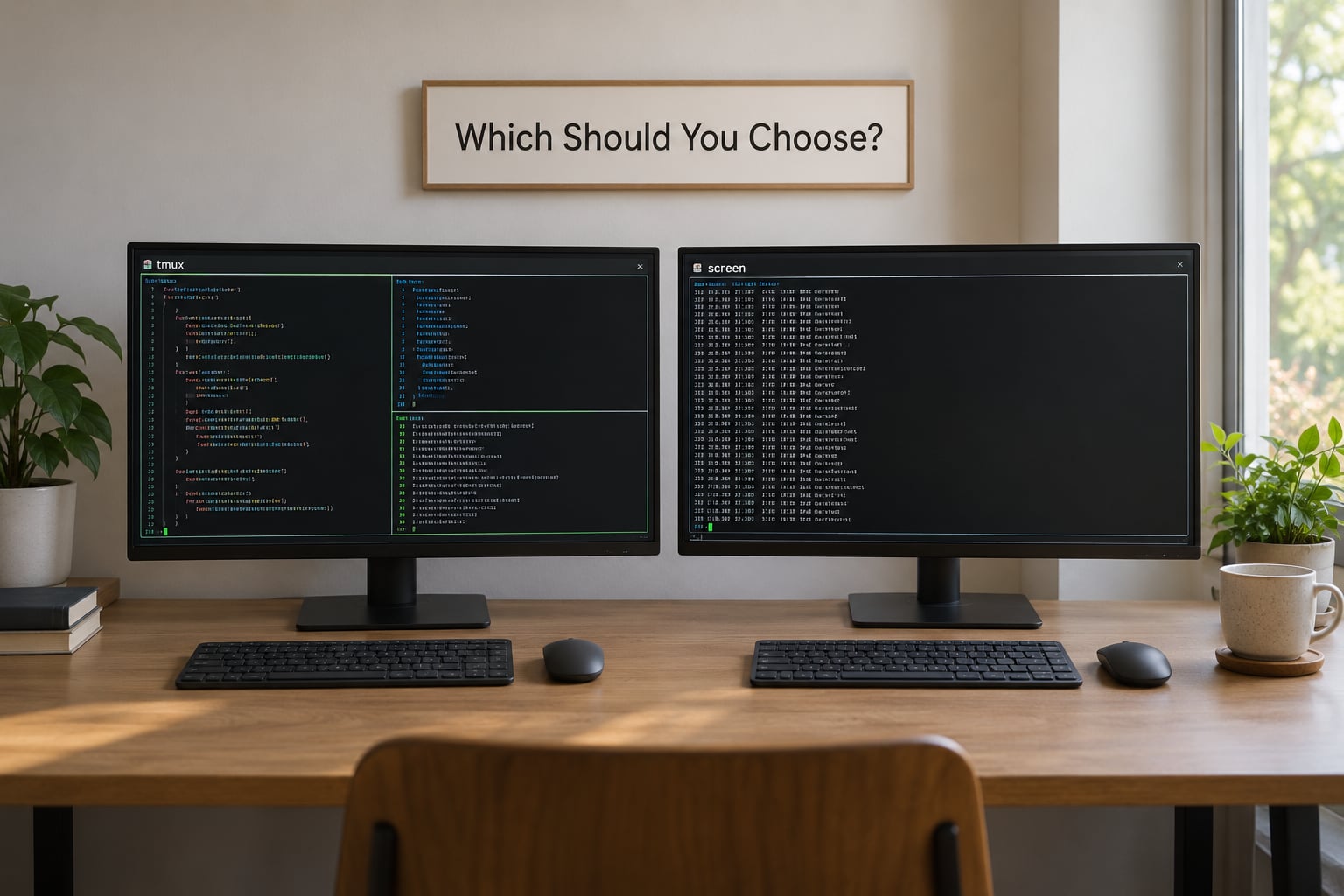
Pick tmux unless a specific part of your work pulls you toward Screen. That is the short rule. The longer version is by situation.
- Backend, DevOps or platform work over SSH: tmux. Split panes for a log tail, a REPL and an editor, plus scripting for the parts you want to automate.
- A developer writing code daily in 2026: tmux. Every tutorial, dotfiles repository and editor integration you will read this year assumes it.
- Windows users working through WSL: tmux. It installs normally in the WSL distribution and survives the Windows-side terminal restarting.
- Complete beginner: tmux, but ignore the plugin lists for a month. Learn create, split, detach, reattach, then add configuration.
- Systems administration on legacy hardware: either. Screen is guaranteed to be there, and its commands you will learn in a single sitting.
- Embedded and serial console work: GNU Screen. Its multi-user sessions and serial access are the reason it still exists.
- Occasional long job you want to survive a disconnect: either. Type
screen -S jobortmux new -s job, walk away, come back later. - Someone who already knows Screen: stay. You are productive, and the cost of switching is a week of retraining for no gain in your day.
One honest question worth asking first: do you need either one for local work? Terminal emulators such as WezTerm, iTerm2, Ghostty, Alacritty and Windows Terminal ship real tabs and split panes already. Locally, that covers most of what a multiplexer does. The case for tmux or Screen is remote sessions, persistent processes, and the fact that your local tabs die when the connection does.
Frequently Asked Questions
Is tmux better than GNU Screen?
For most developers today, yes, and the reasons are practical rather than technical. tmux has the split-pane and layout handling you want for real work, a scriptable command interface, a plugin ecosystem, and far better documentation and community activity in 2026. GNU Screen remains genuinely good at multi-user sessions and serial console access, so it still wins in a few specific environments.
Can I use tmux and GNU Screen on the same Linux server?
Yes, and nothing stops you from keeping both installed. They use different config files, different process models and separate session lists, so u003ccodeu003etmux lsu003c/codeu003e never shows Screen sessions and u003ccodeu003escreen -lsu003c/codeu003e never shows tmux sessions. The only thing to watch for is nesting one inside the other over SSH, which makes a single keypress fire twice.
Which terminal multiplexer is easiest for beginners?
GNU Screen starts faster because it needs no configuration, but tmux stays easier once you are a few weeks in. Screen is one keypress and a handful of commands; tmux adds a prefix key that feels broken at first, then gives you split panes, layouts, clipboard piping and scripting. Learn tmux first unless your machines are old or you already know Ctrl-a.
Can I use tmux or GNU Screen over SSH?
Both, and that is their main reason to exist. Start a named session on the remote host, then detach and reconnect later from any terminal. Remember the tool must be installed on the server, not on your laptop, since the session and all its processes live on the remote machine. u003ccodeu003etmux attach -t nameu003c/codeu003e and u003ccodeu003escreen -r nameu003c/codeu003e bring everything back.
Should I learn tmux if GNU Screen is already installed?
Yes, as long as you can install it on the machines you actually work on, and it is worth it because tmux is the default answer in current documentation and tooling. If the hosts are legacy or shared with people who only know Screen, learn that instead and keep tmux for your own boxes. Knowing both is genuinely useful for sysadmin work on mixed estates.
Conclusion: Start with tmux for Most Developers
Learn tmux first. It is where the tooling, documentation and workflows have settled, it handles split panes and scripting far better, and it is the answer you will want to give when a colleague asks which terminal multiplexer to pick.
Keep GNU Screen in your back pocket for serial consoles, embedded boxes and servers where you cannot install anything. The day you need it, the ten-minute translation table above is enough.
Do one thing right now: install tmux, start a session named dev, split it into two panes, put your editor in one and a log tail in the other, then detach with Ctrl-b d and reattach with tmux attach -t dev. That one loop teaches everything that matters.