The quickest way to find which process is using a port is to ask the kernel for the socket table and read the process ID (PID) next to the port. On Linux that is ss -tulpn | grep :8080, on Windows PowerShell it is Get-NetTCPConnection -LocalPort 8080, and on macOS it is lsof -nP -i :8080. Every command below takes under a minute and none of them need extra software.
A port conflict usually shows up as an error like address already in use or EADDRINUSE when a development server refuses to start. The instinct is to kill something, and that is often the wrong first move. Identify the owner, read its command line, then decide.
Updated for 2026. Commands are written for Windows 10 and 11, Ubuntu 22.04 and newer, and current macOS releases. Where a flag differs between systems I say so rather than pretending one command covers everything.
Table of Contents
- What You Need
- Step-by-Step
- Step 1: Confirm the Port and Protocol Before You Search
- Step 2: Find the Process on Windows With PowerShell and netstat
- Step 3: Find the Process on Linux and macOS With ss, lsof, and fuser
- Step 4: Verify the PID, Executable, and Service
- Step 5: Stop or Restart the Process Safely
- Common Mistakes
- Frequently Asked Questions
- Why do multiple processes appear to use the same port?
- Can I find the owner of a UDP port the same way as a TCP port?
- Why does the tool show PID 0 or no process name?
- How do I identify a port used by Docker or another container?
- Should I stop the process using a port, and what happens if I do?
- Why can the process disappear after I find its PID?
- Conclusion
What You Need
Three things: the port number, the protocol, and enough permission to see other users’ sockets.
- The port number. A number between 0 and 65535. Read it from the error message your application printed rather than guessing, because 8080 and 80 produce nearly identical failures.
- The protocol. TCP or UDP. Most developer traffic is TCP, but DNS and some monitoring tools use UDP, and a UDP port will never show a LISTENING state.
- Permission. On Windows, run PowerShell as Administrator if you want to see processes owned by other accounts. On Linux and macOS, prefix with
sudofor the same reason. Without it you will still see most rows, but the process column is empty for anything the system owns.
Nothing else is required. ss, lsof, fuser, netstat and the PowerShell networking cmdlets all ship with the operating system. If ss is missing on a minimal container, net-tools provides netstat instead.
Step-by-Step
Step 1: Confirm the Port and Protocol Before You Search
Start by confirming the port is actually bound, and by whether you want a listener or any connection at all. On Linux, ss -tulpn prints the listening and bound UDP sockets owned by a process:
sudo ss -tulpn | grep :8080
tcp   LISTEN 0      511          127.0.0.1:8080      0.0.0.0:*    users:(("node",pid=21488,fd=20))
Read the columns left to right: protocol, state, local address, process. The users: field at the end is the part you came for. Filter with grep :8080 rather than plain grep 8080, because the bare number also matches 80800-adjacent ports and IPv6 forms.
On Windows, netstat -ano | findstr :8080 gives you the same information with the PID in the last column. The -o flag is what adds that column. Forget it and you get a port with no owner, which is the single most common reason people think a query failed.
Search for the listening state, not every connection. A port in ESTABLISHED or TIME-WAIT is a conversation, not a conflict; something else already owns the listener and is what stopped your server from binding.
Step 2: Find the Process on Windows With PowerShell and netstat
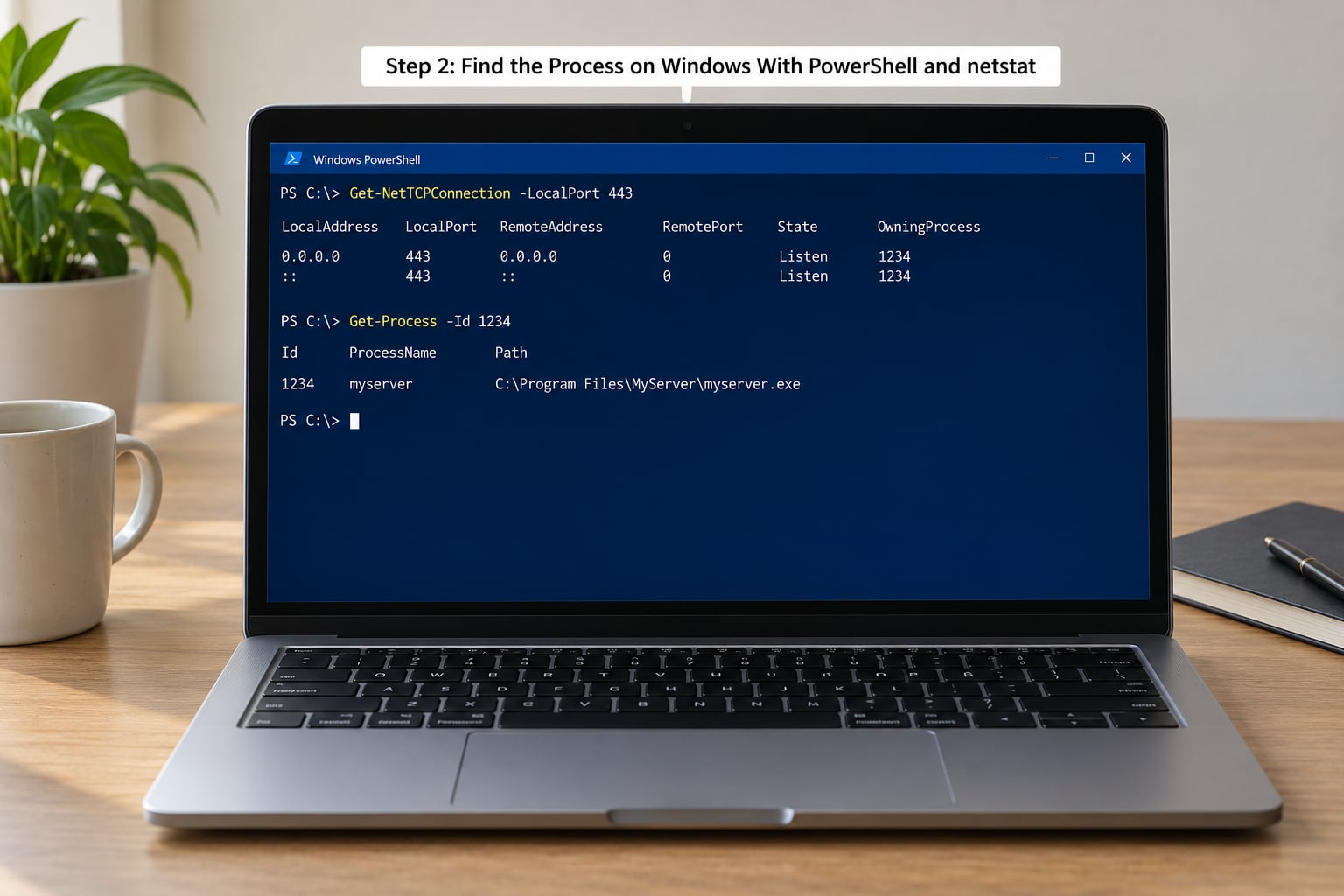
PowerShell is the better tool on Windows because it returns structured objects you can filter instead of a wall of text. The two-step pattern is: get the connection, map its OwningProcess to a process object.
Get-NetTCPConnection -LocalPort 443 -State Listen |
  Select-Object LocalAddress, LocalPort, OwningProcess

Get-Process -Id 4 | Select-Object Id, ProcessName, Path
Swap -LocalPort for -LocalPort 443 without the state filter and you get every connection on that port, including short-lived ones. For UDP there is no state column at all, so use the separate cmdlet:
Get-NetUDPEndpoint -LocalPort 53 | Select-Object LocalAddress, LocalPort, OwningProcess
One-liner that does both steps at once:
Get-NetTCPConnection -LocalPort 8080 -State Listen |
  ForEach-Object { Get-Process -Id $_.OwningProcess }
Two details matter when you read the output. First, a listening socket bound to 0.0.0.0 or :: accepts traffic from other machines, while 127.0.0.1 or ::1 is local only. Second, Windows shows the same port twice when a program binds IPv4 and IPv6 separately, and both rows have their own PID.
If you prefer Command Prompt, the classic fallback is netstat -aon | findstr :8080, then tasklist /FI "PID eq 21488" to resolve the number. It works everywhere, and it is the only option on older Windows Server builds that lack the NetTCPIP module.
Step 3: Find the Process on Linux and macOS With ss, lsof, and fuser
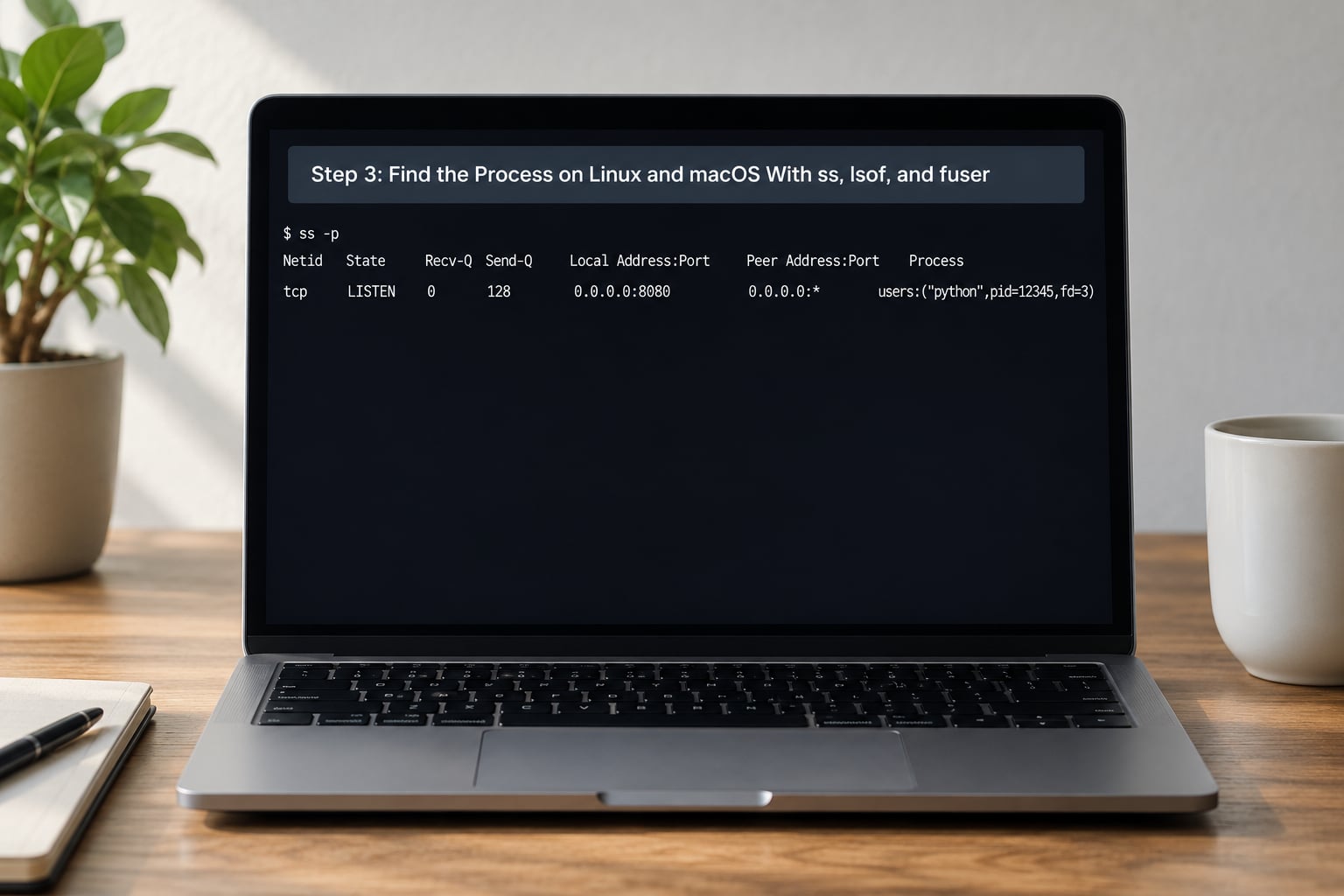
On Linux, ss replaced netstat because it reads the same kernel tables without parsing /proc file by file. ss -tulpn is the equivalent of what I described above: -t TCP, -u UDP, -l listening, -n numeric, -p process.
sudo ss -tulpn 'sport = :3000'
Drop sudo and root-owned rows lose their process name. That is not a bug in your grep, it is the kernel refusing to hand you information about other users’ sockets. sudo lsof -i :3000 and sudo fuser -v 3000/tcp are two ways to see the same thing from a different angle, and fuser -k 3000/tcp kills the owner in one step.
On macOS, ss exists but its process support is limited, so lsof is the habit most people keep. Keep both flags: -n skips the slow reverse DNS lookups and -P prints the port number instead of its service name.
sudo lsof -nP -iTCP:5000 -sTCP:LISTEN
Linux lsof accepts -i :5000 fine, and adding -sTCP:LISTEN filters to listeners. Use the netstat form only when you are reading someone else’s command line and want to recognise it.
Two cases have no process name attached, and both look like bugs. Kernel-bound sockets show PID 0 on Linux, which usually means the port belongs to something like the SSH daemon or the kernel’s own RPC service. On Windows, TCPView shows PID 0 for ports held by a driver or a Hyper-V switch.
Step 4: Verify the PID, Executable, and Service
Before you stop anything, look at what the process actually is. On Linux, ps -p 21488 -o pid,user,cmd gives you the full command line, which usually ends in a path you recognise. On Windows, Get-CimInstance Win32_Process -Filter "ProcessId=4" | Select Name, ExecutablePath, CommandLine does the same job and works without elevation for most processes.
If the name is svchost.exe on Windows, the process is a host for one or more Windows services and killing it takes several of them down. List them first:
tasklist /svc /FI "PID eq 4"
On Linux, systemctl status sshd or systemctl status nginx tells you whether the unit is managed, and whether systemd will restart it the instant you kill it. For a unit with Restart=always, the port comes straight back and your kill looks like it failed.
Check the address column too. A socket on 127.0.0.1:8080 is a local dev server, while 0.0.0.0:8080 is the same program exposed to your network, and on a production host that distinction decides whether you stop it or investigate it further.
Step 5: Stop or Restart the Process Safely
Prefer the graceful path. Send SIGTERM first and give the process a few seconds to close its connections and flush state:
sudo kill 21488
sudo systemctl restart nginx
kill -9 skips cleanup entirely and on a database or a message broker can mean a slow recovery on the next start. Reach for it only when the process ignores SIGTERM. On Windows the equivalents are Stop-Process -Id 21488 and Stop-Service spooler, with -Force as the last resort.
For Windows services, restart rather than stop when you can. Restart-Service spooler brings dependencies back in the right order, and stopping a service outright can leave whatever depends on it in a broken state until reboot.
If the port belongs to a container, stop the container instead of the proxy process. docker ps --format '{{.Names}}t{{.Ports}}' shows which container holds the mapping, and docker stop <name> releases it. Killing the Docker daemon on a host machine to free one port is a genuinely bad afternoon.
One race condition to know about: between the moment you read the PID and the moment you run the kill, that process can exit and the OS can hand the same number to a new one. On a busy machine, re-run the port query immediately before killing so the PID still matches the socket you found.
Common Mistakes
- Forgetting
-oon Windows netstat. Output has a PID column of blanks. Add-o, or useGet-NetTCPConnection. - Matching a port number without the colon. Searching
8080in text also catches80808and:8000. Use:8080and quote the pattern so the shell does not eat it. - Querying TCP for a UDP service. DNS on port 53 and SNMP never appear in a TCP-only search. Run
Get-NetUDPEndpointorss -ulpn. - Confusing connections with listeners. ESTABLISHED and TIME-WAIT rows on your port are leftovers from a closed conversation. Only a listener blocks a new bind.
- Ignoring the IPv6 duplicate. A dual-stack application appears twice, once as
0.0.0.0and once as::. Stop both or the port stays taken on one family. - Running without permissions. An empty process column usually means the command worked and you simply are not allowed to see the owner. Add
sudoor an Administrator prompt. - Trusting a stale PID. Copy the number into the kill command minutes after the query and it may belong to something unrelated. Re-check first.
- Stopping systemd instead of the process.
systemctl stopcan leave a socket-activated unit holding the port until you also disable the socket unit. - Killing by process name.
killall nodeends every Node process on the box, including ones serving production traffic. Kill the PID. - Reading an empty result as good news. No output may mean you filtered wrong, not that the port is free. Re-run without the filter to confirm.
Two habits keep this safe in production. Look up the port before stopping anything, so you know whether a database or a load balancer sits behind it. And prefer restarting a managed unit over killing a raw PID, because the supervisor will bring it back cleanly if it was meant to be running.
Frequently Asked Questions
Why do multiple processes appear to use the same port?
Usually one process is listening and others hold established connections to it, which is normal. On Linux, real sharing is possible through SO_REUSEPORT, where several processes bind the same port and the kernel load balances between them. Container setups create a third case: Docker publishes a host port and a proxy process appears to own it while the real application runs inside. Check whether the address column says 127.0.0.1 or 0.0.0.0 before assuming a conflict.
Can I find the owner of a UDP port the same way as a TCP port?
Yes, with a different command, because UDP has no connection state to filter on. On Linux use sudo ss -ulpn and on Windows PowerShell use Get-NetUDPEndpoint -LocalPort 53. Neither reports a LISTENING state, since UDP is stateless, so treat any row with a bound local port as the owner. On macOS, sudo lsof -nP -iUDP:53 works the same way.
Why does the tool show PID 0 or no process name?
It usually means the socket belongs to the kernel rather than a user process. On Linux this covers things like the SSH daemon and RPC services, and sudo is usually enough to reveal the name. On Windows a blank or zero PID often points to a driver or a virtual switch from Hyper-V, where there is no user-mode process to kill. Check the executable path with ps -p 0 or the service list before taking any action.
How do I identify a port used by Docker or another container?
Start with docker ps u002du002dformat ‘{{.Names}} {{.Ports}}’, which lists container names next to their published ports and shows which host port maps to which container. The host netstat and ss output will show the proxy or dockerd holding the port, not the application inside, so killing that PID only breaks the mapping. Stop the container with docker stop and change the published port with -p on the next run.
Should I stop the process using a port, and what happens if I do?
Only after you have read the command line and know what depends on it. For a stray local development server on 127.0.0.1, stopping it is harmless. For a database, a web server, or anything bound to 0.0.0.0, stopping it drops live traffic and may trigger a restart loop if a supervisor manages it. Prefer a restart of the managed unit over a raw kill so dependents come back in order.
Why can the process disappear after I find its PID?
Because it exited on its own between your query and your next command. Long-running dev servers crash, terminal windows close, and systemd units that hit their failure threshold restart, all of which free the port and hand the PID number to something new. Re-run the port query right before you act, and prefer resolving the name to a command line over trusting a number you copied earlier.
Conclusion
Confirm the port and protocol first, query with the native tool, read the PID, verify the executable, and only then decide whether to stop or restart. The order matters more than the command you pick, because the dangerous step is acting on a PID you have not looked at.
On a workstation that usually takes thirty seconds and often ends with a development server you forgot was still running from yesterday. On a server, the same thirty seconds is what stands between you and an outage.