
Hard links vs symbolic links explained in one line: a hard link is a second directory entry pointing at the same inode, while a symbolic link is a small file of its own that stores a path and sends you to whatever lives there. That single difference decides whether two names are one file or two, and it decides what happens when the target moves or is deleted.
If you have ever run rm on something and half your project vanished, or wondered why a config file stopped resolving after an OS upgrade, the link type you chose is usually why. Same with backups that mysteriously double in size.
This guide walks through both link types at the filesystem level, then gets practical: the commands to create them, the commands to identify them, the deletion rules, and the cases where each one is the right tool.
Table of Contents
- Hard Links vs Symbolic Links at a Glance
- What Is a Hard Link?
- What Is a Symbolic Link?
- What Are the Key Differences?
- hard links vs symbolic links: commands and examples
- How Deletion Changes Each Link
- Filesystem, Portability, and Permissions
- When to Use a Hard Link
- When to Use a Symbolic Link
- Which Should You Choose?
- Frequently Asked Questions
- What happens if I delete a hard link?
- Can a hard link cross filesystems?
- Do hard links and symbolic links have different permissions?
- How do I tell if a file is a hard link or a symlink?
- Are symbolic links always better than hard links?
- Conclusion
Hard Links vs Symbolic Links at a Glance
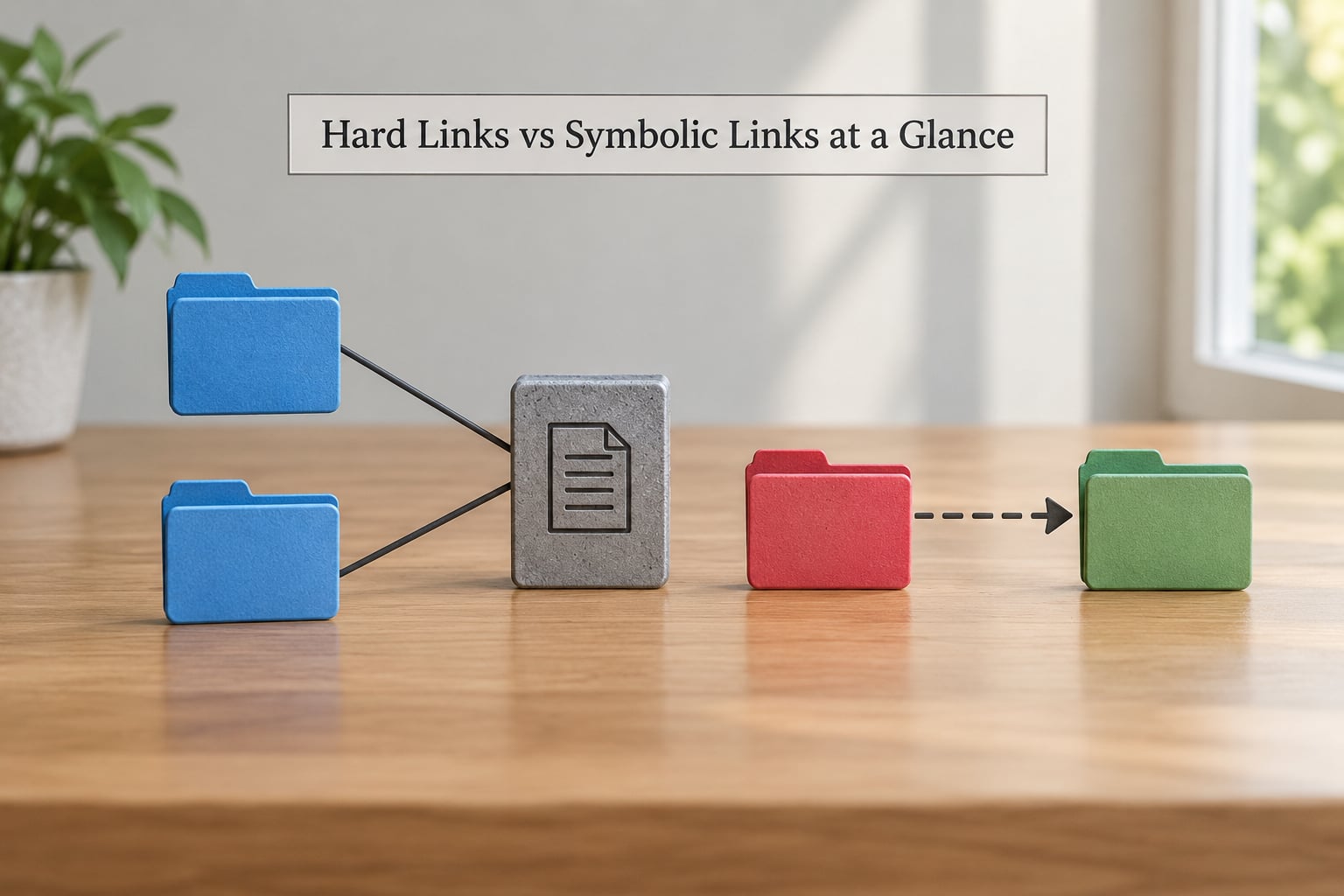
| Criterion | Hard link | Symbolic link |
|---|---|---|
| What it stores | Another directory entry for the same inode | A text path to a target file or directory |
| Inode | Shares the target’s inode | Has its own inode and link count of 1 |
| Filesystem scope | Same filesystem only, fails with EXDEV otherwise | Can point anywhere the path resolves, including another filesystem |
| Survives deletion of the original name | Yes, data stays until the last link goes | Becomes a dangling symlink if the target is deleted |
| Points at directories | No, not allowed | Yes |
| Disk space used | None for the link itself | A few bytes for the stored path |
| Permissions | Always the target’s owner and mode | Has its own, though access follows the target |
| Portability | Linux, Unix, NTFS; not FAT or exFAT | Linux, Unix, macOS, Windows with Developer Mode or admin rights |
| Typical job | Snapshots and deduplication | Config indirection, version switching, aliases |
What Is a Hard Link?
A hard link is a second name for a file that already exists. Underneath the filesystem, a name lives in a directory and points at an inode, which holds the permissions, timestamps, size and location of the data blocks. Add a hard link and you have added a name, not a file.
Because both names resolve to the same inode, editing through one name changes what the other name sees. There is no copy, so there is no second version to drift out of sync.
echo "config v1" > app.conf
ln app.conf app.conf.bak
ls -i app.conf app.conf.bak
cat app.conf.bak
The ls -i output shows the same inode number for both files, and the link count reported by stat -c '%h %n' app.conf rises to 2. That count is the number of directory entries pointing at the inode.
The one thing you cannot do is hard link a directory. Linux refuses it, and the reason lives in the . and .. entries every directory has. Those two entries already reference the directory and its parent, which is what lets you walk up and down. Allowing extra directory links would create cycles with no consistent way to define the parent, so the restriction is baked into POSIX rather than being a quirk of one implementation.
What Is a Symbolic Link?
A symbolic link, often shortened to symlink and occasionally called a soft link, is itself a file. Its contents are a path string, and the kernel follows that string whenever something opens it. The link has its own inode, its own permissions, and a link count of 1.
echo "config v1" > app.conf
ln -s app.conf current.conf
ls -l current.conf
cat current.conf
That indirection is the whole point. Move the real file to another directory, or to another filesystem, and you can repoint the link by removing and recreating it, or by writing a relative target that survives the move.
It also means a symlink can break. Delete or move the target and the link stays exactly where it was, still holding a path that no longer resolves. Tools report this as a dangling or broken symlink, and opening one gives No such file or directory even though the link itself is right there in ls.
What Are the Key Differences?

The filesystem boundary is the first hard stop. A hard link cannot cross mounts, because both names would have to resolve to the same inode and an inode only exists within one filesystem. Attempt it and ln returns an EXDEV, cross-device link error. A symbolic link has no such limit, since it only stores text.
Target handling is the second. Hard links resolve by inode, so a rename cannot break them. Symlinks resolve by path, so any change to the path matters.
Deletion rules differ because of that. Removing one hard-linked name just decrements the link count; the data is released when the count hits zero. Removing a symlink removes only the pointer, and if it was the last name for the file, the data goes with it.
Permissions follow the file for hard links, which makes them impossible to give separate access rights to the same data. Symlinks carry their own mode but real access is evaluated against the target, so tightening them rarely buys you anything.
Portability is the practical tiebreaker. Hard links are POSIX and work on NTFS, but FAT and exFAT reject them and some network mounts handle them badly. Symlinks work nearly everywhere on Linux and macOS, and on Windows need Developer Mode or an elevated shell, with junctions as the more compatible alternative for directories.
hard links vs symbolic links: commands and examples
Both types are made with ln, and the difference is one flag. These are the commands worth knowing:
ln original hardlinkcreates a hard link namedhardlinktooriginal.ln -s target symlinkcreates a symbolic link; the target path goes first, the new name second.ln -sf target symlinkreplaces an existing symlink instead of failing.ln -sfn target dir/the trailing slash matters, see the safety notes below.ls -lilists the inode number in the first column; a symlink shows a leadinglin the permissions column.stat -c '%i %h %n' fileprints inode, link count and name.readlink symlinkprints a symlink’s stored target path and nothing else.lstat fileshows the symlink’s own metadata, whilestatfollows it to the target.find /path -samefile filelists every name that shares that inode, so it finds all hard links.find /path -xtype lfinds broken symlinks, ones whose target no longer resolves.
To list every hard link to a file, use its inode number with find /path -inum $(stat -c %i file). That is the reliable way, because matching on a path only ever tells you about the one name you typed.
How Deletion Changes Each Link
Deleting a hard link is safe as long as another name for the inode still exists. rm app.conf in the example above leaves app.conf.bak fully readable, and the link count drops from 2 to 1. The data blocks are freed only when the last directory entry is removed, which is the same rule that governs rm on any ordinary file.
Deleting through a symlink is a different operation. rm current.conf removes the symlink, not the file it points to, and the original app.conf is untouched. To delete the target itself you have to name the target. This trips people up because rm -rf dir/ with a trailing slash on a symlink to a directory asks the filesystem for the directory contents, while rm -rf dir removes the link alone.
Two safety habits come out of this. Check what a path actually is with ls -ld before running a recursive delete, and remember that rm -rf does not follow a symlink to a directory, so it will remove the link and stop rather than descending into the target. Scripts that walk trees with find can loop forever on a symlink cycle and fail with too many levels of symbolic links, so pass -xdev or handle link cases explicitly.
One more surprise: du and df can look inconsistent when hard links are involved, since du counts an inode once per traversal unless you pass -l to split shared inodes. It is reporting behaviour, not corruption.
Filesystem, Portability, and Permissions
Because a hard link is a claim about one inode, it is bound to the filesystem holding that inode. Cross it and the claim is meaningless, so the kernel refuses with EXDEV. Mount points, separate partitions, LVM volumes and overlay container layers all count as separate filesystems here.
Symbolic links cross those boundaries freely, which is exactly why they are the usual answer for linking into a mounted data volume from your home directory.
The target path style matters as much as the filesystem. An absolute target such as /var/www/app/current keeps working no matter where the symlink sits, but it dies if the target directory itself moves. A relative target such as ../releases/v3.2 moves with the whole tree, which is what makes release directories portable. Decide based on whether the link or the tree is the thing that relocates.
On permissions, a hard link always shows the target’s owner and mode, so you cannot make one name more permissive than another. A symlink owns its own mode bits, but every read and write is checked against the target, so those bits are mostly cosmetic. Following a symlink you do not control is also how path traversal attacks work, which is why services should refuse to follow links into user-writable directories.
When to Use a Hard Link
Hard links earn their place when several names must point at one unchanging object and saving space is the point. The most common example is snapshot backups:
rsync -a --delete --link-dest=/backup/last /data/ /backup/current/
cp -al /data/ /backup/snapshot/
tar --link -cf backup.tar /data/
With --link-dest, rsync hard links unchanged files to the previous snapshot instead of copying them, so a year of daily backups costs roughly the size of one copy plus the changes. The catch is that these snapshots are not independent: editing a file through one name changes every name. Tools like restic and btrfs and ZFS snapshots handle versioning properly; a hand-rolled hard link snapshot does not.
Deduplicated caches, package stores and media libraries built from mostly-identical files are the second case, where cp -al gives you a full-looking tree in a fraction of the space.
When to Use a Symbolic Link
Symbolic links suit anything where the path is the thing you care about. The classic is configuration indirection: keep app.conf as a symlink and swap the real file between environments without editing the file the application reads.
Release and version switching is the other big one. Point current at a release directory, then switch it by creating a new symlink and renaming it over the old one. The rename is atomic, so a running service never sees a half-configured state, which is something a directory of copied files cannot give you.
Library version pinning, user-facing aliases in your home directory, and linking into a mounted volume all fall into the same bucket. Any time the target lives on a different filesystem or might move, a symbolic link is the only workable option.
Which Should You Choose?
Use a hard link when the target and the link live on the same filesystem, several names should resolve to the same immutable object, and you want storage savings with no indirection. Use a symbolic link when the link may cross filesystems, when the target could be relocated, when you want to point at a directory, or when you plan to repoint the link later.
The decision rule I use: if you would be upset when someone edits the file through the second name, use a hard link. If you would be upset when the link stops resolving after a move, use a symbolic link.
Frequently Asked Questions
What happens if I delete a hard link?
Deleting one hard link removes only that directory entry. The underlying file remains available through the other names until the final hard-linked name is removed. A symbolic link behaves differently: removing it deletes the pointer only, and the target file is untouched.
Can a hard link cross filesystems?
Traditional hard links cannot normally cross filesystem boundaries because both names must refer to the same filesystem object. The command fails with an EXDEV cross-device error. Symbolic links can point to targets on another filesystem because they store a path, not an inode.
Do hard links and symbolic links have different permissions?
A hard link is just another name for the same filesystem object, so it shares that object’s ownership and permissions and cannot be given separate rights. A symbolic link has its own directory entry and mode bits, but every real access is checked against the target it resolves to.
How do I tell if a file is a hard link or a symlink?
Run ls -li on it. A symbolic link shows a leading l in the permissions column, and readlink prints its stored target path. Otherwise compare the inode number with ls -i on a second name: matching numbers mean both names are hard links to the same file. stat -c ‘%h’ reports how many names share the inode.
Are symbolic links always better than hard links?
No. Symbolic links are more flexible because they can point across filesystems and represent a path that may be relocated, while hard links are useful when several names must refer to the same unchanging object and you want to avoid duplicating the data. Most day-to-day aliasing wants a symlink; snapshots and deduplication want a hard link.
Conclusion
Hard links vs symbolic links explained comes down to what the link holds: an inode reference or a path. If you take one thing away, check the filesystem and the target before you link anything, then run ls -li and stat -c '%i %h %n' file to see what you actually have.
Same filesystem, immutable data, space to save: ln. Anything that moves, crosses mounts or needs to be repointed: ln -s. The man pages for ln, link and symlink cover the corner cases this guide skipped.