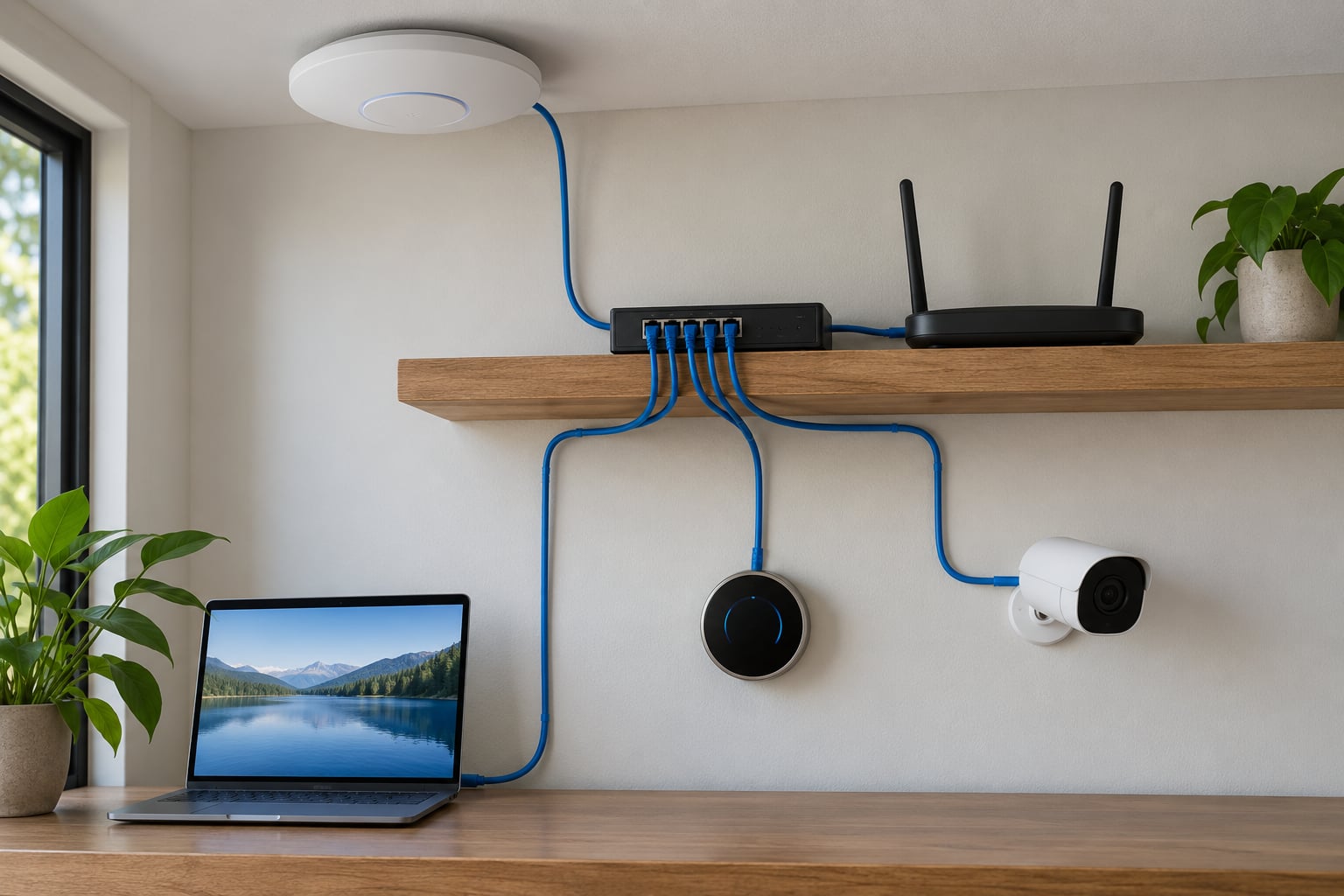
VLAN basics for a home network come down to one idea: a VLAN splits a single physical network into separate virtual networks, so your TV, your laptop and a guest phone stop sharing the same lane. You get that separation with a managed switch and a router that understands VLAN tags, and you need no extra cabling to do it.
That is the whole concept. The rest is detail: which VLAN IDs to use, which ports get tagged, where the router fits, and why your Chromecast suddenly disappears from Home Assistant the moment you split things up. This guide walks through all of it, and it also tells you honestly when VLANs are more trouble than a plain flat network is worth.
Table of Contents
- VLAN Basics for a Home Network: What Is a VLAN?
- Where a VLAN sits in the stack
- VLAN IDs and the 12-bit VID
- Why Use VLANs on a Home Network?
- How VLANs Work: Tags, VLAN IDs, and Ports
- What is in a 802.1Q tag
- Access, trunk, and management ports
- How one frame travels across a VLAN
- What Is the Difference Between VLANs, Wi-Fi Networks, and Subnets?
- How to Plan VLANs for a Home Network
- How to Set Up VLANs on Common Home Network Equipment
- VLAN Configuration Example: Separating IoT Devices
- How to Test and Troubleshoot a VLAN Setup
- Frequently Asked Questions
- Does my home router support VLANs?
- Do VLANs actually improve security at home?
- How many VLANs do I need for a home network?
- Are VLANs necessary for a Wi-Fi network?
- Is the default VLAN always VLAN 1?
- What are the disadvantages of using VLANs?
VLAN Basics for a Home Network: What Is a VLAN?
A VLAN, short for virtual local area network, is one physical network divided into several logical networks. The switch hardware still runs over the same cables; the switch just treats each VLAN as a separate broadcast domain with its own set of devices.
Think of a plain home network as one big room where every device can shout and every device hears it. One compromised smart plug can reach your laptop, your NAS and your cameras directly. A VLAN turns that room into four rooms, each with its own door.
Where a VLAN sits in the stack
VLANs are a layer 2 concept, defined by the IEEE 802.1Q standard. Layer 3 devices such as your router cannot pass a frame between VLANs on their own, which is exactly why isolation works and why you later need inter-VLAN routing rules to let specific traffic through.
VLAN IDs and the 12-bit VID
Each VLAN is identified by a number, the VLAN ID, carried in a 12-bit field of the tag. That gives you usable IDs from 1 to 4094, and you can pick any scheme you like as long as you document it.
Most home setups use four or five VLANs. Forum regulars on r/homelab consistently recommend starting small, with management, trusted, IoT and guest as the core set, because every extra VLAN means another DHCP scope, another firewall rule set and another thing to check when something breaks.
Why Use VLANs on a Home Network?
The honest answer is that a VLAN fixes isolation, not security on its own. Think of it as the wall, not the lock. Most people get value from five things:
- IoT isolation. Smart plugs, bulbs, thermostats and cameras get internet access but no route to your laptops, NAS or hypervisor. This is the single biggest reason people segment at home.
- Guest access that actually contains. Guest SSIDs only work as isolation when the SSID is mapped to a VLAN with a firewall rule denying everything except internet traffic.
- A smaller broadcast domain. Broadcasts stop at the switch port. Dozens of chatty IoT devices no longer flood your wired machines with ARP and mDNS noise.
- Firewall policy you can write down. Rules like guest cannot reach trusted, or IoT cannot reach management, are enforceable and readable instead of aspirational.
- Easier troubleshooting. A failure domain of four devices is far easier to reason about than a flat network of forty.
On the other side: VLANs add configuration, and a misconfigured trunk or firewall rule can take the whole house offline. If you have three devices total, a flat network is the right call.
How VLANs Work: Tags, VLAN IDs, and Ports
The switch decides which VLAN a frame belongs to using the 802.1Q tag inserted into the Ethernet frame. On a port where only one VLAN is expected, the tag is added and removed automatically. On a port where several VLANs travel together, the tag stays on.
What is in a 802.1Q tag
The tag is four bytes inserted right after the source MAC address. It carries a type identifier of 0x8100, a priority field for QoS, a drop-eligible bit, and the VLAN ID itself. Ordinary switches read it; ordinary network cards ignore it, which is why your laptop needs no special configuration.
Access, trunk, and management ports
| Port type | What it does | Tag on the wire | Typical use |
|---|---|---|---|
| Access | Belongs to exactly one VLAN | Untagged on ingress, added and stripped by the switch | Wall socket, desk port, camera port |
| Trunk | Carries several VLANs on one link | Tagged, except for the native VLAN | Switch to router, switch to switch, switch to access point |
| Management | The VLAN you reach the switch web interface through | Depends on port mode | Your admin laptop, once isolated |
How one frame travels across a VLAN
Your laptop plugs into an access port in VLAN 10. The switch adds a tag for VLAN 10, forwards the frame out a trunk to the router, and the router reads the tag, strips it, and decides which VLAN interface the frame belongs to. Coming back, the process reverses: tagged on the trunk, untagged on the access port, into the laptop.
The PVID, or port VLAN ID, is the value a switch assumes for untagged frames arriving on a port. On a trunk port the PVID identifies the native VLAN, the one VLAN allowed to arrive untagged. Native VLAN mismatches between a switch and a router are one of the most common causes of silent connectivity failures, and changing the native VLAN away from VLAN 1 closes off the classic double-tagging attack.
What Is the Difference Between VLANs, Wi-Fi Networks, and Subnets?
These four get confused constantly, and each one solves a different part of the problem. A VLAN is the layer 2 grouping, a subnet is the layer 3 addressing, and a Wi-Fi network is the radio link that carries both.
| Concept | Layer | What it changes | Does not do |
|---|---|---|---|
| Physical LAN | 1 | Separate cabling and ports | Nothing logical; devices can still reach each other |
| VLAN | 2 | Splits one broadcast domain into separate ones | Assign addresses or enforce policy |
| Subnet | 3 | Assigns IP ranges and gateways per group | Separate wired and wireless devices on the wire |
| Wi-Fi network (SSID) | 2 and 3 | Names a radio network and its security | Isolate anything unless mapped to a VLAN |
In practice you use all of them together. VLAN 20 carries subnet 10.0.20.0/24, and the SSID Home-IoT maps into VLAN 20.
How to Plan VLANs for a Home Network
Plan before you touch a switch. Write down the VLAN ID, name, subnet, gateway, purpose and a couple of example devices for each group, then keep that sheet somewhere you will find it in six months. Forum threads about configuration drift are full of people who forgot which port was which.
| ID | Name | Subnet | Gateway | Purpose and example devices |
|---|---|---|---|---|
| 10 | Trusted | 10.0.10.0/24 | 10.0.10.1 | Laptops, phones, NAS, printers |
| 20 | IoT | 10.0.20.0/24 | 10.0.20.1 | Smart plugs, bulbs, TV, voice assistants |
| 30 | Guest | 10.0.30.0/24 | 10.0.30.1 | Visitor phones and laptops |
| 40 | Cameras | 10.0.40.0/24 | 10.0.40.1 | Doorbell, outdoor and indoor cameras |
| 99 | Management | 10.0.99.0/24 | 10.0.99.1 | Switch, access point, hypervisor management interfaces |
A convention that saves real time: make the VLAN ID match the third octet of the subnet, so VLAN 20 is 10.0.20.0/24. When a DHCP lease looks wrong, the mismatch is obvious at a glance.
Decide the intent for each pair of VLANs before you configure anything. The usual starting position is IoT allowed to reach the internet only, guest allowed to reach the internet only, management able to reach the switch and access point, and trusted able to reach everything.
How to Set Up VLANs on Common Home Network Equipment
You need three capable pieces and one unmanaged box is not one of them.
| Switch tier | VLAN support | Good for |
|---|---|---|
| Unmanaged | None; one flat broadcast domain | A dumb run to a single device |
| Smart or web-managed | Port isolation and basic tagging only | A single isolated group, like cameras |
| Fully managed | VLANs, trunks, PVID, STP per VLAN, port mirroring | Any real segmented network |
The router or firewall needs a VLAN-aware interface per VLAN, a DHCP scope for each subnet and firewall rules between them. The access point needs multi-SSID support with per-SSID VLAN mapping, because a VLAN you cannot reach wirelessly leaves half your devices behind.
Platforms differ mainly in menu naming. OPNsense and pfSense use Interfaces, then VLANs, then a parent interface and DHCP per interface. MikroTik uses bridge VLAN filtering with PVID on ports and a bridge as the tagged interface. Ubiquiti gear does it in the Networks section with an auto network for simple cases. Cisco IOS uses switchport access vlan and switchport trunk allowed vlan. Exact paths change between firmware releases, so treat any menu path as a starting point rather than a contract.
One more thing to check early: whether your ISP gateway can bridge. If it cannot, you get double NAT, which breaks port forwarding and remote access to your own services. Moving the gateway into bridge mode or DMZ mode is the usual fix, and a VLAN-aware router behind it handles the routing.
VLAN Configuration Example: Separating IoT Devices
This walkthrough assumes VLAN 20 on subnet 10.0.20.0/24 with gateway 10.0.20.1. Replace interface names with what your own equipment calls them.
Step 1: Create the VLAN interface on the router. Make VLAN 20 a child of the parent interface that carries your trunk, give it address 10.0.20.1/24, and mark it as the gateway for that subnet.
Step 2: Add a DHCP scope. Hand out addresses from 10.0.20.100 to 10.0.20.199 with gateway 10.0.20.1 and DNS 10.0.10.1 if you run your own resolver. A separate scope per VLAN keeps IoT leases out of your trusted range.
Step 3: Write the firewall rules. Allow IoT to reach the internet with DNS and NTP allowed. Deny IoT to trusted, IoT to management, and IoT to cameras unless you have a specific reason. Default deny between VLANs makes the rules short.
Step 4: Set the switch port. Make the port feeding your IoT switch or access point an access port in VLAN 20 with PVID 20, so untagged frames from those devices land in VLAN 20.
Step 5: Allow VLAN 20 on the trunk. On the uplink between switch and router, add 20 to the allowed VLAN list. Forgetting this is the classic silent failure: the port looks configured and nothing forwards.
Step 6: Map the wireless network. Create an SSID for IoT devices and bind it to VLAN 20. Do the same for a guest SSID on VLAN 30 if you have one.
Step 7: Fix discovery. Separating devices also separates discovery protocols. Home Assistant users on community.home-assistant.io hit this constantly: mDNS on 224.0.0.251 and SSDP on 239.255.255.250 do not cross VLANs on their own. Enable mDNS reflection or an mDNS repeater on the router, or run Avahi on a box inside one VLAN and repeat across, and add firewall rules for multicast reflector traffic.
How to Test and Troubleshoot a VLAN Setup
Ping tells you very little. On a segmented network, a blocked ping often means the policy is working and a real service is broken, or the reverse. Test at the service level instead.
- Check the DHCP lease table on the router and confirm the device sits in the right subnet.
- Open the actual service: an SMB share, a web page, a stream, a print job.
- Test a path that should be blocked, such as a guest device reaching your NAS, and confirm it fails.
- Test discovery specifically if you run Home Assistant, Chromecast or AirPlay targets.
- Compare the PVID on the access port with the allowed VLAN list on the trunk when a port is dead.
| Symptom | Root cause | Fix |
|---|---|---|
| Device gets no address | No DHCP scope, or relay not configured on the router interface | Add the scope and set the relay or helper address to your DHCP server |
| Port works for one VLAN only | VLAN missing from the trunk allowed list | Add the VLAN ID to the allowed list |
| Trunk link flaps or stalls | Native VLAN mismatch on one side | Match the native VLAN and PVID at both ends |
| You lose the switch interface mid-change | Management VLAN changed before your laptop joined it | Change it from a console or a port already in the new VLAN |
| Everything works, then nothing after a new switch | VTP replaced the VLAN database | Disable VTP or set transparent mode on home switches |
| Cast targets and printers disappear | mDNS and SSDP blocked between VLANs | Enable reflection or a repeater and allow the multicast rules |
Two more precautions. Back up configurations after every change so a bad edit is a two-minute fix rather than an evening. And keep your plan sheet current, because the documentation is what stops drift six months later.
Frequently Asked Questions
Does my home router support VLANs?
Most ISP-provided routers do not, and many consumer units with a VLAN menu only offer port isolation or a single guest network. Check the documentation for a parent interface, child VLAN interfaces and per-VLAN DHCP scopes. If your router cannot do that, put a VLAN-aware firewall or router behind it, put the ISP gateway in bridge mode, and let the router you own handle the VLANs.
Do VLANs actually improve security at home?
They improve containment, not defence on their own. A VLAN stops a compromised IoT device from opening connections to your NAS, laptops or hypervisor, which removes the easiest path for malware and for a curious neighbour on guest Wi-Fi. You still need firewall rules, firmware updates and normal account hygiene, because traffic inside a VLAN is unrestricted by default.
How many VLANs do I need for a home network?
Four is the usual answer: trusted, IoT, guest and management. Add cameras or a lab server later if you have one. Every extra VLAN means another DHCP scope, another firewall rule set and another failure mode to debug, so start with the four and expand only when a device has a reason to sit somewhere else.
Are VLANs necessary for a Wi-Fi network?
Only if you want wireless devices separated from each other. Two SSIDs on one flat network give you two passwords but no isolation, because both land in the same broadcast domain and can reach every device. To get real separation, map each SSID to its own VLAN and add firewall rules between them.
Is the default VLAN always VLAN 1?
Usually, but not always. VLAN 1 is the default on most switches, and some devices let you move management and untagged traffic to another ID. Do not rely on it as a security boundary, since untagged traffic is easy to inject. Change the native VLAN on trunks to something unused and make sure both ends of the trunk agree.
What are the disadvantages of using VLANs?
They add complexity, they cost a managed switch and a capable router, and a single misconfigured trunk or firewall rule can break the whole house. Router-on-a-stick also funnels every VLAN through one uplink, which becomes the bottleneck on 2.5 and 10 gigabit links. On a small network with a handful of devices, a flat network plus a good password is simpler and perfectly adequate.
If you take one thing from this guide, write down a four-VLAN plan with IDs, subnets and gateway addresses before touching any hardware. Then build the management and trusted VLANs first, confirm you can still reach your switch, and add IoT and guest last so the blast radius of a mistake stays small.