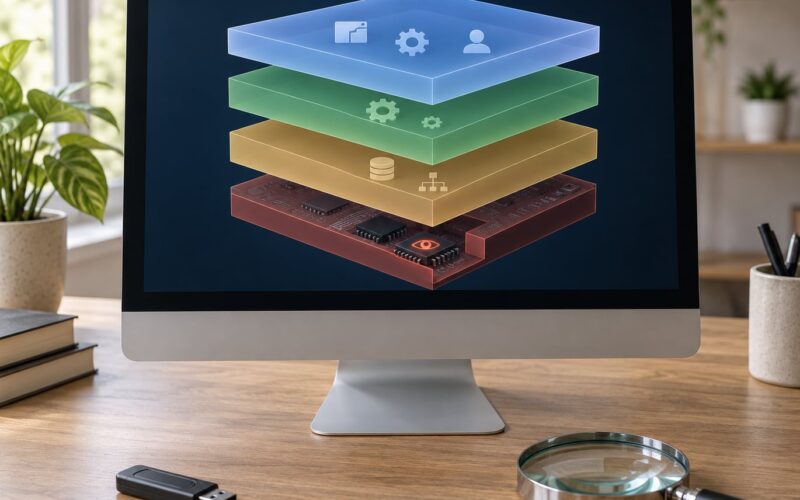
A sandbox is an isolated, disposable environment where you run a file you do not trust, and a safe way to analyze a file means doing exactly that: hash it, inspect it without opening it, then detonate it inside a throwaway virtual machine and read the behavior log. The sandbox never touches your real system, and the whole environment gets destroyed afterward. Ten minutes of setup buys you the ability to look at a phishing attachment instead of guessing.
Most people who get burned by a suspicious file did not ignore the warning signs. They had a file with a familiar name, no obvious antivirus alert, and a deadline pressure to open it. This guide covers the workflow I would use on my own machine, in the order that keeps risk lowest.
Everything here is for defensive work, incident response, and education. Analyzing malware you did not own can be illegal in some jurisdictions, so know your rules before you start.
Table of Contents
- What You Need
- Step-by-Step
- 1. Create an Isolated Analysis Environment
- 2. Record the File’s Identity and Basic Properties
- 3. Inspect the File Statically
- 4. Run the File in the Sandbox
- 5. Review Results and Decide the Risk
- 6. Document, Preserve, and Clean Up
- When Not to Use a Public Sandbox
- Common Mistakes
- Frequently Asked Questions
- Is a sandbox 100% safe?
- Is Windows Sandbox actually safe for unknown files?
- Should I upload a suspicious file to VirusTotal or an online sandbox?
- How does malware know it is in a sandbox?
- Can a PDF or Office document contain malware?
- Is Docker a safe sandbox for running unknown files?
- Conclusion
What You Need
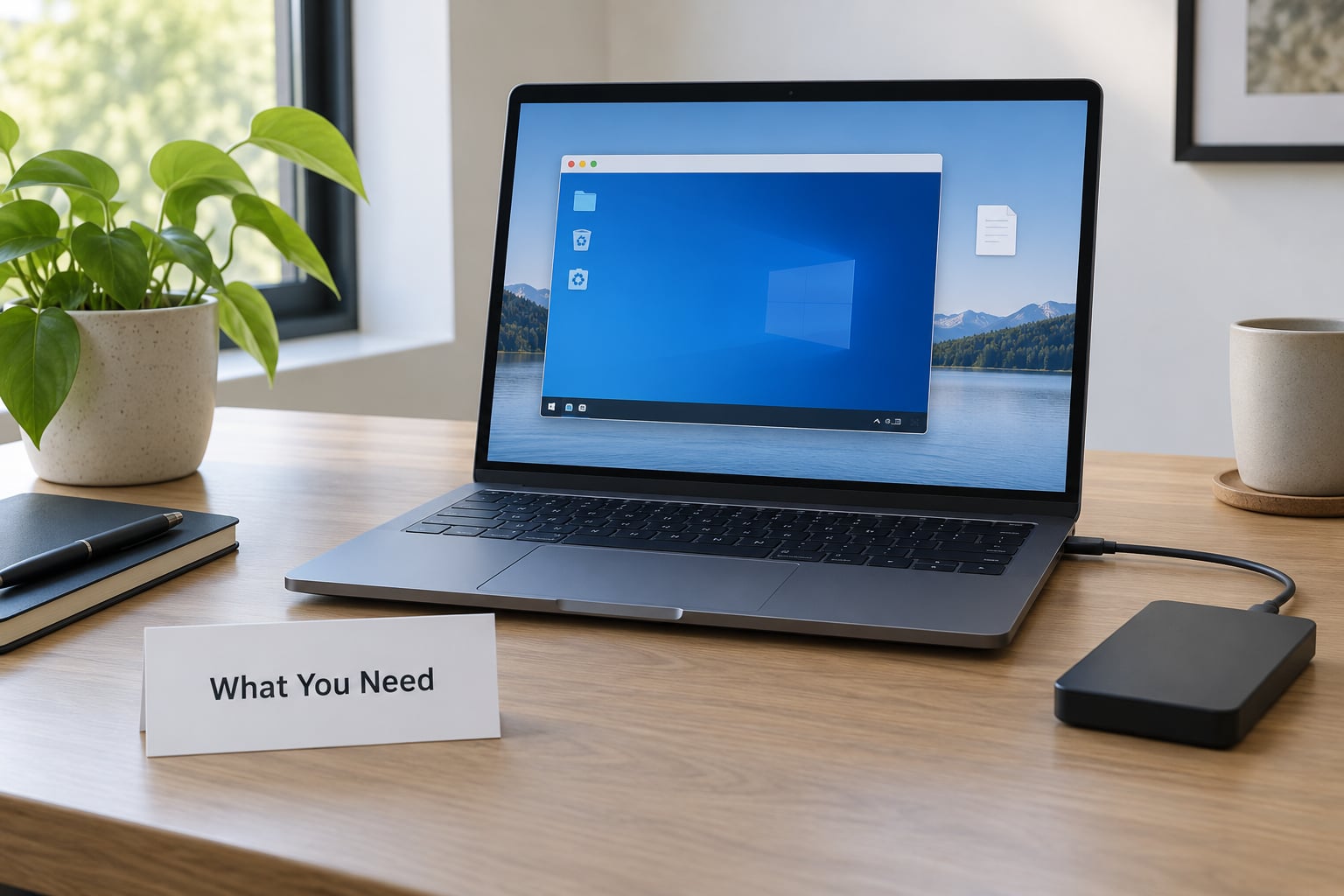
You need less than most people expect. The expensive part is patience, not hardware.
- An isolated environment. Either an online sandbox service or a local virtual machine you can throw away. Windows Sandbox (built into Windows 11 Pro and Enterprise) is the fastest starting point. For Linux hosts, VirtualBox, QEMU or KVM all work.
- A disposable test account inside the guest. Never sign in to your real account from inside the analysis machine. No synced browsers, no password manager, no cloud drive client.
- Enough free disk for two or three guest copies. Snapshots and reverted images add up fast.
- A static inspection toolkit. On Windows, Sysinternals tools like Sigcheck and strings, plus an unpacker. On Linux, REMnux or a similar reverse-engineering distribution covers the same ground.
- Current definitions. Update the guest’s antivirus and any detection feeds before you start, otherwise you cannot tell whether a clean report means clean or just out of date.
- A place to record observations. A plain text file is fine. You will want the hash, the timestamps, the tool versions and the verdict once the machine is gone.
If you only do one thing before touching a sample, take a hash of it. That single string identifies the file globally, and you can look it up before deciding anything.
Step-by-Step
1. Create an Isolated Analysis Environment
Start from a known-good snapshot, not from your everyday machine. Install nothing afterward except the sample.
Turn off shared folders, drag-and-drop and shared clipboard between host and guest. This is the single most common isolation mistake, and people who hit it usually never notice it happening. A drag-and-drop copy operation is also a perfectly good way for malware to walk back onto the host.
Set the network mode deliberately. NAT gives the guest internet through the host’s address, which is what most malware needs to phone home. Host-only networking limits the guest to the host side of the virtual switch. An air-gapped guest with no adapter at all gives you the strongest isolation and usually nothing useful to observe.
My default is NAT with sinkholing rather than real internet access, so outbound connections resolve to nowhere and you still see the domain names the sample tries to reach. Those domain names are often the most valuable thing in the report.
Take a clean snapshot now. Every detonation ends with a revert back to this exact state.
2. Record the File’s Identity and Basic Properties
Never run the file on the host, not even to see whether it opens. Copy it into the guest through a method you trust, or attach it as a read-only disk image so nothing can write back to the original.
Calculate MD5, SHA-1 and SHA-256 in the guest. SHA-256 is the one to record and to search on. Look the hash up in VirusTotal or a similar multi-engine service and read the detection ratio before you go further, because a file already flagged by many engines does not need to be executed at all.
Then record the basics: the real file type against the extension, the size in bytes, the creation and modification timestamps, and whether the file carries a valid digital signature. A file called invoice.pdf that is actually a Windows executable is the oldest trick in the book and it is worth catching on sight.
For documents, check for macros. Office files can carry VBA or XLM macros that run the moment a user enables content, which is why “enable macros” prompts are a red flag rather than a suggestion.
3. Inspect the File Statically
Static analysis means learning everything you can without executing anything. It is slow and manual, but it leaves no trace, so start here.
Run the strings tool and read the output. URLs, file paths, registry keys, email addresses, base64 blobs and ransom note text all show up as plain text unless the author deliberately hid them.
Look at the file header, also called the magic bytes. They tell you the truth about the format even when the extension lies. Then look at entropy, which measures how random the data is. A compressed or packed binary scores high; a normal document scores low. High entropy plus a small file often means a packer with the real payload hidden inside.
For executables, inspect the import table. An installer importing file-write and registry functions looks ordinary. A binary importing crypto libraries and calling up credential stores looks less so. Archive files deserve the same treatment: list the contents before extracting, because archives hide executables behind innocuous names and exploit path traversal in the extractor itself.
4. Run the File in the Sandbox
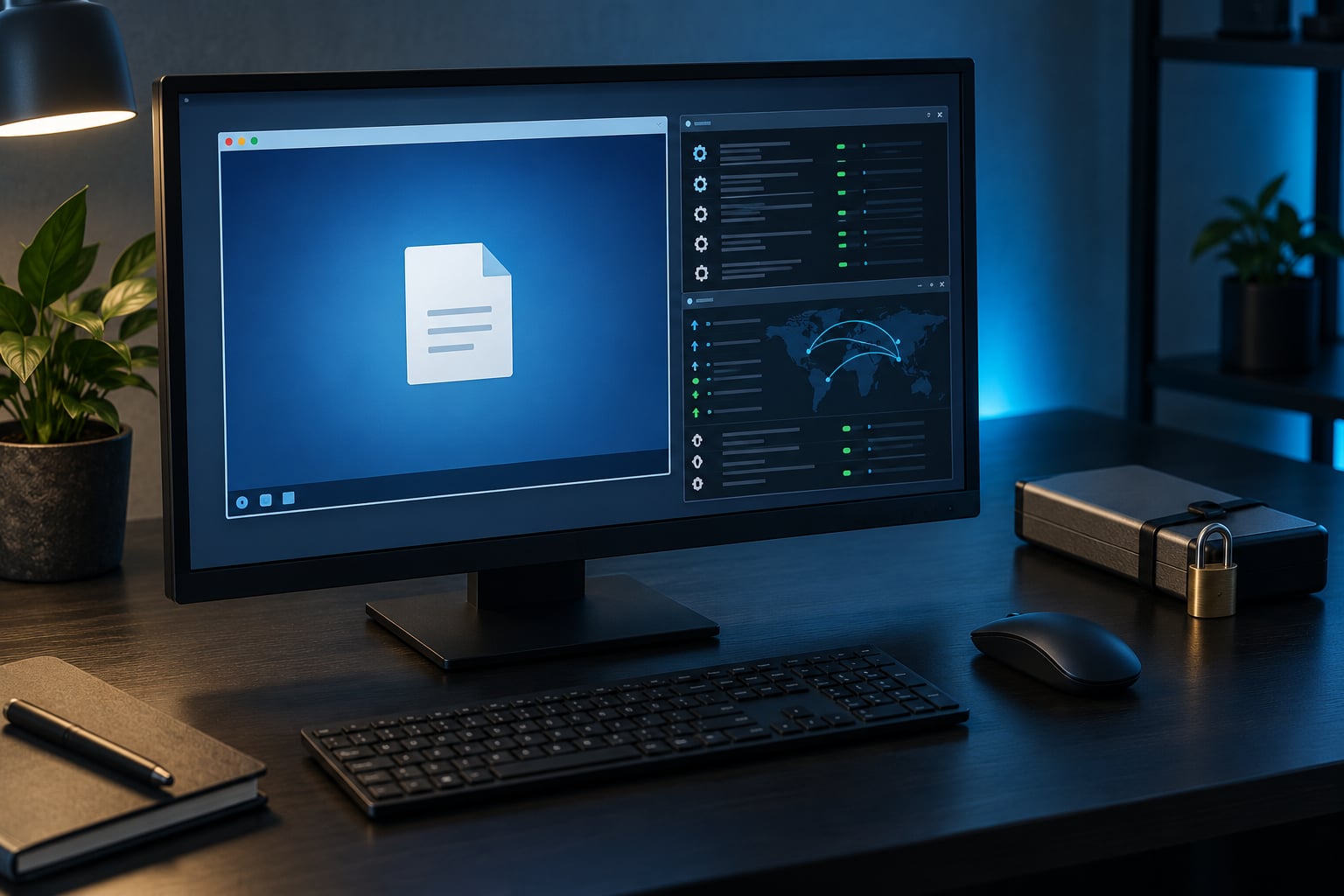
Now you detonate it, and only inside the guest. If you are using an interactive sandbox you can drive the mouse and watch what happens as it happens. If you are using a batch service you get a report back in a few minutes.
Watch for the things that actually matter: new processes spawned and their parents, files written outside the installation directory, registry keys added under Run or Services, scheduled tasks, browser extensions, and outbound connections to unfamiliar domains.
A process tree is the most readable output. When a Word process spawns a PowerShell child, and that PowerShell spawns a rundll32 that contacts an external address, you have your answer without needing to guess.
Run it long enough to see the persistence stage. Many samples sleep for several minutes before doing anything, so a run that ends at sixty seconds proves very little. Two or three minutes is a reasonable minimum, longer if the file is an installer that may wait for input.
5. Review Results and Decide the Risk
Translate the report into a verdict rather than a feeling. Ordinary software writes files, creates registry keys and talks to a vendor update server. That is what software does.
Escalate when you see credential or browser data access, persistence entries under autorun locations, outbound connections to freshly registered or nonsensical domains, injection into running processes, disabling of security tools, or a drop of a second executable into a temp folder followed by execution of that executable.
Command and control, or C2, is the channel a compromised machine uses to receive instructions. Repeated beaconing to the same unfamiliar address on a fixed interval is a strong indicator.
One important nuance: if the sample does nothing at all, that is a finding in itself, not a clean bill of health. Plenty of malware checks for virtual machines, checks the hardware model for known hypervisor strings, looks for analysis tools in the running process list, or simply refuses to execute without a real user present. People on security forums run into this constantly and it is why a dormant sample still gets reported rather than dismissed.
6. Document, Preserve, and Clean Up
Write down the hashes, tool names and versions, timestamps, the process tree, the network indicators and your verdict before you destroy anything. If this sample turns up again on another machine, that record is what saves you the whole investigation.
Save indicators of compromise, meaning the observable traces of the intrusion such as file hashes, domains, registry paths and mutex names, into whatever your team uses. Hashes travel well between machines; samples often do not.
Then revert the guest to the clean snapshot and confirm the host shows no new processes and no new files. If you used a disposable VM rather than a snapshot, power it off and delete it entirely. Do not keep a “clean” machine around as a base unless you verified the snapshot after the run.
When Not to Use a Public Sandbox
Online sandboxes are fast and free for most things, but you are handing the file to a third party. Never upload personal documents, anything with customer or employee data, unreleased code, credentials, or anything under a confidentiality agreement or data protection regulation. Assume the submission is logged and may be shared with threat intelligence subscribers.
There is a second reason to keep a sample local: some malware families detect public sandbox environments by name and stay dormant, so an online run can return a misleadingly quiet result.
Common Mistakes
Double-clicking the sample on the host to see what happens. This is the mistake that ends careers of careless analysts. Open it in the guest, never on the machine where your email and passwords live.
Trusting the file extension. A PDF extension proves nothing. Check the magic bytes, and treat any extension that does not match the actual format as hostile until proven otherwise.
Leaving shared folders and clipboard sharing enabled. This quietly undoes the isolation you paid for. Disable all three channels before you copy the sample in.
Using a personal account inside the guest. If the sample steals browser data, you just handed it your passwords. Use a throwaway local account with no synced profile.
Forgetting to record the hash before analysis. Once the guest is reverted, the file may be unrecoverable. Hash first, always, and write it down.
Declaring victory after a short run. Many samples sleep before activating. A run of a few seconds tells you almost nothing about behavior.
Reusing a machine you already detonated something on. Persistent changes survive the session even when the front looks clean. Snapshot or delete, every time.
Reading “no detections” as “safe”. That result means the sample evaded the engines or is novel. It does not mean harmless, and it certainly does not mean you should run it on your workstation.
A useful habit is keeping a written ten-minute triage checklist next to your analysis setup, so the order of operations stays the same when you are tired and a sample arrives at 2am.
Frequently Asked Questions
Is a sandbox 100% safe?
No. A sandbox massively reduces risk by isolating the sample from your files, accounts and network, but it is a risk reduction layer, not a guarantee. Some malware detects virtual machines or analysis tools and stays dormant, and some escape techniques target specific hypervisor flaws. Keep host and guest isolated, take a snapshot, and treat a quiet sandbox run as inconclusive rather than clean.
Is Windows Sandbox actually safe for unknown files?
Windows Sandbox is one of the safer options for beginners because the environment is temporary, closes on its own, and has no persistent user profile to steal. Its limits matter though: it shares the host kernel, it resets when you close it, and by default it can reach the network. Turn off networking if you do not need it, and never enable host folder sharing.
Should I upload a suspicious file to VirusTotal or an online sandbox?
Yes, for hashes and for ordinary files. A hash lookup reveals the verdict of dozens of engines before you execute anything, which is the safest part of the whole process. Uploading the file itself is a different decision, because you are giving a third party a copy and many services share submissions with threat intelligence customers. Never upload documents with personal, customer or proprietary data.
How does malware know it is in a sandbox?
Common checks include looking for hypervisor or device strings such as VBOX and VMware, low system resources, absent hardware, few installed programs, no user activity, known analysis tool names in the process list, and a recent system start time. Samples also test whether the network works. Detecting the sandbox is itself a finding worth documenting, since a dormant sample is usually malicious but waiting.
Can a PDF or Office document contain malware?
Yes. PDFs can carry embedded JavaScript, launch actions and exploits, and Office files can carry VBA or XLM macros that execute when content is enabled. This is why “enable macros” and “open in protected view” warnings deserve attention. Inspect the file statically first, then detonate it in a sandbox with the relevant applications installed in the guest.
Is Docker a safe sandbox for running unknown files?
It depends on your threat model, and the advice in forums is genuinely split. Containers share the host kernel, so a kernel-level escape or a dangerous mount defeats the boundary entirely. Docker is reasonable for controlled code you wrote yourself. For unknown binaries from the internet, a real virtual machine or an air-gapped appliance gives a boundary that stands on its own.
Conclusion
A sandbox lowers the odds that a bad file costs you a machine, a backup and a week of cleanup. It does not make the risk zero, and anyone who promises otherwise is selling something.
So the first step is small and immediate: preserve the original untouched, calculate its SHA-256, and inspect it only inside a disposable isolated environment you are prepared to delete. Write the hash down before you do anything else. Everything after that is detail.