Cloning a virtual machine breaks it in one predictable way: the copy inherits the original’s identity, so two machines end up answering to the same MAC address, machine ID, hostname and directory object. The fix is procedural. Power the source off cleanly, take a full clone rather than a dependent one, then change the identity inside the guest before you plug the copy into a real network.
This guide covers VMware vSphere, standalone ESXi, Workstation Pro 17 and Fusion, and notes where Hyper-V and Proxmox use different words for the same operations. If you know how to clone a VM without breaking it, the whole process takes about fifteen minutes of attention plus however long the disk copy runs.
Table of Contents
- What You Need
- Step-by-Step: How to Clone a VM Without Breaking It
- 1. Decide What Kind of Clone to Create
- 2. Confirm the Source VM Is in a Safe State
- 3. Verify Disks, Snapshots, and Destination Capacity
- 4. Start the VMware Clone Wizard
- 5. Configure the Clone and Keep It Independent
- 6. Generate a New VM Identity
- 7. Review Network and Hardware Settings
- 8. Complete the Clone and Power It On Carefully
- 9. Validate the Clone Before Using It
- Common Mistakes
- Handling Exceptions and Platform Differences
- Verify Before Handoff
- Frequently Asked Questions
- Can I clone a running virtual machine without breaking it?
- Is a VMware linked clone safer than a full clone?
- Does a cloned VM automatically get a new MAC address?
- Should I consolidate snapshots before cloning a virtual machine?
- Is a virtual machine clone the same as a backup?
- Conclusion
What You Need
You need administrative access to the virtualization layer, not just read rights on the VM. Someone has to be able to right-click a VM, choose Clone and point the result at a datastore.
You also need free space at the destination that can hold a full independent copy. A source VM with a 110 GB provisioned disk can produce a thin clone that occupies 14 GB on the wire and grows later, which surprises people. Check the destination datastore’s free space against the source’s actual used bytes, then add headroom.
Before touching anything, write down the VM’s configuration. Note how many virtual disks it has, whether any of them are independent, what snapshot chain sits on top, which port group each NIC sits on, and whether the guest is joined to a directory. That inventory is what you check against afterwards, and it is the difference between a five-minute fix and an afternoon.
Keep a rollback point. A snapshot is fine as a short-lived safety net before the clone, as long as you consolidate or delete it once the clone verifies. What is not fine is treating the clone itself as the backup, because the source is still there and the clone depends on nothing but your own discipline.
Which mechanism you pick depends on where you are working:
- vCenter or vSphere Client: clone from a VM inventory object, pick the target host and datastore, and let the task run in the background.
- Standalone ESXi: the web interface has Clone under Actions. For scripted work,
vmkfstools -istill copies disks, but you then build a VM object around the result yourself. - Workstation Pro 17: VM > Manage > Clone, with a wizard that offers full, linked and snapshot-based copies.
- Fusion: VM > Clone, a single confirm dialog that creates a full copy in the default library location.
For a one-off copy, a full clone is right. For a fleet, build a template once and clone from that. For a disposable test machine, a linked clone saves space but ties the copy to its base disk, so deleting the base breaks every linked clone pointing at it.
Step-by-Step: How to Clone a VM Without Breaking It
1. Decide What Kind of Clone to Create
A full clone copies every virtual disk and produces a machine with no dependency on the source. That independence is the whole point, so it is the default for anything that will outlive the original lab weekend.
A linked clone keeps the base disk read-only and adds a differencing layer for writes. It is fast and cheap, but deleting or corrupting the base takes the clone with it. Snapshots are point-in-time recovery points on the same VM, not copies you can boot independently.
Templates sit between the two: a generalized master, marked read-only, that you clone repeatedly. If you plan to deploy more than a handful of machines, the extra effort of building a template pays for itself in about the fourth clone.
2. Confirm the Source VM Is in a Safe State
Shut the guest down through the guest, not the hypervisor. In vCenter or the vSphere Client, use Guest OS Shutdown so VMware Tools asks the OS to close cleanly. In Workstation, it is VM > Power > Shut Down Guest. In Fusion, VM > Shut Down.
Watch the console until you see the OS reach its login screen or a powered-off state. A forced power off, or a guest you pulled the plug on, can leave a filesystem journal that the clone faithfully reproduces. Copying a running VM’s virtual disk is also how you pick up a lock error on the destination.
Check the guest for anything that will complain on a second boot: a database in the middle of a transaction, a mount that assumes one disk, licensing that ties to hardware identity. Shut those services down deliberately rather than hoping the copy catches them idle.
3. Verify Disks, Snapshots, and Destination Capacity
Count the virtual disks in the VM’s settings, and check each one for an independent flag. A VM with two disks needs two cloned disks. Miss the second one and the guest may boot into a rescue shell or dump straight to a kernel panic because /etc/fstab references a UUID that no longer exists, a failure people hit repeatedly and usually misread as a broken clone.
Look at the snapshot chain next. A short chain of one or two layers is fine to clone from. A chain ten levels deep built up over two years is worth consolidating first, because the clone has to walk every layer and the result is harder to reason about.
Finally, confirm the destination datastore has room for the full used size of every disk, plus growth. Thin-provisioned clones legitimately appear smaller than their source; that is expected, not a truncated copy.
4. Start the VMware Clone Wizard
In vCenter’s inventory tree, right-click the VM and choose Clone. On standalone ESXi, open the web client, select the VM, then Actions > Clone. In Workstation Pro 17, open the VM, then VM > Manage > Clone. In Fusion, select VM > Clone.
Menu labels shift a little between product versions, but the Clone entry is always on the VM’s own context menu or its VM menu, never on the datastore.
5. Configure the Clone and Keep It Independent
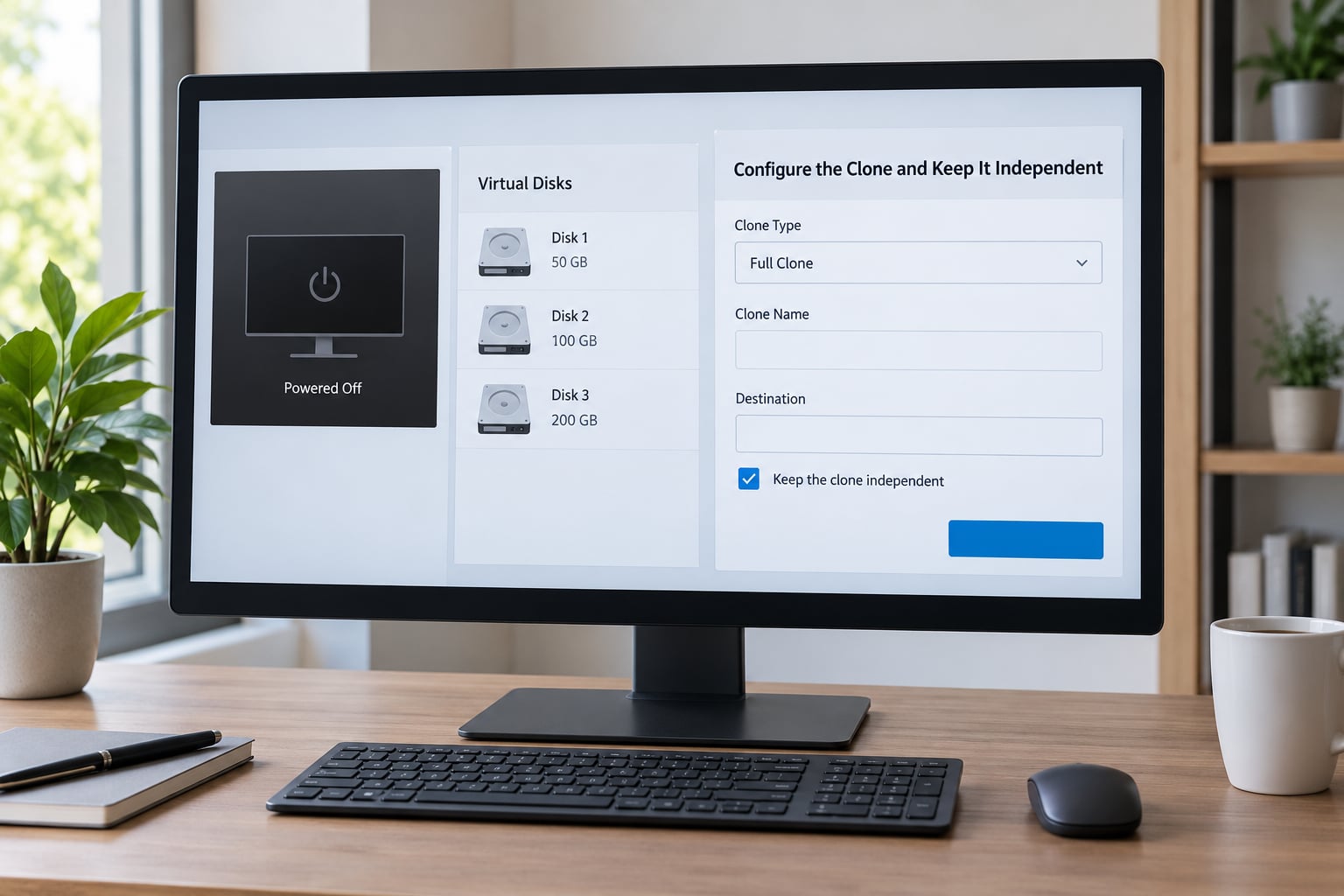
Give the destination a new name that will not confuse anyone in six months. Append a date or an environment tag rather than a bare Copy suffix.
Select Full Clone. Skip Linked Clone unless you are deliberately building a disposable test machine that will be destroyed before its base. If the source has snapshots and the wizard offers a snapshot list, choosing the current state rather than an intermediate point avoids dragging an old delta chain into the copy.
Pick the destination datastore and folder deliberately. Leave the host placement alone unless you know why you are moving it, because a destination on a different host or datastore turns a copy job into a migration and can be dramatically slower. This is the step where a full clone of a powered-off VM stays predictable; anything else adds variables you do not need.
6. Generate a New VM Identity
This is where clones actually break, and it is mostly guest-side work that the hypervisor cannot do for you.
VMware will offer a new MAC address for the virtual NIC, and the Clone Wizard in vCenter can apply a customization specification that renames the guest and joins it to the domain. But the machine SID on Windows and /etc/machine-id on Linux are inside the guest’s own disk, and they travel with the copy. Two live machines sharing either one produce duplicate directory objects, licensing failures and SSH host key warnings that will make you question the whole clone.
Plan the changes: hostname, IP addressing, DNS records, SSH host keys, the Windows machine SID, and any certificate whose subject name is bound to the old hostname. On Linux, regenerate /etc/machine-id and the SSH host keys, then recheck /etc/fstab entries that reference disk UUIDs.
On Windows, run sysprep with the generalize option before making deployable copies. It is a one-way door, and it wipes the source’s configuration, so never run it on a machine you still need. Clone first, then sysprep the clone, or sysprep a copy that you then promote to a template.
7. Review Network and Hardware Settings
Check the NIC type, whether it is set to connect at power on, and which VLAN or port group it lands on. Two clones sharing a sensitive port group can trigger failover behavior on hardware that watches for duplicate addresses, so put the copy on a different port group or VLAN until you have validated it.
Look at everything else copied from the source: CD-ROM media still pointing at an ISO on the source’s datastore, USB or serial passthrough that will fight over the physical device, and a virtual TPM state that was copied rather than regenerated. Detach removable media and reassign passthrough devices before the first boot.
8. Complete the Clone and Power It On Carefully
Finish the wizard and read the summary screen. The name, clone type, destination datastore and customization specification are all visible there, and this is your last cheap chance to catch a typo in the target path.
Let the task complete. On thin-provisioned destinations the copy is fast, but a large full clone over a busy datastore can take a while; the progress bar in the Tasks pane tells you whether it is actually moving.
When it finishes, open the console before starting the guest if the system is anything sensitive. If shutdown takes longer than you expect, give it time rather than hitting reset, because hard power cycling during early boot is how people turn a good clone into an investigation.
9. Validate the Clone Before Using It
Boot it and confirm the disk capacity the guest reports matches the source. On Linux, check that every expected filesystem mounted, since a missing second disk shows up as an unmounted volume or an emergency shell rather than an error.
Check the MAC address the guest is actually using against what the hypervisor thinks it assigned, then confirm the IP address, default route and DNS resolution work. If the copy has a static address copied from the source, that is an immediate conflict on any real network.
On Windows, confirm the machine SID is unique and the domain rejoin completed. On Linux, check that SSH no longer warns about a changed host key and that hostname returns the new name. Read the guest’s own logs, not just the hypervisor’s, because a failed service start is often the first sign that an identity change went half-finished.
Finally, clean up the network side: remove any stale DHCP reservation tied to the old address, then reconnect virtual media only once the boot is confirmed good.
Common Mistakes
Cloning while the source runs is the most common failure. The destination copy inherits a locked file and the job errors out, or worse, produces a disk image taken mid-write. Fix: power the source off and clone it cold. Verify: the task shows 100 percent and the destination folder contains the expected files. A community thread on cloning a running VM on ESXi describes exactly this, including the lock error, and a commenter on a vmkfstools walkthrough hit the same wall.
Copying only the first disk leaves a guest that boots and then falls over. Fix: count disks in the settings before you start and clone every one. Verify: the guest’s reported capacity and mounted filesystems match the source. This is the failure that produced a kernel panic for a CentOS user who later found a forgotten second virtual disk.
Reusing MAC addresses causes silent network trouble rather than a visible error. Fix: let the wizard assign a new one and confirm it in the guest’s network settings. Verify: the address on the clone differs from the source, and an ARP table on the same subnet shows one entry per machine.
Leaving identity untouched breaks directory and licensing integrations. Fix: generalize the source before templating, or fix identity after the first boot. Verify: hostname, the Windows machine SID, and /etc/machine-id all differ between the two machines.
Placing the clone on a datastore the host cannot reach, or mistyping the destination path, leaves a completed-looking job with nothing usable at the other end. Fix: confirm free space and the exact path before starting. Verify: browse the destination folder yourself and see the disk files.
Forgetting that a linked clone depends on its base is a delayed failure. Fix: use full clones for anything you care about. Verify: the clone’s disks are listed as independent, not as a differencing layer over a template.
Running both machines on the same network segment at once is how identity collisions turn into an outage. Fix: isolate the clone on a separate VLAN or port group until validation finishes. Verify: only one of the two holds any production role.
Treating a clone as a backup is a policy failure, not a technical one. Fix: keep a real backup, and use the clone for isolation or testing. Verify: your restore path does not depend on the VM you just duplicated.
Handling Exceptions and Platform Differences
A hot snapshot is reasonable in narrow cases: capturing a known-good state before a risky change, on a VM whose applications can quiesce. Application-consistent snapshots still do not guarantee a consistent database, because not every application ships a VSS or guest-tools-aware quiesce handler. A clean guest shutdown, or a scripted equivalent through PowerCLI, is the path I trust when the result has to be reliable.
Hyper-V words these differently. A clone is an export plus a generalized VHD, checkpoints are its snapshots, and differencing disks play the role linked clones play elsewhere. It will not let you copy a VM directory by hand the way a raw disk copy appears to work in VMware, and that restriction is doing you a favor.
Proxmox users generally reach the same conclusion from the other direction: full-clone into a template, and let Proxmox assign the machine identity rather than copying VM directories by hand. Some storage backends handle linked clones poorly, which is another reason full clones are the default.
Verify Before Handoff
Before the clone changes hands, walk this list. Power state is off until you say otherwise, and the boot was completed from a cold start rather than a resume.
Confirm the identifiers are unique: MAC address, SMBIOS UUID, machine SID or machine-id, and hostname. Confirm the network is isolated or deliberately placed, with no duplicate IP and no orphaned reservation. Confirm guest services started, disks report healthy in the guest’s own tools, and logs show nothing alarming at boot.
Last, open the VM’s settings and confirm its disks are independent full copies rather than layers over the original.
Frequently Asked Questions
Can I clone a running virtual machine without breaking it?
You can, but it is the riskier path and rarely necessary. Copying a running VM’s disk captures a filesystem mid-write, and command-line tools on ESXi typically refuse outright with a lock error. Hot cloning once needed a separate conversion tool that is now end-of-life. For a machine that has to be reliable, shut the guest down cleanly and clone it cold.
Is a VMware linked clone safer than a full clone?
No, it is a different trade rather than a safer one. A linked clone is fast and cheap because it writes to a differencing layer over a read-only base disk, but that dependency is the whole catch. If the base is deleted or corrupted, every linked clone pointing at it dies. A full clone is independent and is the right choice for anything you plan to keep.
Does a cloned VM automatically get a new MAC address?
Usually yes, and the rest is your problem. VMware assigns a new MAC to the clone’s virtual NIC, and a customization specification can rename the guest and rejoin the domain. The identity items inside the guest disk, though, travel with the copy: the Windows machine SID, /etc/machine-id, SSH host keys, the hostname and any static IP. Those need manual attention after the first boot.
Should I consolidate snapshots before cloning a virtual machine?
Consolidate when the chain is deep, otherwise leave it alone. A chain of one or two layers clones fine and consolidating first just burns time. A chain built up over many months has to be walked during the copy and makes the result harder to reason about, so merge it first. Either way, make sure the clone captures the current state rather than an intermediate snapshot point.
Is a virtual machine clone the same as a backup?
No, and treating a clone that way is how people find out they had no backup. A clone is a point-in-time duplicate used for testing or isolation, with no retention schedule, no incrementals and no guarantee it was captured consistently. It also shares fate with any config mistakes in the source. Keep a real backup with its own restore test, and use clones for what they are good at.
Conclusion
Start with the source, not the clone. Shut the guest down through the guest, confirm every virtual disk and snapshot is accounted for, then run a full clone to a datastore with room to spare.
Before the copy goes anywhere near a real network, change its hostname, MAC, machine SID or machine-id, and address configuration, then boot it from cold and check what the guest reports. That is how to clone a VM without breaking it: shut the source down properly, copy it independently, and fix the identity before you trust it.