
DNS over HTTPS, usually shortened to DoH, encrypts the lookups your device makes to turn a domain name into an IP address and carries them inside ordinary HTTPS traffic on port 443. Your internet provider, the coffee shop router, and anyone sharing that network can no longer read or quietly alter those lookups. Should you use it? For most people on untrusted networks, yes. If you rely on router-level parental controls, a Pi-hole, or corporate DNS logging, read the downsides section first.
Short version before the theory:
- Turn it on if you use shared Wi-Fi, travel, or care that your ISP logs every domain you look up. It costs you nothing and takes one setting.
- Configure it deliberately if you run Pi-hole, AdGuard Home, or NextDNS for blocking. Default browser DoH can quietly bypass all three.
- Think twice if you are a parent relying on router filtering, or you work somewhere with security monitoring. DoH removes both from view.
- Do not expect more than you get. DoH is not a VPN, does not hide your IP address, does not replace DNSSEC, and does not block malware on its own.
Table of Contents
- What Is DNS Over HTTPS?
- How Does DNS Over HTTPS Work?
- What an observer can see with plain DNS versus DNS over HTTPS
- What the TLS certificate actually proves
- What Is the Difference Between DNS Over HTTPS and DNS Over TLS?
- What Does DNS Over HTTPS Protect and What Does It Not?
- Should You Use DNS Over HTTPS?
- Should you use DNS over HTTPS? A decision by reader type
- How to Enable DNS Over HTTPS in Common Setups
- How to tell if DNS over HTTPS is already on
- What Are the Drawbacks and Common Problems?
- Frequently Asked Questions
- Is DNS over HTTPS the same as using a VPN?
- Can my ISP still see websites I visit when I use DNS over HTTPS?
- Does DNS over HTTPS hide my browsing history completely?
- Should I use the DNS over HTTPS setting built into my browser or configure it system-wide?
- Does DNS over HTTPS make browsing fully anonymous?
- What to Do First
What Is DNS Over HTTPS?
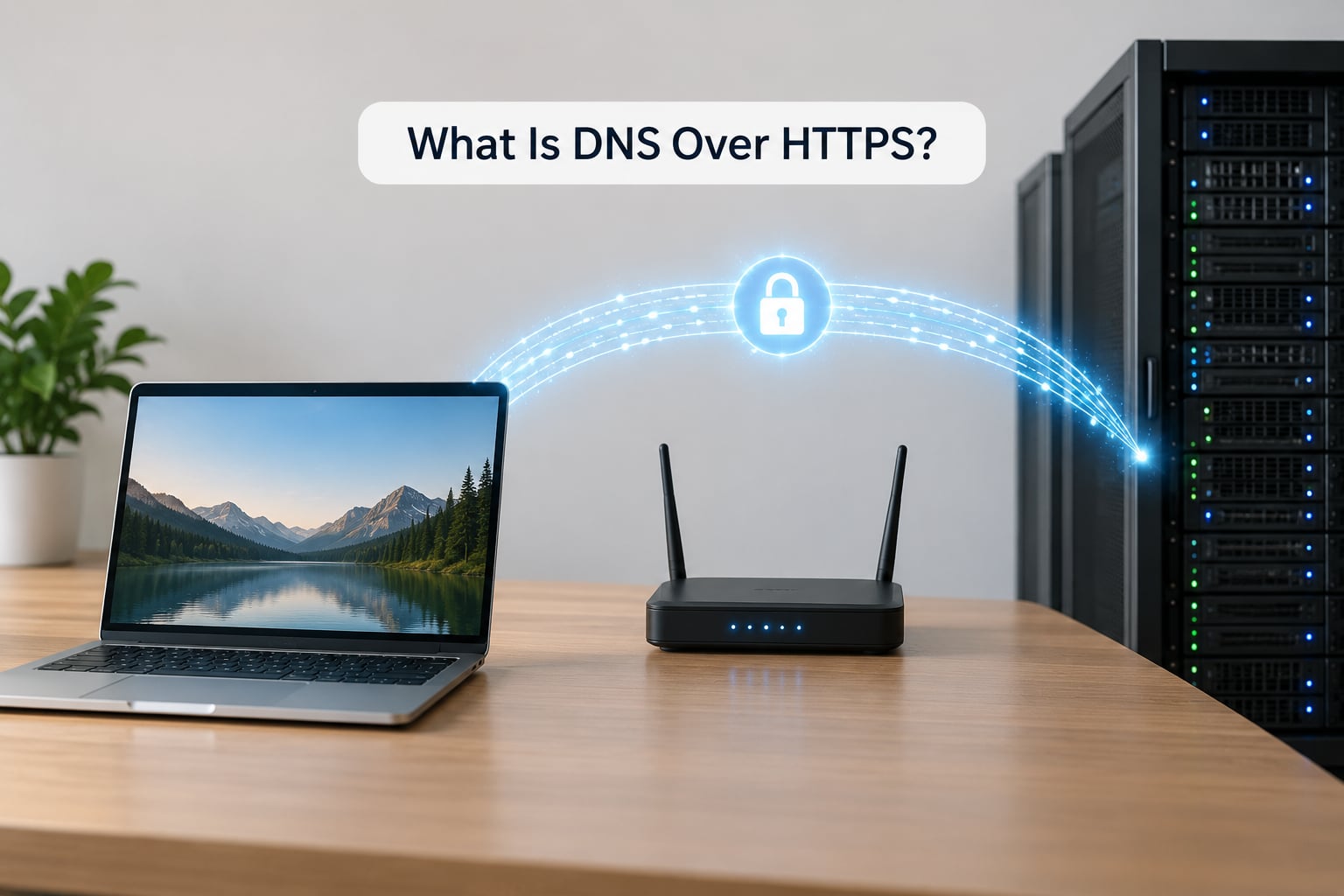
Every time you type a domain name, something has to translate it into an IP address. That translation happens over DNS, and by default it happens in cleartext over UDP port 53. Plain DNS works, and it has worked for decades, but it is readable by anyone sitting between you and the resolver: your ISP, the operator of the network you are on, or an attacker on the same Wi-Fi.
DoH, standardised in RFC 8484, takes the same DNS message and puts it inside an HTTPS request over HTTP/2. The result is a stream that is indistinguishable from loading a web page, which is exactly the point.
My short take: DoH is a meaningful privacy improvement and a modest security improvement. It is not the automatic hardening step that some vendor pages make it sound like. The reason to switch is that you stop handing a complete list of the sites you visit to your network operator. The reason to be careful is that you hand that list to a different company instead, and you may lose filtering you currently rely on.
Two things worth knowing before you decide. First, most modern browsers already have DoH switched on by default with a built-in provider, which means you may already be using it without having chosen to. Mozilla began rolling DoH out to Firefox users by default in 2020, and Chrome and Edge followed with their own default-on behaviour. Second, the setting lives in several different layers, and turning it on in one does not turn it on everywhere. That gap is where most confusion comes from.
How Does DNS Over HTTPS Work?
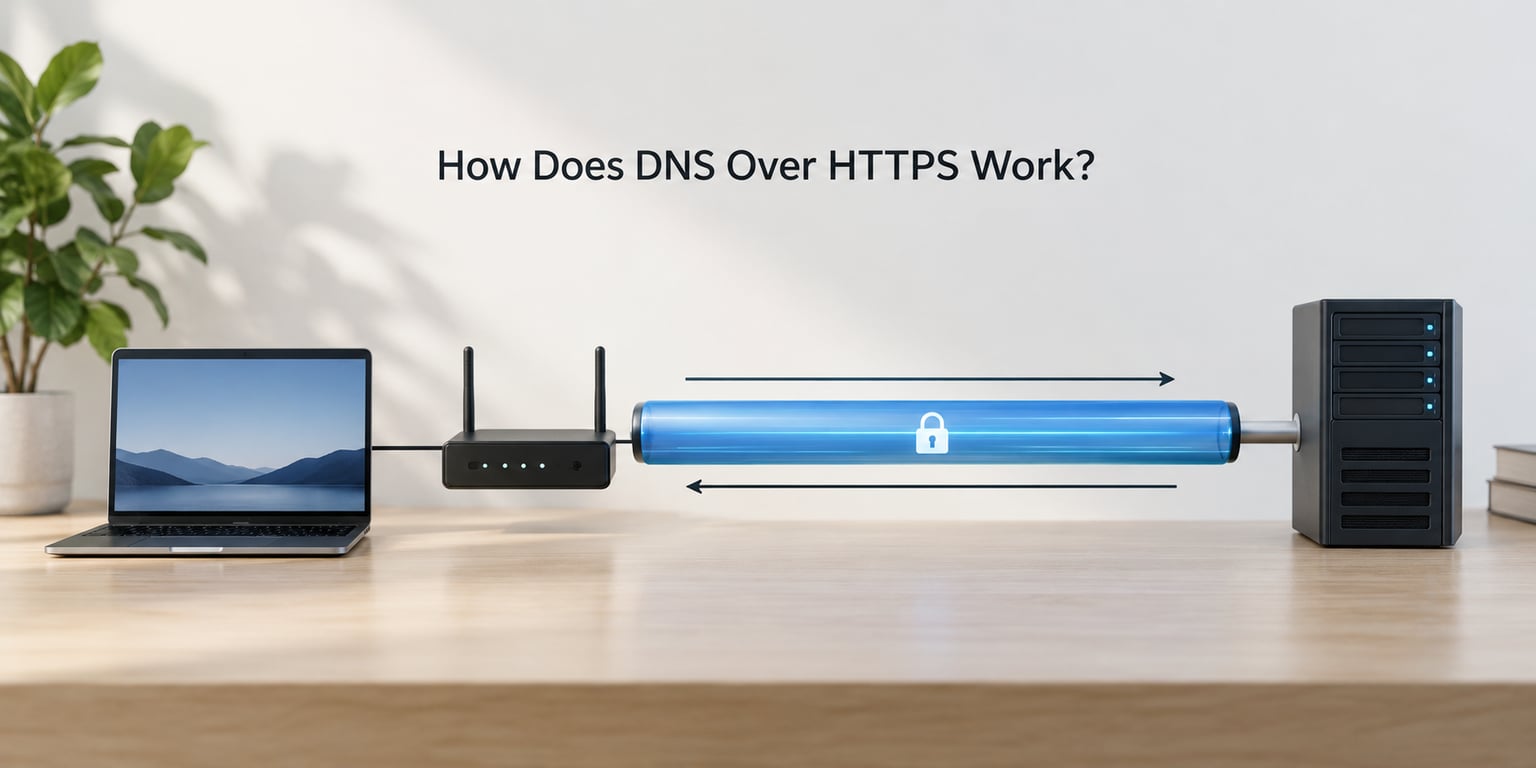
A normal lookup starts with a recursive resolver, usually operated by your ISP. Your device sends it a query like “what is the IP for example.com” and it answers, usually from cache. If it cannot answer from cache it walks up the hierarchy, asking the root servers, then the top-level domain servers, then the authoritative nameserver for the domain.
On a plain setup, those two messages between your device and the recursive resolver travel in the open. That is the whole privacy problem, and it is the reason DNS is such an attractive target. Because DNS hijacking and spoofing only need to change one small answer before any page loads, plaintext DNS has historically been the weak link in a connection that is otherwise protected by HTTPS.
What an observer can see with plain DNS versus DNS over HTTPS
With plain DNS, an observer on the network path can read the full list of domains being looked up, along with timestamps and the client address. They cannot necessarily see the page content, but they do not need to. A domain list is a browsing history in a form that is trivial to correlate.
With DoH, the same observer sees an encrypted HTTPS connection to a resolver address. They can usually tell that a connection exists and roughly how much data moved. The domain names inside are protected, and so is the response, so the observer cannot poison the answer on the way back either.
Two caveats sit right next to that. If you use a browser that ships with a built-in DoH provider, the provider can see your lookups in full, and so can anyone legally compelled to ask that provider. And if only some of your applications use DoH, the rest still leak plain lookups. Partial enablement gives you the appearance of protection without the substance.
What the TLS certificate actually proves
The HTTPS wrapper does two jobs. It encrypts the traffic so nobody on the path can read or modify it, and it authenticates the resolver through a TLS certificate, so you know you are talking to the resolver you think you are and not an impostor holding a self-signed certificate.
This is the part that blocks spoofing. An attacker cannot simply return a wrong address for a bank domain, because the response would not come back through a valid TLS session with the expected resolver. The certificate must be valid for the resolver hostname you configured, which is why the DoH endpoint is a full URL like https://cloudflare-dns.com/dns-query rather than a bare IP address.
That is the technical core of it. Encryption handles confidentiality, the certificate handles integrity, and the two together close the hijacking hole that plain DNS leaves open.
What Is the Difference Between DNS Over HTTPS and DNS Over TLS?
DNS over TLS, or DoT, was standardised earlier in RFC 7858 and does almost the same job using a dedicated TLS connection on port 853. The practical differences come down to port, interoperability, and who can still see what. Neither is automatically more secure than the other; they are more and less visible in different situations.
| Option | Transport and port | Who can see your queries | What it does not solve |
|---|---|---|---|
| Plain DNS | UDP 53, cleartext | Your ISP, network operator, anyone on the path | Spoofing, hijacking, censorship |
| DNS over TLS (DoT) | TCP 853, TLS 1.3 | Your ISP sees the connection to port 853, not the contents | Does not hide that you use an encrypted resolver; often blocked on hostile networks |
| DNS over HTTPS (DoH) | TCP 443, HTTP/2 with TLS | Network operator sees an ordinary HTTPS connection | Does not hide your IP, does not encrypt other traffic, does not make the resolver trustworthy |
| DNSSEC | Signatures inside the DNS message | Everyone, as usual | Not encryption at all; it does not hide anything, it proves answers were not forged |
DNSSEC is the one people get wrong most often, so it is worth stating plainly: DNSSEC provides authenticity, not confidentiality. It signs DNS responses so a validating resolver can detect tampering, but the queries and answers travel in cleartext. DoH and DoT provide confidentiality. The two are complementary, and pairing a validating resolver with DoH gives you both integrity and privacy.
Administrators tend to land on DoT for a predictable reason. A dedicated port on 853 is easy to see, easy to allow, and easy to block, which is exactly what a security team wants when the policy is “all DNS must go through the corporate resolver”. Privacy-minded users land on DoH because it rides on 443, and a network that blocks it usually ends up blocking the whole web instead.
What Does DNS Over HTTPS Protect and What Does It Not?
The honest version is narrower than most explainers make it sound.
What it protects:
- Your domain list from anyone reading network traffic on the path, including your ISP and operators of public Wi-Fi.
- Your lookups from tampering. Responses arrive through an authenticated TLS session, which closes off DNS hijacking and cache poisoning from a local attacker.
- Censorship that works by redirecting or blackholing DNS. If the resolver is reachable over 443, blocking the lookup itself becomes much harder.
- Metadata leakage into advertising and analytics datasets that would otherwise be built from your DNS history.
What it does not protect:
- Your IP address, which is still visible to every site you visit and to the resolver.
- Page content. DoH encrypts the lookup, not the browsing. That is still the job of HTTPS on the site itself.
- Your identity. A resolver that logs queries can still correlate them to you, which is why the choice of provider matters more than the protocol.
- Malware. A resolver that blocks known malicious domains is doing filtering, not encryption, and the two are sold by different features.
- Non-browser traffic from applications and smart devices that never go through the browser setting.
There is also a structural criticism worth taking seriously. Centralisation is real. If DoH pushes lookups away from thousands of small ISP resolvers and towards a handful of large providers, the number of organisations that can be compelled to hand over data shrinks, and each of those organisations now holds a more complete picture than any single ISP did. The defence is provider choice, not protocol choice. Running your own resolver with Pi-hole, AdGuard Home, or Unbound keeps the trust in infrastructure you control, and forum consensus on this point is fairly settled: for people who already self-host a resolver, DoH adds little.
Should You Use DNS Over HTTPS?
The answer depends on who you are and what you rely on. Here is the version I would give a friend asking at a kitchen table.
| If you are… | Recommendation | Why |
|---|---|---|
| On home broadband you control | Turn it on, pick a resolver you trust | Low risk either way, but it removes the ISP from the position of observer |
| On shared, campus, or cafe Wi-Fi | Turn it on | The strongest case; the local operator cannot read your lookups |
| A parent relying on router filtering | Leave it off, or enforce it at the resolver | Router-level parental controls depend on seeing DNS traffic and will stop working silently |
| A Pi-hole or AdGuard Home user | Set DoH on your own resolver, or disable it in the browser | Default browser DoH sends queries around your blocker, so ads come back |
| A developer or sysadmin | Use it deliberately, keep DoT available for internal tooling | DoT is easier to observe and audit; DoH is harder to intercept for troubleshooting |
| Working on a managed network | Follow policy, ask before you change it | Bypassing the corporate resolver can break internal domains and breach policy |
| Travelling where DNS is blocked | Turn it on | DoH over 443 is much harder to block than plain DNS or DoT on 853 |
Should you use DNS over HTTPS? A decision by reader type
If your only concern is privacy and nothing on your network depends on reading DNS, the decision is easy. Turn it on in the browser, choose a provider with a published privacy policy, and forget about it.
If you have a Pi-hole, the correct configuration is to terminate DoH on your own resolver rather than letting the browser pick a public one. That keeps the blocking you paid attention to and adds encryption to the hop between you and your resolver. If you would rather not run the plumbing, use a filtering provider that supports DoH, so the filtering travels with the encryption instead of being bypassed by it.
If you are an organisation, the decision has a governance dimension. Deploying DoH centrally through a managed browser profile gives you encrypted lookups across a fleet. Enforcing it by blocking known DoH endpoints at the firewall, usually via a bootstrap domain list, keeps unmanaged devices from quietly opting out. Both are defensible; the failure mode is doing neither and assuming the policy is in effect.
Choosing a resolver comes down to four questions. Does the provider log queries, and for how long? Does it offer filtering, blocking lists, or per-device rules? Does it support DoH, and at what URL? And is it reachable over port 443 from the networks your users are on? The commonly named options, including Cloudflare 1.1.1.1, Quad9, Google Public DNS, NextDNS, OpenDNS, and AdGuard DNS, all support DoH and differ mostly on logging policy and filtering features. Read the logging policy, not the marketing page.
How to Enable DNS Over HTTPS in Common Setups
Menu paths change between releases, so check the version you are actually running. The names below are current for the mainstream desktop and mobile releases as of 2026, and the setting is nested differently on every one of them.
How to tell if DNS over HTTPS is already on
Before changing anything, check the current state. This answers the single most common question people arrive with.
- Run a DNS leak test. Visit a well-known leak test service from dnsleaktest.com or dnscheck.tools. If the resolver listed is your ISP and you have not configured anything, DoH is off in that browser. If it shows a public or custom provider you did not type in yourself, the browser’s own DoH is handling your lookups.
- Check the browser setting directly. In Chrome and Edge, open
chrome://settings/securityoredge://settings/privacyand look for “Use secure DNS”. The dropdown shows the mode and, if one is selected, the provider in use. - Watch the network if you want proof. In Wireshark, capture on your active interface and filter with
udp.port == 53. Continuous plain DNS chatter means DoH is not covering that application. Note that browsers using DoH may still show some UDP 53 traffic from other apps on the machine.
That third check is the honest one. A leak test tells you what your browser did. A packet capture tells you what the whole machine did, and the two are often not the same.
Chrome and Edge. Open chrome://settings/security, find “Use secure DNS” under the Advanced section, and set it to your chosen provider or “With current service provider” to keep the browser default. Setting it to Off sends you back to plain DNS for browsing.
Firefox. Settings, then General, scroll to “Network Settings” and choose Settings, then scroll to the bottom and enable “Enable DNS over HTTPS”. Choose a provider or “Custom”, which takes a full endpoint URL such as https://dns.quad9.net/dns-query. For finer control, about:config holds network.trr.mode, where 2 is off, 3 is enabled with fallback to the system resolver, and 5 is enabled only, failing rather than falling back.
Windows 11. Settings, Network and internet, Wi-Fi or Ethernet, then the hardware properties entry for your adapter, then “DNS server assignment” set to Edit, and turn on “DNS over HTTPS”. Choose Automatic or Manual and select the provider template. This is system-wide, so it covers applications that ignore the browser setting, which is the main reason to use it rather than the browser toggle.
Android. Android calls this Private DNS. Settings, Network and internet, Private DNS, then Private DNS provider hostname, and enter the provider’s DoT hostname. Android implements DoT rather than DoH here, so a hostname is expected. Apps that do their own resolution can still bypass it.
iOS and iPadOS. There is no system-wide DoH toggle. Apps that ship their own encrypted resolver, or a configuration profile from your organisation, control it, so check in the app rather than in Settings.
For managed fleets, the third option matters. Deploying the browser or OS policy centrally gives you consistent enforcement, which is what you want when the goal is that every device behaves the same way, rather than hoping each user finds the setting.
What Are the Drawbacks and Common Problems?
Almost every DoH complaint I have seen traces back to the same thing: something in the setup needed to see your DNS traffic, and now it can’t. These are the symptoms worth recognising, and the fix in each case.
| Symptom | Likely cause | Fix |
|---|---|---|
| Ads reappear after enabling DoH | Browser DoH is bypassing your Pi-hole or AdGuard Home | Point DoH at your own resolver’s endpoint, or set the browser’s secure DNS provider to match your filtering resolver |
| Parental controls stopped working | Router filtering can no longer see the lookups | Move filtering to a resolver that supports it, or block DoH endpoints at the router |
| Internal or company hostnames fail | Split-horizon DNS sends internal names nowhere useful | Exclude internal domains from the DoH resolver, or keep OS-level DNS pointed at the internal resolver |
| Hotel or airport login page never appears | Captive portal cannot complete a plain HTTP redirect because DNS is diverted | Temporarily disable secure DNS, complete the login, then re-enable it |
| Some apps or smart devices still show plain DNS | They never use the browser or OS setting | Enforce DoH at the router or OS level, or accept the partial coverage knowingly |
| Slower first page loads | Fewer cache hits and a longer path to a resolver | Compare against a nearby resolver; a self-hosted caching resolver usually wins here |
The firewall answer deserves a sentence of its own, because it is the one administrators ask for. Because a client needs to know the resolver’s address before it can resolve anything, blocking DoH relies on a bootstrap list of the known endpoint hostnames, maintained as a list you update rather than a permanent rule. It works well in practice and it degrades over time as new endpoints appear, so treat it as a control that needs maintenance, not a set-and-forget switch.
One distinction matters when you are debugging. A DNS failure looks like a specific resolution error, a lookup that never returns, or a hostname that resolves to nothing. A general HTTPS failure looks like a connection that opens and then breaks, or a certificate warning. If plain browsing works but name resolution fails, you are looking at a DNS problem and can test it directly with nslookup or dig against a specific resolver.
Frequently Asked Questions
Is DNS over HTTPS the same as using a VPN?
No. A VPN encrypts and relays all of your network traffic to a provider, which hides your IP address from the sites you visit and covers every protocol, not just DNS. DNS over HTTPS encrypts one narrow thing, the name lookups, and leaves your IP address visible to every site you connect to. The two solve different problems and are often used together, with a VPN for traffic privacy and DoH for lookup privacy.
Can my ISP still see websites I visit when I use DNS over HTTPS?
They can still see the IP addresses you connect to, the timing, and the volume of traffic, because DoH does not change any of that. What they lose is the readable list of domain names, which for most people is the part that maps directly to a browsing history. If an ISP also operates the app or service you are using, it may infer visits from that side regardless of your DNS settings.
Does DNS over HTTPS hide my browsing history completely?
No, it hides one part of it. The resolver you choose sees every domain you look up, and websites see your IP address on every connection. Search engines, operating system telemetry, and the applications you use all keep their own records. Think of DoH as removing the network operator from the picture rather than removing observation from the internet entirely.
Should I use the DNS over HTTPS setting built into my browser or configure it system-wide?
Browser-only is the easy option and covers browsing well, but applications and smart devices keep sending plain lookups, which is a common source of surprise. System-wide configuration closes that gap because it applies to everything on the machine. If you run a Pi-hole or AdGuard Home, configure the system setting to point at your own resolver so blocking and encryption work together rather than against each other.
Does DNS over HTTPS make browsing fully anonymous?
It does not, and any product claiming otherwise is overselling. Anonymity requires covering your IP address, your resolver identity, and your application traffic, and DoH only addresses the middle of those three. A VPN or a reputable privacy browser handles the first, choosing a resolver with a strict no-logging policy helps with the second, and encrypted site traffic is already handled by HTTPS.
What to Do First
Start with the leak test. It takes a minute and tells you whether a browser is already routing your lookups somewhere you did not choose, which is a more useful starting point than any settings page. From there, turn on secure DNS in the browser with a provider whose logging policy you have actually read, and if you rely on a local resolver, repoint it at your own endpoint so the encryption does not quietly undo your blocking.
DNS over HTTPS is a genuine improvement in how much of your activity is visible to the network you are sitting on. It is also a trade, not a free win. Know which trade you are making, and you will get more out of it than if you flip the default and hope for the best.