How to access Linux files from Windows comes down to where those files actually live. If they sit in a WSL distribution, a network server, or a NAS, Windows can reach them natively through a share. If they sit on a physical ext4 partition, no amount of clicking in File Explorer will help, because Windows only mounts NTFS, exFAT and FAT. Here is the decision I’d make first: same machine or network machine? Network gets SMB, a WSL or virtual machine gets the WSL path, a second physical disk gets the live USB or a dedicated reader tool.
The two mechanisms behind almost every working answer are the Windows Subsystem for Linux 2 network path (\wsl$) and attaching the Linux filesystem itself so Windows can mount it. Everything below builds on those, plus the two network protocols that have been reliable since the beginning.
All four methods below work on Windows 11 and Windows 10. The paths are current for 2026 builds of both, and each step names the exact command or menu you need rather than describing the idea behind it.
Table of Contents
- What You Need
- Step-by-Step: How to Access Linux Files From Windows
- Access Linux Files From Windows Through an SMB Network Share
- Transfer Linux Files With SSH and SFTP
- Browse Linux Files From Windows With WSL
- Read Linux Files With a Linux Live USB
- Common Mistakes
- Why Windows can’t see your Linux partition at all
- Why copied files lose permissions and break scripts
- Frequently Asked Questions
- Can Windows 11 read ext4 files natively?
- How do I access Linux files from a dual-boot machine?
- Is it safe to write to an ext4 partition from Windows?
- How do I access files on a NAS or My Cloud drive from Windows?
- Do I need to reformat a drive to share files between Linux and Windows?
- How do I access WSL files from File Explorer?
- Conclusion
What You Need
Each method has different prerequisites. Grab the relevant list before you start, because half of the failed attempts I see come from missing a package rather than a wrong path.
For SMB (a Linux server, NAS, or a second machine on the same network): administrator access on the Linux side, the IP address or host name of the Linux box, a folder you want to expose, and a user account with a password. Samba must be installed and running. Nothing extra goes on the Windows machine.
For SSH and SFTP (remote servers, cloud VMs, home lab): an SSH server on the Linux host, the host address, your username, and your key or password. On Windows you can use the built-in OpenSSH client or a graphical SFTP tool.
For WSL: Windows 10 version 2004 or newer with WSL 2 installed, plus at least one Linux distribution. If wsl --status returns nothing useful, the feature is not installed yet.
For a Linux live USB: a spare USB stick of 2 GB or more, a way to write an ISO to it, and a computer that can boot from USB. No Linux install required, which is the whole point.
Not sure which one? This table settles it.
| Your situation | Use | Read or write |
|---|---|---|
| Files live in a WSL distribution | The \wsl$ path or explorer.exe . | Both |
| A Linux server, NAS or home lab you reach over the network | SMB share mapped in File Explorer | Both, controlled by share permissions |
| Remote server, you want scripted or encrypted transfers | SSH with SFTP | Both |
| An old ext4 partition inside this PC, or the PC will not boot | Live USB with the partition mounted read-only | Read-only first, write later and carefully |
| An external ext4 USB drive you just want to open | Live USB, or a purpose-built reader tool | Depends on the tool |
On reader tools: DiskInternals Linux Reader opens ext2, ext3, ext4, ReiserFS and HFS+ partitions read-only and leaves the original files untouched, which is the reason people reach for it first. Ext2Fsd mounts ext2/3/4 as a real Windows drive letter with write access, but it has not had a release in years, so treat it as a tool you use carefully rather than one you trust with the only copy of your data. ext2explore is read-only and simple. Paragon’s Linux File Systems for Windows is the commercial option with the broadest filesystem coverage.
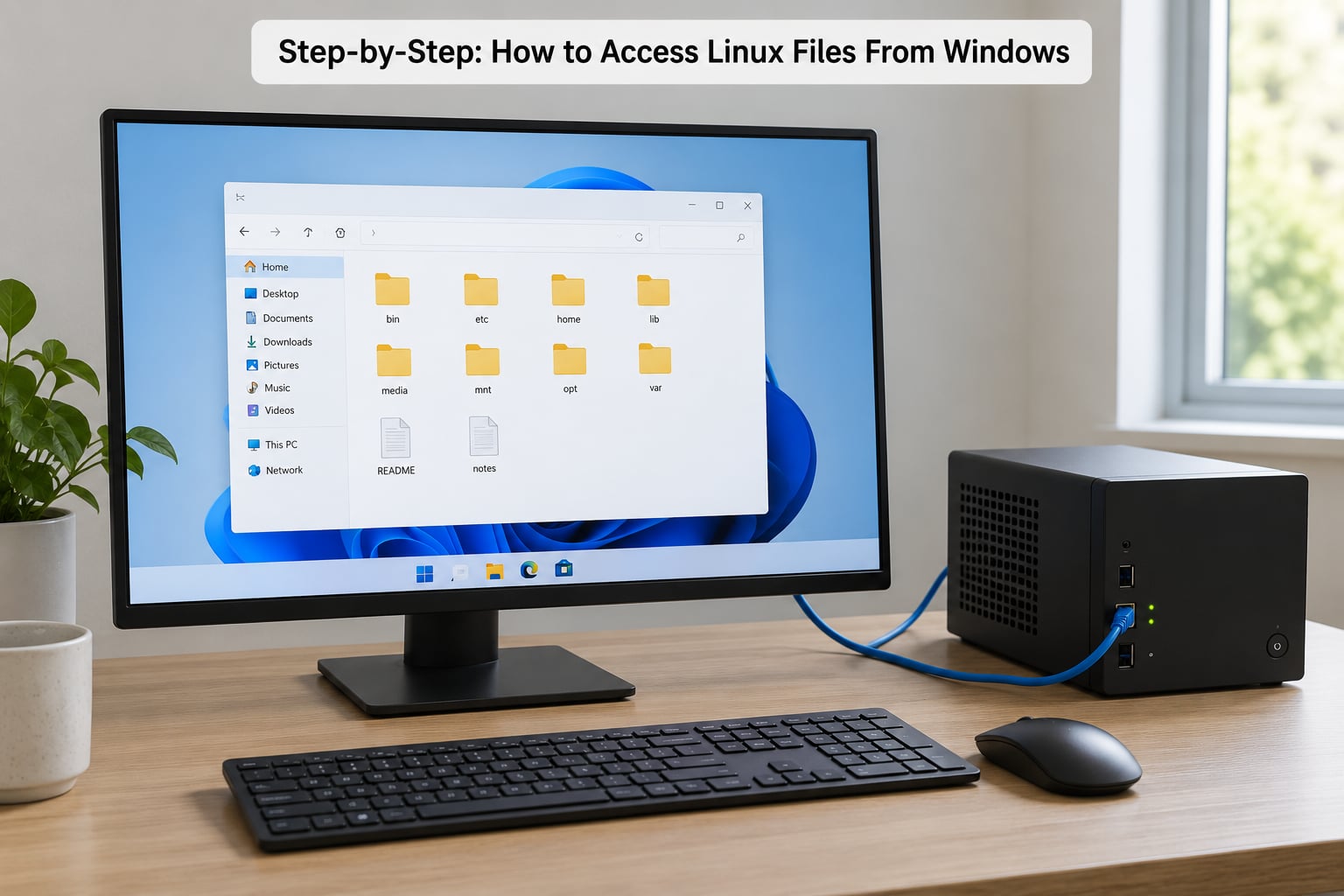
Step-by-Step: How to Access Linux Files From Windows
Access Linux Files From Windows Through an SMB Network Share
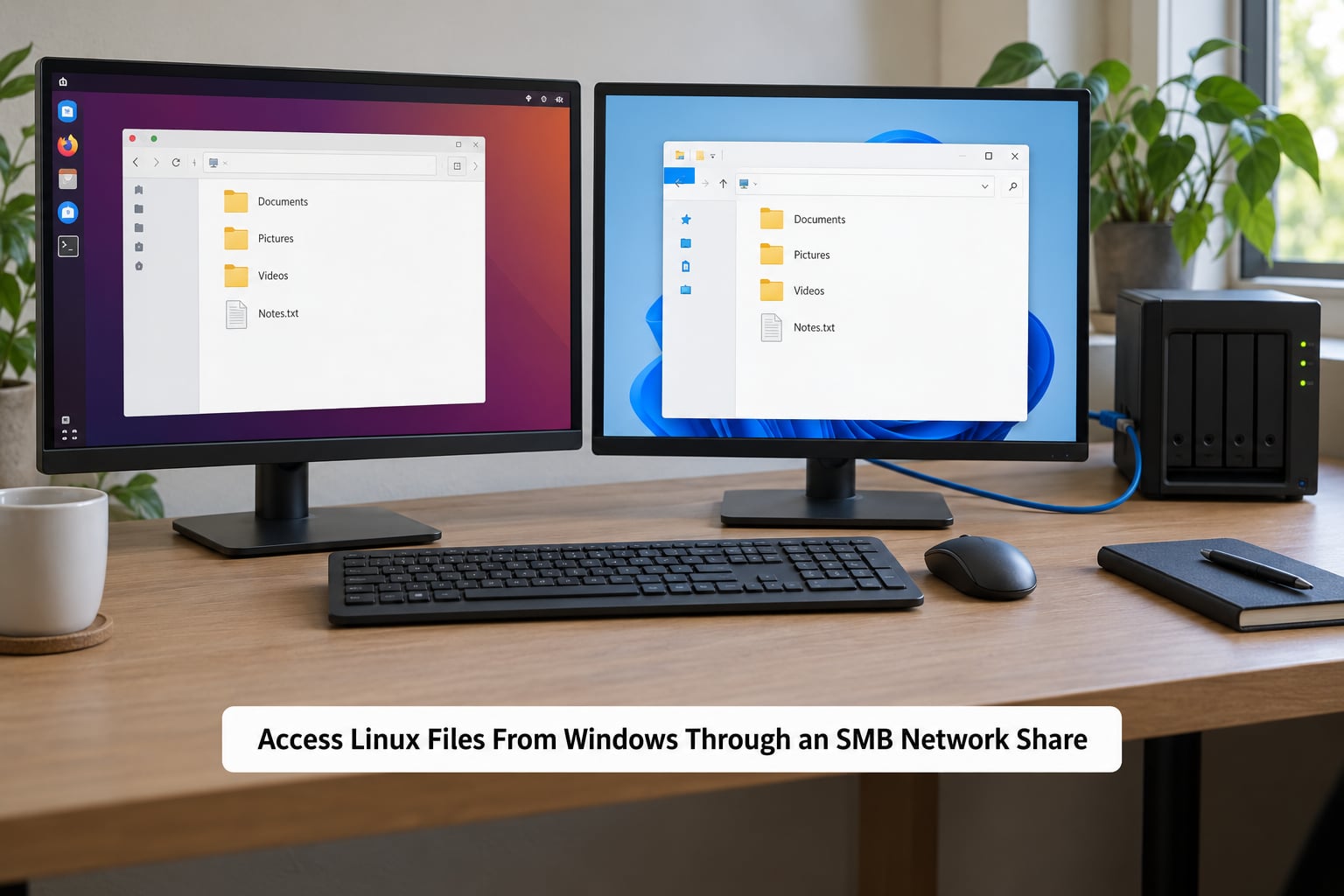
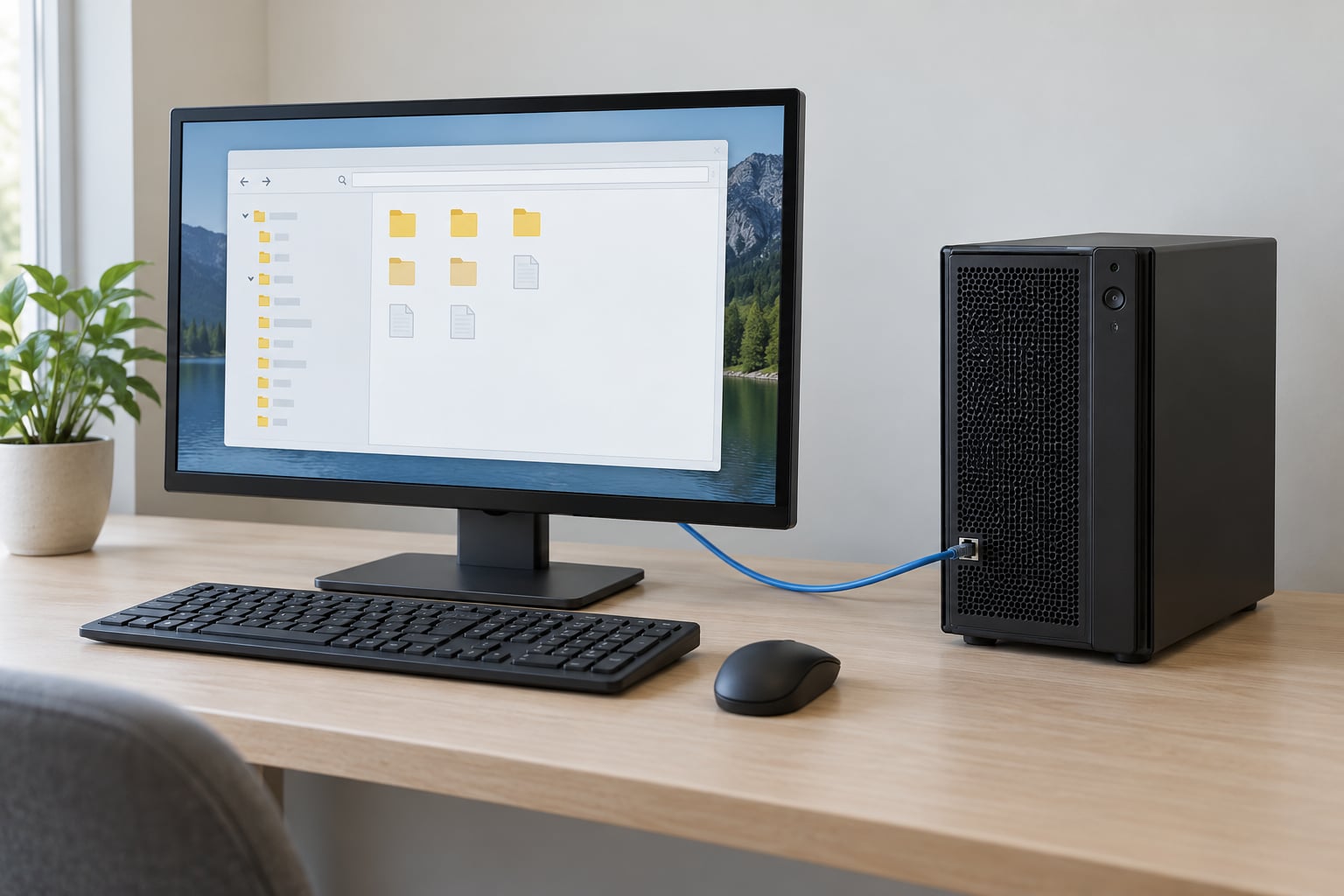
SMB is the method I’d try first for anything on another machine. It gives you a real folder in File Explorer with no extra software on the Windows side, and it works with servers, NAS boxes and second computers equally well.
On the Linux side, install Samba and create a group for the people who need access:
sudo apt install samba
sudo groupadd smbgroup
sudo usermod -aG smbgroup yourusername
Create the shared directory and give it to that group. Using a group instead of your own user account is the bit people skip, and it is the reason a share works for everyone else too:
sudo mkdir -p /srv/share
sudo chown -R yourusername:smbgroup /srv/share
sudo chmod -R 2775 /srv/share
That trailing 5 gives group members read, write and execute. Now add the share to the Samba config at /etc/samba/smb.conf:
[share]
   path = /srv/share
   valid users = smbgroup
   browseable = yes
   read only = no
   guest ok = no
Restart the service and confirm the share is listed:
sudo systemctl restart smbd
smbclient -L localhost
If your share name shows up there, the Linux side is done. Note the Linux IP address with hostname -I, then on Windows press Win key plus R, type the path, and hit Enter:
\192.168.1.50shareWindows asks for a username and password. Use your Linux username and its password, not a Windows account. If you would rather not retype it, right-click This PC, choose Map network drive, pick a letter, and set Reconnect at sign-in. Read-only access works by setting read only = no to yes and restarting Samba, which is the setting I prefer until the share is proven.
You can tell it worked when the share opens in a normal Explorer window and you can drag a file out of it. If Explorer sits spinning for ten seconds and then errors, jump to the connection refused fix below.
Transfer Linux Files With SSH and SFTP
SSH is the choice when the machine is remote, when you want the traffic encrypted, or when you want to script the transfer. SFTP runs over SSH, so one connection covers both.
On the Linux host, install the server:
sudo apt install openssh-server
sudo systemctl enable --now ssh
On Windows, open PowerShell and check the built-in client:
ssh -VIf that prints a version, connect with ssh [email protected]. To move files instead of opening a shell, use the sftp command in the same window, or scp for a single copy:
scp report.pdf [email protected]:/home/yourusername/
scp -r projectfolder [email protected]:/srv/share/
If you would rather drag and drop, point a graphical SFTP client at the same host, port 22, and the same credentials. Windows also has a shortcut for VS Code users: Remote-SSH connects and shows the remote file tree beside a local one, which is the pleasant way to edit Linux files from a Windows editor.
Linux permissions survive an SFTP transfer because the transfer happens inside Linux. That is the practical advantage over copying to a USB stick and back.
Browse Linux Files From Windows With WSL
WSL is the fastest route when the Linux files are already inside a WSL distribution, which covers most developer setups. You do not need a share, a tool, or a reboot.
In File Explorer’s address bar, type \wsl$ and press Enter. Every installed distribution appears as a folder, and each one looks like a normal Windows drive that you can browse and copy into. Inside a distribution your Linux home directory is under home, and the Windows drives sit at /mnt/c, /mnt/d and so on.
To go the other way, open your distribution’s terminal from the Start menu, change to the folder you want, and run explorer.exe .. Explorer opens at that exact spot.
That \wsl$ path is also the one File Explorer’s network tree will not show. Users typing \wsl.localhostUbuntu are on the same thing, and both names work in current builds.
One performance point that gets buried in Microsoft’s own documentation: keep project files on the Linux side of WSL and run the Linux build tools there. Crossing into /mnt/c for every read and write is slow on a large codebase, and it is the reason Linux-side compilers and Node installs feel sluggish in some setups.
Read Linux Files With a Linux Live USB
The live USB is your fallback when Windows will not mount the filesystem, or when the machine will not boot at all. You are running Linux from RAM, so the target disk stays untouched until you type a command.
Write a Linux ISO to the USB stick with Rufus, Balena Etcher or whatever your distribution recommends. Boot the machine and pick the USB in the boot menu. Most live environments land you at a desktop before any login.
Open a terminal. If the live session mounted your disks automatically, lsblk shows them and you can skip to the copy step. If not, identify the Linux partition and mount it read-only:
sudo mkdir -p /mnt/target
sudo mount -o ro /dev/sdXN1 /mnt/target
ls /mnt/target/home
That ro flag is the important part. With it, a mistake costs you nothing. Read what you need, then copy out to a USB stick or an external drive:
sudo cp -r /mnt/target/home/yourusername/Documents /media/youruser/BACKUP/
sync
The sync waits for the write to actually finish before you pull the stick. This is also the right moment to back up the whole partition as an image before attempting any repair, since a second copy turns a bad day into an inconvenience.
Only when the backup exists and verifies should you remount read-write, and only with the correct filesystem type specified. A wrong guess there is how partitions get damaged.
Common Mistakes
Each of these has a specific cause. Work down the list rather than reinstalling tools at random.
“The disk you inserted was not readable by this computer.” Windows found the partition table and refused the filesystem, which is the correct behaviour on an ext4 volume. There is no missing driver to install. Use a reader tool or the live USB.
Connection refused when connecting to an SMB share. Samba is not running, the host firewall blocks port 445, or you typed the wrong address. Check with systemctl status smbd, confirm the address with hostname -I, and open the port in the firewall with sudo ufw allow 445/tcp.
Access denied, and you are sure the password is right. Usually the Linux filesystem permission, not the Samba password. The account must be in valid users in smb.conf, be a member of the group, and have been added to that group before the last login so the session picked it up. Log out and back in, or restart smbd.
The share works but is painfully slow. Wi-Fi on a 2.4 GHz band is the usual culprit. Move to Ethernet or 5 GHz, and check that client min size is not set to an extreme value in the Samba config.
Why Windows can’t see your Linux partition at all
Open Disk Management and the Linux volume usually shows as unallocated, or as a partition with no drive letter and a file system listed as something other than NTFS. That second case is cosmetic: a letter can be assigned with Change Drive Letter or Path, and it will still fail to mount if the filesystem is ext4.
If the volume is encrypted with LUKS, or the drive was BitLockered by Windows, none of the Linux reader tools can open it. LUKS has no Windows-side implementation; decrypting it requires booting Linux with the passphrase.
The other case is no partition table at all, often after imaging or a bad install. That needs recovery tooling rather than a file browser.
Why copied files lose permissions and break scripts
Copying from ext4 to NTFS or exFAT flattens the metadata. Linux marks files with an owner, a group and mode bits including the executable flag, and a Windows filesystem has nowhere to store them, so a copied script arrives without its executable bit and refuses to run until you chmod +x it again.
Symbolic links fare worse: many copy tools follow them and duplicate the target content, or skip them entirely. Symlinks that point outside the folder you copied break outright.
Case sensitivity is the quieter problem. ext4 treats README.md and readme.md as two different files; Windows treats them as one. If a Linux project has both, one silently overwrites the other on the way across.
The fix is not clever: do your work inside WSL or over SSH, where the filesystem semantics stay intact, and treat any trip through a Windows-formatted drive as a hand-off of convenience, not fidelity.
Frequently Asked Questions
Can Windows 11 read ext4 files natively?
No. Windows 11 supports NTFS, FAT32 and exFAT natively, and ext2, ext3 and ext4 are not on that list. You need WSL, a reader tool such as DiskInternals Linux Reader, or a live USB session to get at ext4 content. The reason is structural rather than a missing driver: ext4 stores permissions, inodes and a different on-disk layout that the Windows filesystem driver refuses.
How do I access Linux files from a dual-boot machine?
Mount the Linux partition from your Linux side before booting Windows, using the partition UUID in fstab so it mounts automatically. In Windows, reach it with wsl u002du002dmount u002du002ddisk u005cu005c.u005cPHYSICALDRIVE2 u002du002dpartition 2 u002du002dtype ext4 from an elevated PowerShell, which attaches the whole disk read-only. Detach it with wsl u002du002dunmount u005cu005c.u005cPHYSICALDRIVE2. Never write while Linux is running.
Is it safe to write to an ext4 partition from Windows?
Only with a tool that implements ext4 properly, and only when the Linux side is fully shut down, not merely switched to the Windows boot entry. A hibernated or suspended Linux session holds a journal and can corrupt the volume on the next write. Copy your files out read-only first. The safest workflow is to make an image of the partition before any write-capable tool touches it.
How do I access files on a NAS or My Cloud drive from Windows?
Check what filesystem the drive uses first. Many NAS devices expose SMB already, so no Linux is involved: enable the SMB service in the NAS web interface, create a user, and map the share in File Explorer. If the drive runs a Linux filesystem with no SMB option, either enable SSH and use SFTP, or attach the disk to a Linux machine and copy the data off directly.
Do I need to reformat a drive to share files between Linux and Windows?
Only if the drive is a permanent shared data drive and both systems use it constantly. In that case exFAT works from both sides without permission bits, while NTFS is workable from Linux with the ntfs-3g driver but messy with permissions. For a drive you mostly access from one system at a time, keep ext4 and use WSL, a live USB, or a reader tool to reach it from Windows.
How do I access WSL files from File Explorer?
Type u005cu005cwsl$ in the Explorer’s address bar and press Enter. Every installed distribution shows up as a folder you can browse like a drive, with your Linux home directory under home. To go from a WSL terminal to Windows, run explorer.exe . from the directory you want to see. If the path does not resolve, confirm the distribution is running with wsl u002du002dlist u002du002drunning.
Conclusion
Start with the situation, not the tool. SMB for convenient browsing of a server, NAS or second machine, and SSH with SFTP when you want secure or scripted transfers. WSL, through the \wsl$ path, is the answer for Linux work inside Windows. When Windows cannot mount the filesystem or the machine will not boot, a live USB mounted read-only gets your files out without risking the partition.
Whichever route you pick for how to access Linux files from Windows, copy first and write later, and make one backup somewhere else before anything touches the volume.