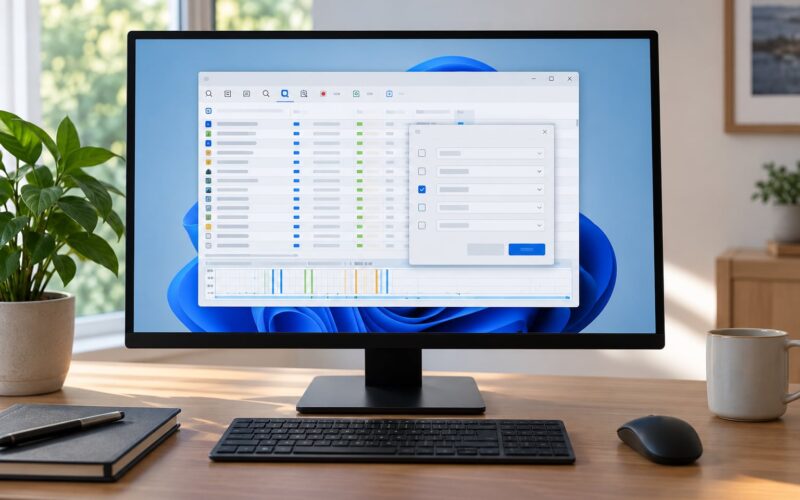
Open Task Manager with Ctrl+Shift+Esc, click the Startup tab, and sort by the Startup impact column. That ranks every auto-start entry by how many seconds it costs you at sign-in. Then confirm what the sort suggests with Event Viewer and Resource Monitor. This is how to find out what is slowing down Windows startup with measurements instead of guesses.
The whole process takes about 20 minutes of reading and two or three restarts. Most of the work is deciding, before you change anything, where your slow seconds actually live: firmware and disk before you sign in, or programs after you do.
One warning up front. Startup entries outnumber what Task Manager shows. Services, scheduled tasks, drivers and shell extensions all launch without appearing on that tab, which is why a list of startup apps that all looks innocent can still leave you staring at a two-minute sign-in.
Table of Contents
- What You Need
- Step-by-Step: Find Out What Is Slowing Down Windows Startup
- 1. Measure the Total Startup Time
- 2. Check Whether the Boot or Login Phase Is Slow
- 3. Use Startup Impact to Find Out What Is Slowing Down Windows Startup
- 4. Test Suspicious Startup Apps Safely
- 5. Inspect Services and Drivers
- 6. Check Event Viewer for Startup Errors
- 7. Rule Out Disk, Firmware, and Hardware Delays
- 8. Confirm the Fix and Record the Result
- Common Mistakes
- Frequently Asked Questions
- What is slowing down my computer startup?
- Why does Task Manager show low CPU while my PC is slow?
- Why does Windows 11 take so long to open startup apps?
- What does pressing F8 on startup do?
- Should I disable Fast Startup?
- How do I clean boot Windows 11 to find a slow third-party program?
- Conclusion
What You Need
Everything below uses tools already on Windows 10 and Windows 11. Nothing here needs a cleanup utility, and if a page selling you one ranks above this one, that is a data point about that page.
- A Windows 10 or Windows 11 PC that boots noticeably slower than it used to.
- Administrator access for the service, driver and repair steps. The Task Manager, Resource Monitor and Event Viewer steps work as a standard user.
- Two or three restarts in your session, so you can compare a baseline against a change.
- A notepad file to record startup times and the changes you make. You will want the record at step 8.
- Optional: Sysinternals Autoruns from Microsoft, and the Windows Performance Recorder that ships with Windows.
Write the baseline down before you touch a single setting. Without a number, every change you make later feels like an improvement because you expect it to be one.
Step-by-Step: Find Out What Is Slowing Down Windows Startup
Run the steps in order. Each one narrows the field, and skipping ahead is how people end up with a faster desktop they cannot explain.
1. Measure the Total Startup Time
Task Manager is the baseline tool. Press Ctrl+Shift+Esc, then open the Startup tab. Click the Startup impact column header to sort from heaviest to lightest, and read the two numbers beside each entry.
Windows also reports Boot time and Last app time on the Status tab of Performance Monitor, reached through Task Manager’s Performance tab and the link in the bottom right corner. Boot time covers the pre-logon phase; Last app time covers how long your heaviest startup app took to become usable after sign-in. Record both.
Then do the honest part: time three cold boots with a stopwatch or your phone, pressing start the moment you hit the power button and stopping when the desktop is actually usable, not merely painted. Three runs beat one, because the first boot after a restart is often the slowest of the set.
Write the median of the three next to your Task Manager numbers. That is your number to beat.
2. Check Whether the Boot or Login Phase Is Slow
The single most useful thing you can learn in the first ten minutes is which phase is costing you. Windows startup splits into pre-logon (firmware, disk, drivers, services) and post-logon (startup apps, shell, background work after you sign in). They have completely different causes and completely different fixes.
Here is the triage I use:
| When the slowness happens | Likely cause | Tool that confirms it |
|---|---|---|
| Long pause before the sign-in screen appears | Slow drive, firmware settings, driver initialisation, failing disk | Event Viewer Kernel-Boot events, Windows Performance Recorder boot trace |
| Desktop appears, then apps keep loading for minutes | High-impact startup apps, cloud sync clients, security suites | Task Manager Startup tab sorted by Startup impact |
| Started slow days after a Windows update | Post-update background optimisation, driver regression | Task Manager processes, Windows Update history, event log |
| Disk pegged at 100% while CPU sits near 20% | Storage bottleneck, indexing, a scan, or a drive failing | Resource Monitor, Disk tab |
| Fine for a week, then slow again after updates | Accumulated update or restore-point work | Event Viewer Application log, Storage settings |
Watch the machine from the moment you press the button. If the spinning-dot or manufacturer logo screen sits there for 40 seconds before Windows even starts loading, your problem is pre-logon and Task Manager will never show it. If the logo flies by and then the desktop crawls, it is post-logon and Task Manager is exactly the right tool.
3. Use Startup Impact to Find Out What Is Slowing Down Windows Startup
The Startup impact column measures the delay each entry adds to your sign-in, in seconds, and labels it High, Medium, Low or Not measured. Entries marked Not measured are usually driver or Microsoft-scheduled items that Windows does not let you switch off from this tab.
Now look at what sits at the top of that sorted list, and read the Publisher and Status columns before deciding anything.
- Cloud storage clients such as OneDrive, Dropbox or Google Drive. Safe to disable; they resync when you open them.
- Update and patch agents from third-party vendors. Usually safe to disable.
- Security suites and VPNs. Safe to disable in most cases, since Defender runs independently, but read the vendor note first.
- Launchers and hotkey daemons for gaming peripherals. Safe to disable, though you lose your macro keys until you relaunch them.
- Developer tooling such as database and container services. Safe to disable, but remember you start them manually now.
- Chat and collaboration apps. Safe to disable; you open them when you want them.
Right-click a row for the executable path. An entry pointing into a Windows system folder, or a publisher that does not match the app name, is worth a second look.
4. Test Suspicious Startup Apps Safely
Disable, do not uninstall. A disabled entry is one click away from being re-enabled, and an uninstalled program you needed on Friday is a bad trade for two seconds of boot time.
Pick the single highest-impact entry you are prepared to live without. Disable it in Task Manager, sign out and back in, or restart, and repeat your timing. Compare against the median you recorded in step 1.
Change one thing per restart. That is the whole discipline, and it is the step people skip when they disable nine entries at once and cannot tell which one mattered. Turn entries back on if the difference is inside the noise of your three runs, which is usually a couple of seconds.
If no single entry is worth more than a few seconds but the total is still bad, you are probably looking at several small costs, or something Task Manager cannot see. That is what the next two steps are for.
5. Inspect Services and Drivers
Services are the auto-start entries Task Manager hides. Press Win+R, type services.msc, and press Enter. The list opens sorted by startup type; look for anything Automatic or Automatic (Delayed Start) that belongs to third-party software rather than Microsoft.
Startup apps usually start a service within a second or two of returning you to the desktop, so a culprit you already disabled will show here as Manual or Disabled. OEM software is the usual offender on new machines: support and diagnostic utilities from the laptop maker, bundled trials of antivirus software, and preinstalled utilities that have no other purpose than to exist.
On a Dell, look in the installed apps list for the manufacturer’s support and diagnostic tools. On a Lenovo, expect the vendor’s system utility suite and any bundled security trial. Removing those through Settings, Apps, Installed apps is usually the single biggest win on a brand-new laptop, and it is invisible on the Startup tab.
For drivers, open Device Manager and check two places: Display adapters, where a stale GPU driver can stall the desktop, and any device showing a yellow warning triangle. The Properties dialog on a driver shows the provider and date, which tells you whether an OEM or a third-party utility installed something the machine never needed.
Do not disable core Windows services, and do not disable a driver for a device you are actively using. If you want certainty about a driver, use Windows Performance Recorder at step 8 before touching it.
6. Check Event Viewer for Startup Errors
Event Viewer is the built-in log reader, and it is where a failed driver or service shows itself. Press Win+R, type eventvwr.msc, press Enter, then work through these three places.
Windows Logs, System. Filter by warning and error around the time you last booted. Disk and storage errors here (the source is usually disk, Ntfs or storahci) point at a drive problem, which is a hardware matter rather than a software one. Repeated errors from the same device driver at every boot are the strongest signal you will get without third-party tools.
Windows Logs, Application. Applications that failed to initialise at sign-in log here, and the faulting module name tells you which program gave up.
Applications and Services Logs, Microsoft, Windows, Diagnostics. The Kernel-Boot log records phase timings, with events in the 27 to 30 range breaking down how long the boot phases took. A long gap in that breakdown tells you the delay sits in firmware, device initialisation or driver start rather than in anything you can switch off.
Right-click any log and choose Create Custom View to filter by those event IDs across all logs at once. Timestamps are the point: read them against your own stopwatch start, and the first error after the machine starts trying to boot is usually the culprit rather than the last one.
7. Rule Out Disk, Firmware, and Hardware Delays
If the delay happens before sign-in, no amount of startup-app trimming will touch it. Open Resource Monitor with Win+R and resmon, go to the Disk tab, and read it during the next boot if you can catch it, or under load afterward.
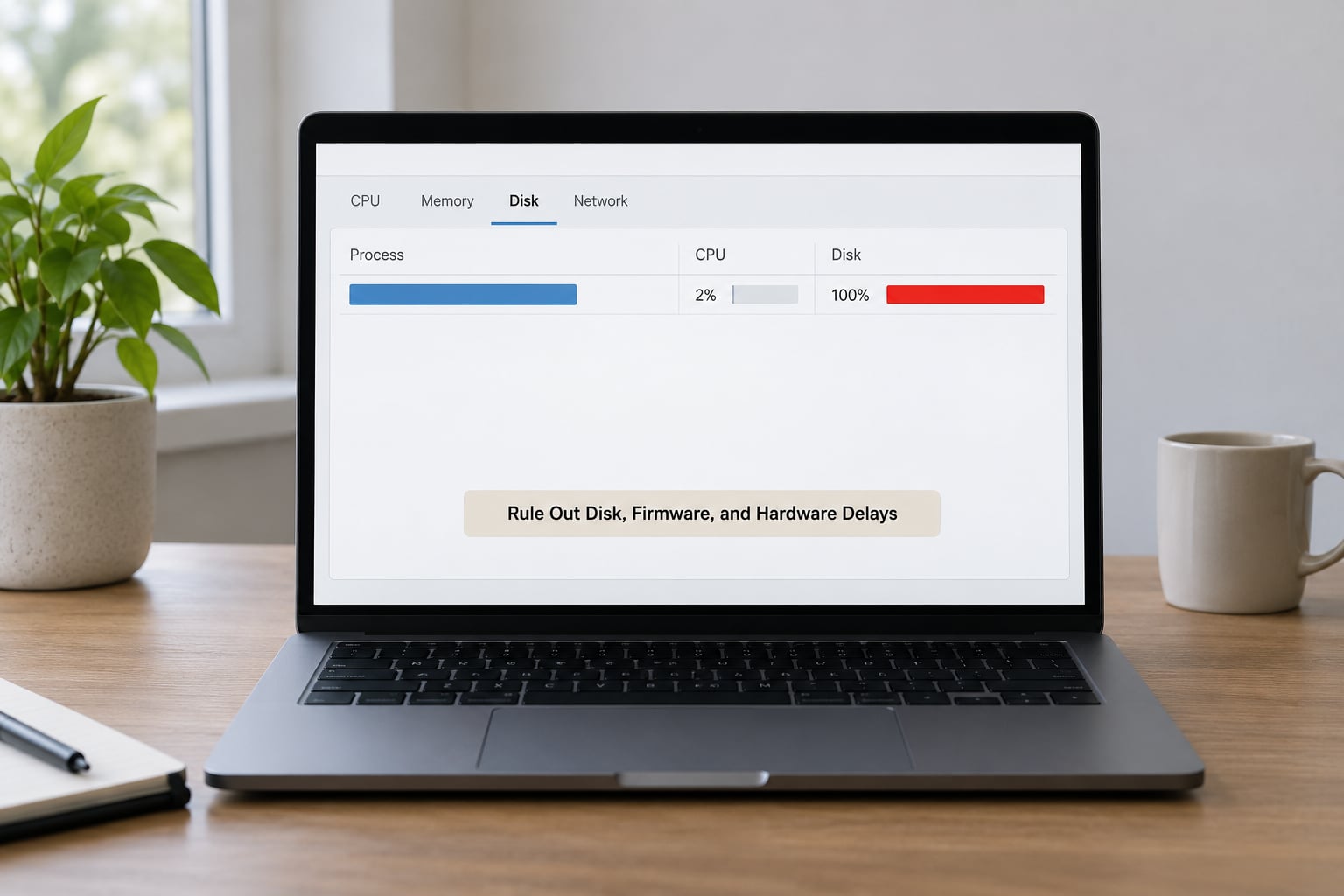
This also answers the most common confusion in support threads: Task Manager showing 15 or 20% CPU while everything crawls. CPU and RAM can look idle while the storage queue is saturated, because the bottleneck is the disk waiting on reads. Check the Disk tab for a queue length that stays high and a process pinning 100% active time. In practice that process is usually the Windows Search indexer or Antimalware Service Executable scanning a freshly booted volume, and it settles once the scan finishes. A drive that sits at high active time constantly is a drive heading for failure, and no cleanup tool will help it.
Firmware settings matter too, and only for the pre-logon phase. Enter the BIOS or UEFI setup with the key your manufacturer uses (Delete or F2 on Dell, F1 or F2 on Lenovo), and look at three things: Fast Boot, which skips parts of the initialisation you may want to see, Memory Context Restore, which restores the previous memory state and can carry a fault forward across reboots, and CSM, the legacy compatibility module that adds a step before Windows starts.
Storage type sets the floor. A machine on a mechanical drive will never boot quickly no matter what you disable, and a system drive under about 15% free space makes even an SSD feel slow during the heaviest part of boot. Check available space in Settings, System, Storage.
8. Confirm the Fix and Record the Result
Repeat exactly the measurement from step 1: three cold boots, timed to a usable desktop, plus the Startup tab numbers. If the median dropped, the change worked. If it did not, re-enable that entry and move on; you have spent your time and gained information.
Keep a short log in that notepad file: date, what you changed, before and after numbers. Two entries matter for most readers, and they are the ones worth repeating next time the machine gets slow. Re-enable anything that made no measurable difference, and leave disabled only the things you genuinely do not want running at sign-in.
If you want attribution down to individual services and drivers rather than a ranked list, run a boot trace: open Command Prompt as administrator, run wpr -boot, restart the PC, then run wpr -stop boot.etl. Open the trace in Windows Performance Analyzer, which ships with the Windows Assessment and Deployment Kit, and the timeline shows where the boot time went. That is the deepest answer Windows gives you without buying anything.
Common Mistakes
Disabling everything at once. You end up with a fast boot, no idea which change did it, and a machine that no longer opens what you need. Disable one entry per restart and measure each time.
Treating Task Manager as the complete list of auto-start entries. It is not. Services, scheduled tasks, drivers and shell extensions never appear there, which is why a spotless Startup tab can still mean a two-minute sign-in. Use Autoruns from Sysinternals, or services.msc, to see the rest.
Deleting registry entries or using a registry cleaner. Registry keys for startup items are load-bearing, and cleanup tools that rewrite them cause problems that are far harder to fix than a slow boot. Disable in the UI instead.
Changing services without knowing who owns them. A service set to Manual that another app expects at Automatic will fail later, usually with an error that points nowhere near the real cause. Change one service, test it, and keep a note of what you set.
Measuring once. The first boot after a restart is always slower than the ones after it, and a busy background is common in the first minutes after an update. Three boots and a median is the minimum for a number you can trust.
Confusing a slow sign-in with a slow boot. If the desktop appears quickly and then loads apps for two minutes, that is startup-app cost, and the Startup tab is your tool. If the logo screen itself lingers, it is pre-logon, and Task Manager is the wrong place to look.
A couple of habits worth keeping. If a machine got slow right after an update, give it time before diagnosing: background optimisation of .NET components and Windows Modules Installer (TiWorker) can peg CPU for 10 to 60 minutes after a feature update, and that is normal. And run DISM then SFC as a diagnostic step when boot is slow on an otherwise clean machine: open an administrator Command Prompt, run DISM /Online /Cleanup-Image /RestoreHealth, let it finish, then run sfc /scannow. Repaired system files are a finding worth recording.
If a boot record is what you suspect rather than slow startup, boot into the recovery environment the same way and open Command Prompt, then run bootrec /fixmbr and bootrec /fixboot. That repairs boot files, not slow ones.
Frequently Asked Questions
What is slowing down my computer startup?
Usually one of five things: auto-start programs ranked by Startup impact in Task Manager, third-party background services, storage so slow or so full that reads hold up boot, firmware settings such as Fast Boot, or post-update background work. Event Viewer and Resource Monitor separate the causes, and timing whether the wait happens before sign-in or after narrows it further.
Why does Task Manager show low CPU while my PC is slow?
Because CPU and memory are often not the bottleneck. When the storage queue stays long, the CPU sits idle waiting on disk reads, which is why 20% usage and a crawling desktop appear together. Open Resource Monitor with resmon, go to the Disk tab, and look for a long queue length and a process near 100% active time. If that process never settles, suspect a failing drive.
Why does Windows 11 take so long to open startup apps?
Because each app launches after sign-in and many of them queue on disk access, so the delay accumulates at sign-in rather than at boot. Open Task Manager, click the Startup tab, and sort by Startup impact. Entries marked High with several seconds each are the ones costing you that time. Disable the ones you do not need daily, then compare your next sign-in against the one you recorded.
What does pressing F8 on startup do?
On older Windows versions F8 opened the Advanced Boot Options menu, where you could start Windows in Safe Mode or repair a boot record. On Windows 10 and Windows 11 that key no longer does this. The same menu is now reached by holding Shift while choosing Restart from the power menu, or through the recovery environment after three failed boots.
Should I disable Fast Startup?
Fast Startup hibernates the kernel session when you shut down, so the next power-on skips part of initialisation. It makes warm restarts feel quick, but it can hide a driver or disk fault because the session is restored rather than rebuilt. Turn it off in Control Panel, Power Options, Choose what the power buttons do, to test whether your slow boots are real cold boots.
How do I clean boot Windows 11 to find a slow third-party program?
Press Win+R, type msconfig and press Enter, then open the Startup tab and choose Diagnostic Startup. Windows restarts into a clean session with only Microsoft services and no third-party auto-start entries. If the machine boots fast there, one of your installed programs is responsible. Reboot normally, re-enable half the disabled startup entries, and test again to find it.
Conclusion
Start with the number, not the fix. Time three cold boots and note whether the wait is before sign-in or after. Sort the Startup tab by Startup impact and disable one high-impact entry at a time, measuring after each. If nothing on that tab explains it, read the System and Kernel-Boot logs in Event Viewer and watch disk activity in Resource Monitor. That sequence finds the cause, and it leaves you able to prove which change actually helped.